Release notes 3 min read
Warn the public from the trail
A task or a structure can now warn trail users from where the crew is standing, and the field app's home screen counts what you are warning about. Plus points and infrastructure with more than one type, trail wetness and the full build estimate.
Field app update, October 13.
This update is about telling the public what your crew already knows. A task or a structure can now warn people from the trail, the moment somebody files it, and the home screen counts what you are warning about. Around it: points and infrastructure that can be more than one thing, a trail's wetness on its own sheet, and the full build estimate in the planner.
Your home screen at a glance
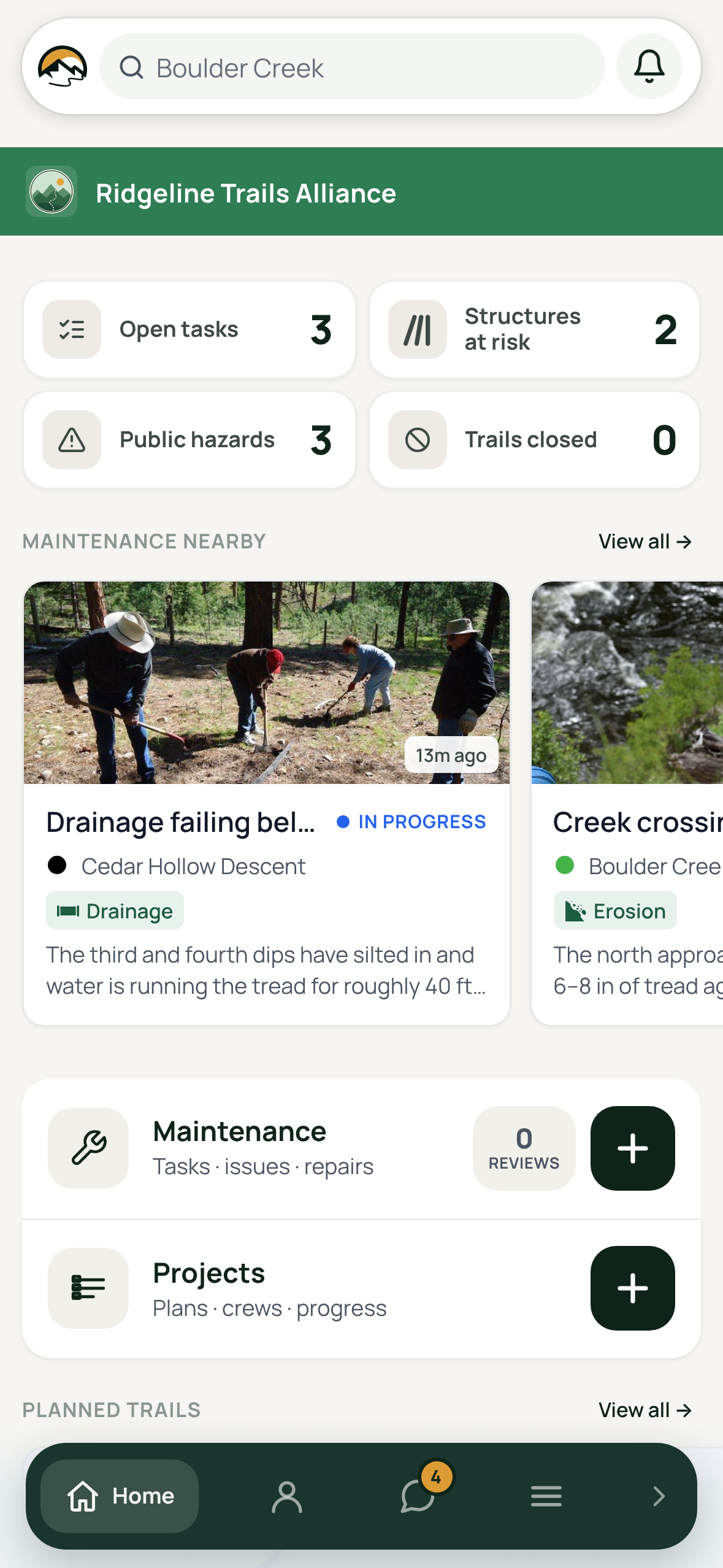
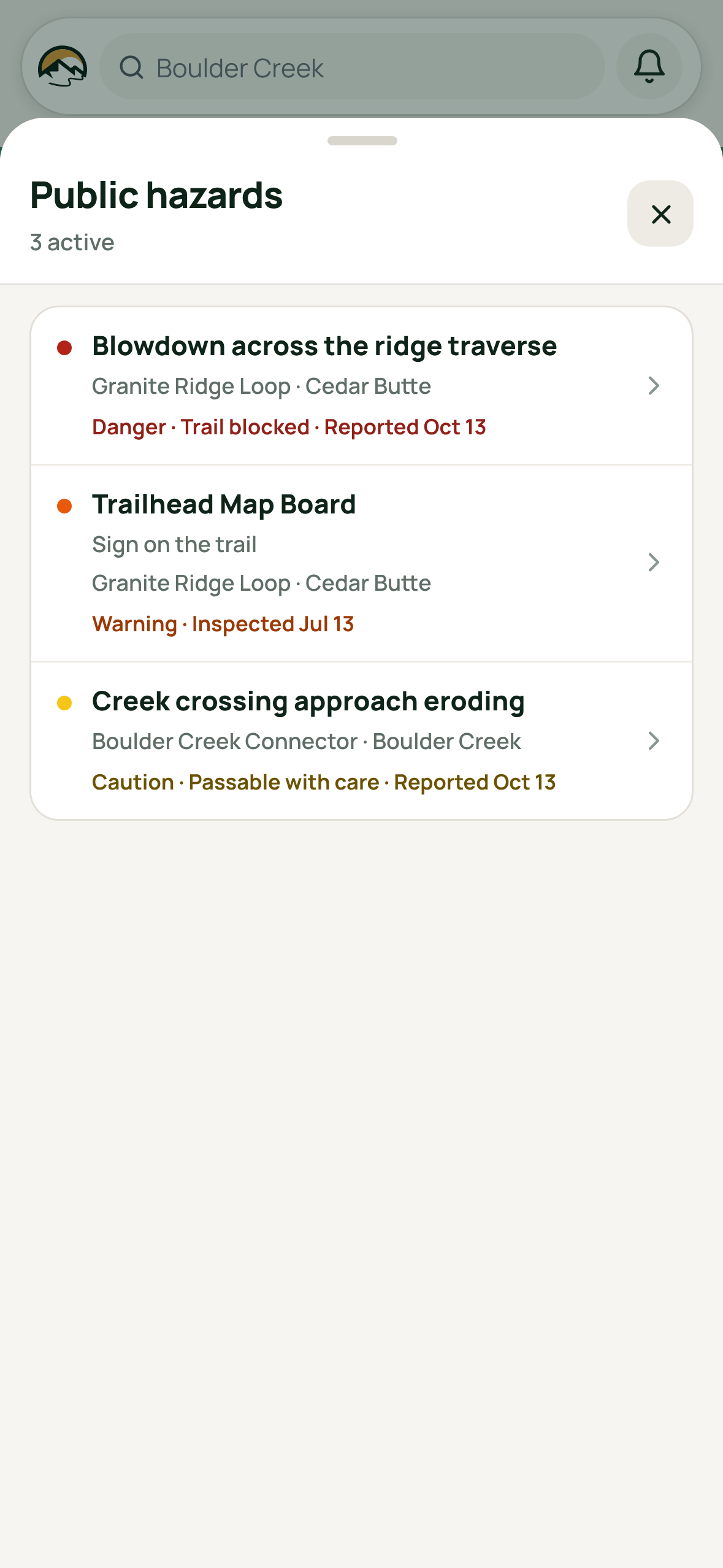
Home opens on four tiles: open tasks, trails closed, structures at risk and public hazards, each with its count. Tap one to go straight to that list. Public hazards is new, and it opens a list of everything your organization is warning the public about right now, most severe first. Each row opens its task or structure.
Warn the public from the trail
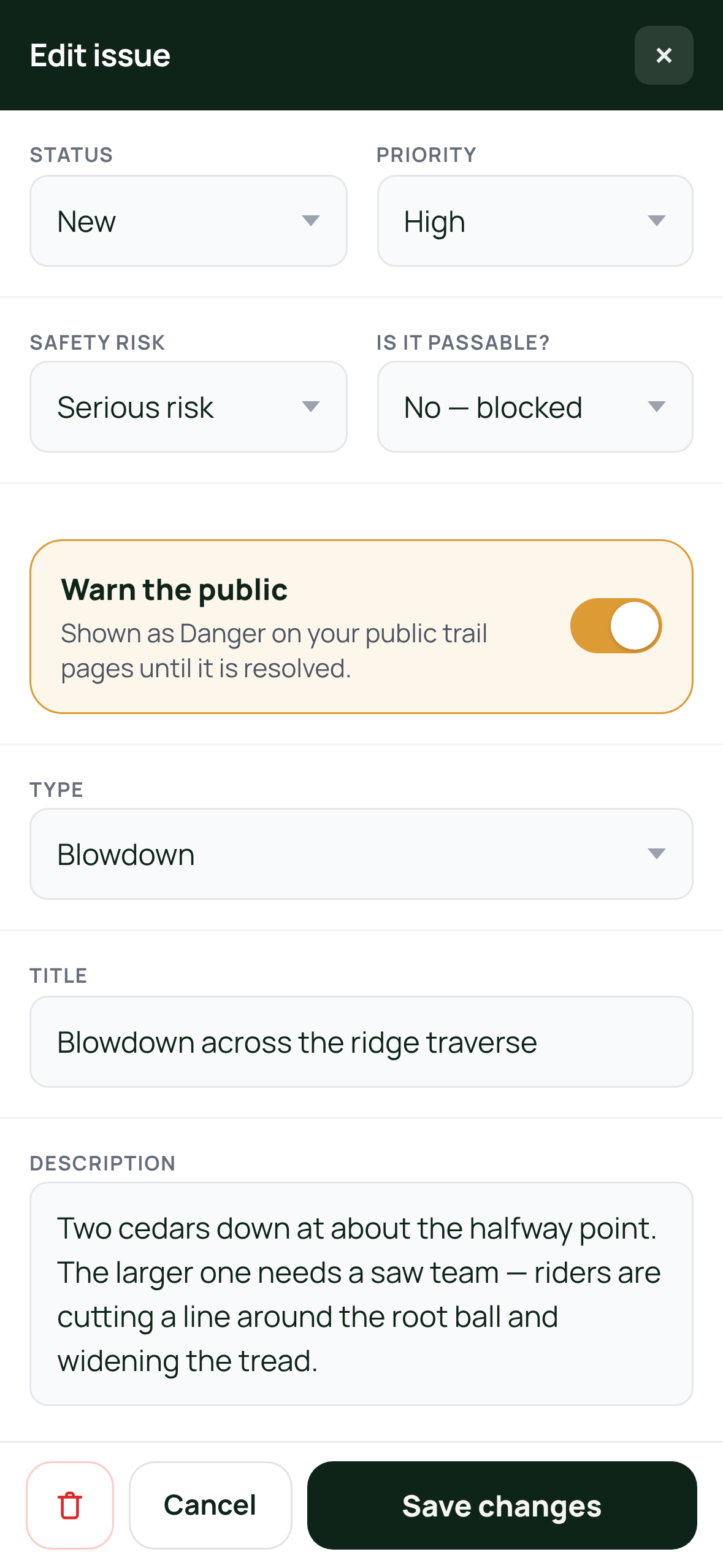
A task can warn trail users. Turn on Warn the public when you file it, or later from its edit sheet, and it shows as a hazard on your public trail and network pages, your website, your embedded status and in TrailsIQ Go, with a pin where it is. The level follows the crew's own answers about risk and whether the trail is passable, from Notice up to Danger, and the warning comes down by itself when the task is resolved. Your crew's description stays private.
So can a structure. When a bridge, a boardwalk or a gate is rated marginal or worse, the inspection and the edit sheet both offer the same switch. The public sees what it is and what the newest inspection found, in the inspection's own words: Bridge on the trail · Decking: Soft underfoot. A later walk rated fair or good takes the warning down.
Every published task carries a Public pill with its level, on its sheet and in the task lists, so the crew can see at a glance what trail users are being told.
Points and infrastructure can be more than one thing
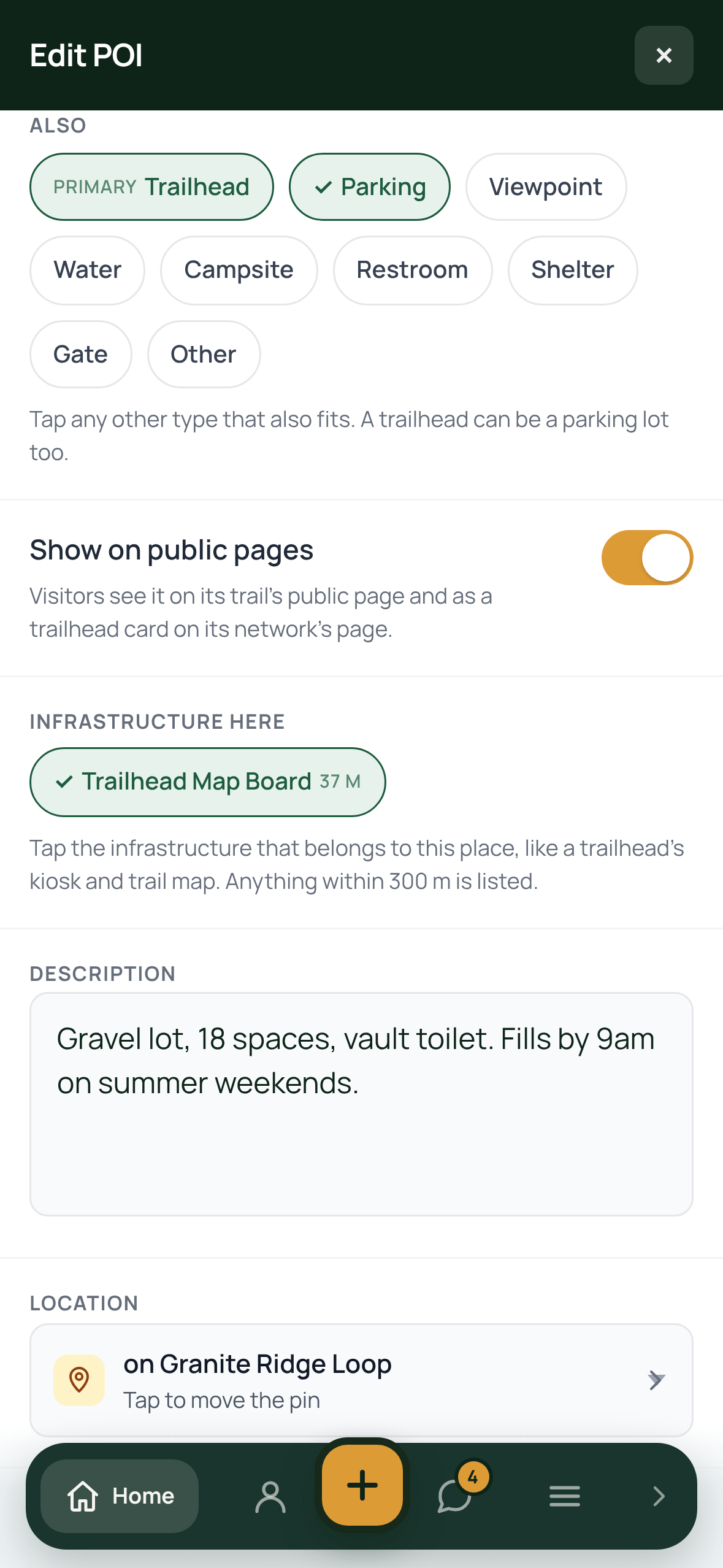
A trailhead is often a parking lot too, and a kiosk is a map board as well. Points and structures keep one main type for their icon and color, and an Also row takes any others that fit. Filters, counts and exports find them under every type they carry.
A point names the infrastructure standing at it. Infrastructure here offers every structure within 300 meters, nearest first, and each structure says which place it is part of, so the trailhead lists its kiosk and its trail map and both are a tap apart.
Choose which points go public. A Show on public pages switch puts any point on its trail's public page with a map pin, or keeps a trailhead off it. Left alone, trailheads and parking show as before and everything else stays private.
Every point and structure now says when it was added and by whom.
How wet is this trail?
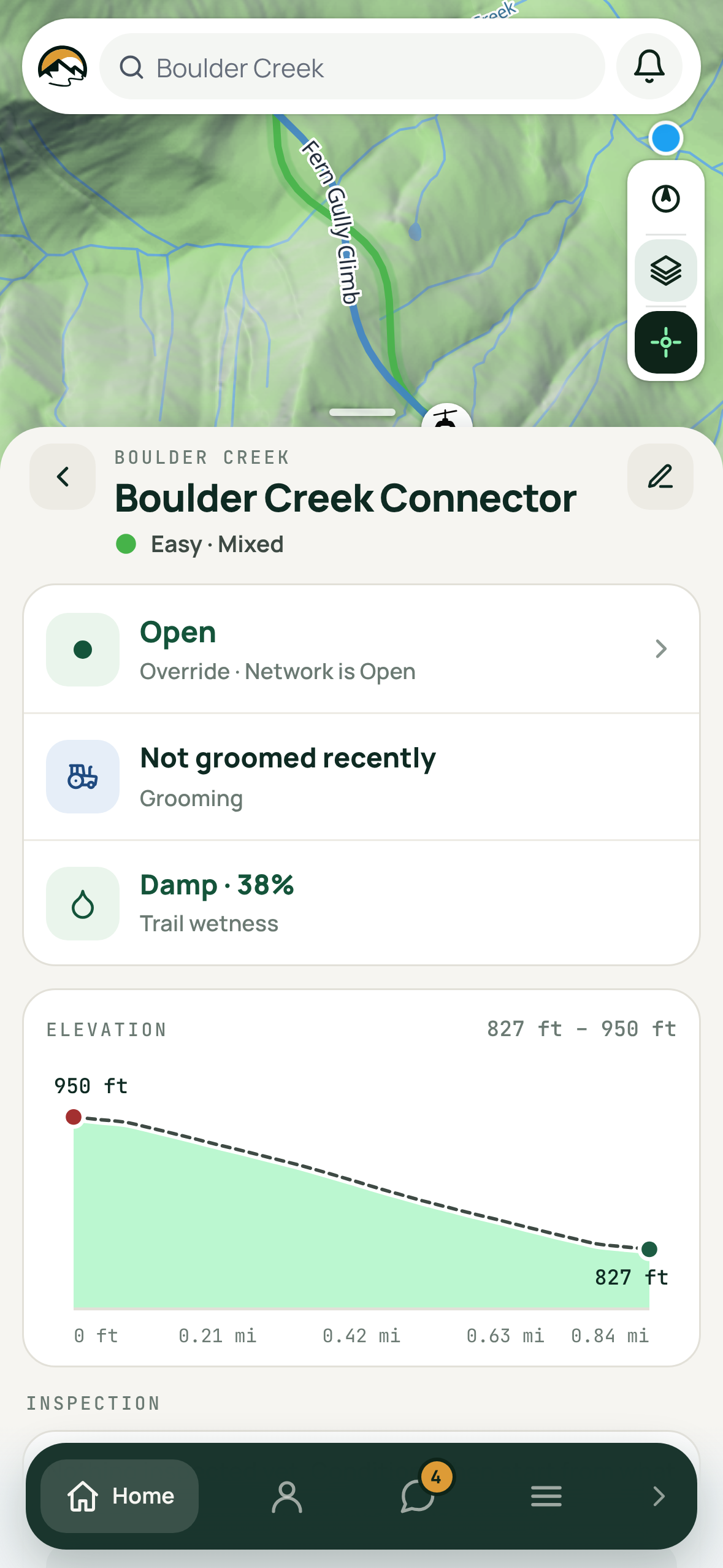
A trail's sheet has a Wetness row, under Grooming: the trail's own reading from your weather, from Bone Dry to Saturated, colored by what it recommends. When that recommendation differs from the trail's status, the row says so. It shows whenever your weather automation is on, and reads the same as your website and dashboard.
The whole estimate, in the planner
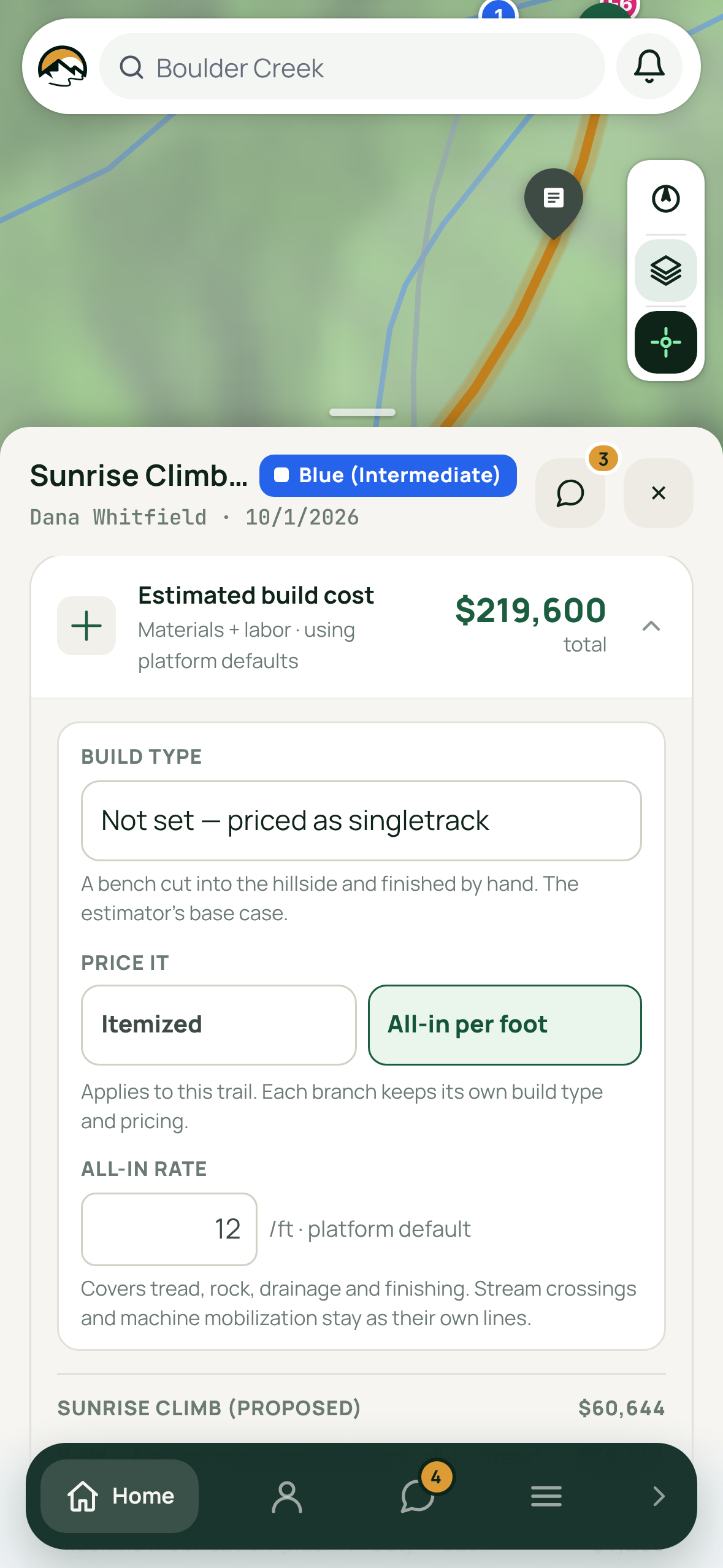
A planned trail's estimate card has the dashboard's controls on the phone: pick the build type, compare itemized pricing with an all-in price per foot, and set this trail's own all-in rate, with your organization's rate offered back. Exclusions and contingency set on the dashboard stay as they are.
Also in this update
Worked time reads as time: 30 min, 1 h 30 min, wherever hours are shown. Timesheet exports keep decimal hours for payroll.
A task's linked structure photo opens in the photo viewer, with every picture the structure has.
Hazard is no longer a built-in point type, now that a task can warn the public itself. If you already have points typed Hazard, they keep it as a type of your own until you move them.
When the update reaches your phone, the field app says Update available. Tap Update now when you are ready, or find the same row in the menu later.