Umbrella accounts
Running an umbrella account
For the organization holding the account: inviting chapters, reading the overview and reports, hours across every chapter, who else can sign in, places and billing, and what an umbrella can never see.
An umbrella account is for an organization that looks after other organizations — a state association, a regional alliance, a parent club with chapters. It pays for the plans its chapters are on, and it gets one place to read what all of them are doing.
It is a separate sign-in from a workspace. Everything below lives under HQ, which is where you land when you sign in to an umbrella account, and it is not the same thing as your own organization's dashboard. If you have both, the workspace switcher at the top of the sidebar moves between them.
Setting one up
We create the account and set how many chapters it can host. That part is a conversation rather than a form — ask us and tell us the name and roughly how many chapters you expect.
Everything after that is yours: inviting the chapters, adding the rest of your staff, and changing the account's own details.
Overview
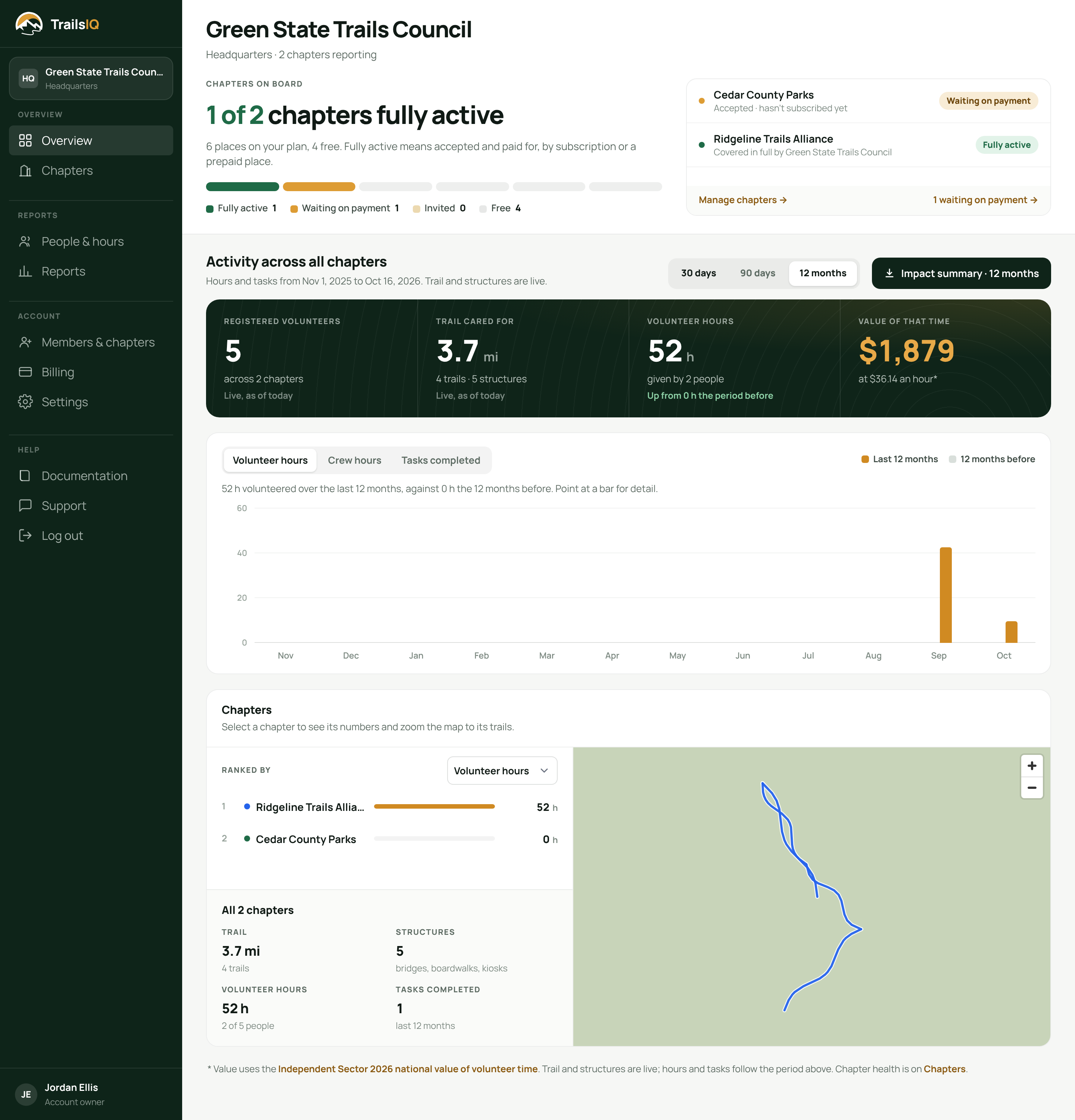
The first screen is the one to show a funder or a board: what your chapters add up to. It reads over a window you pick — 30 days, 90 days or 12 months — and opens on 12 months, because the figure somebody quotes in a grant application is a year's.
It opens on Chapters on board: how many of your chapters are fully active, meaning they have accepted and their plan is paid for: by you paying all of it, or by a subscription of their own for the part you do not pay. A prepaid place pays your share only, so a chapter you pay part of counts as fully active once it has subscribed for the rest. A bar shows every place on your plan, colored by who is in it: fully active, waiting on payment (accepted, and their share not started yet), invited, or free. Beside it, the chapters still to do are listed first, each saying why, with links to manage your chapters and to Billing. If your cover starts on a later day, the headline counts your chapters as waiting for cover to start until then, and the chapters that will be fully active say which day they start. Until your own plan is paid for, it covers nobody: every chapter that has accepted shows as waiting on payment, and the block says why before anything else.
Under that is the activity across all chapters, and four figures lead it:
- Registered volunteers — everybody your chapters count as volunteers today: the people on their teams, and everybody on their Volunteers lists, such as event signups and walk-ins. Anybody a chapter marks as paid staff on its Team page is left out; their hours show as crew.
- Trail cared for — the length of trail your chapters look after today, how many trails that is, and how many structures are on them.
- Volunteer hours — approved hours across every chapter over the window from members who are not paid staff, and how many volunteers gave them. Each chapter marks its own paid staff on its Team page, with the day that started; their hours from that day on are shown underneath as paid crew hours and are never added in or given a value. Holiday, vacation and sick days are left out entirely, because time off is not time given. Volunteers from outside a chapter's team, logged on a task as a number, are counted in: each of them for the length of the session. So is everyone who came to a chapter's events, for the length of the event unless the chapter entered their own hours, and they are in the count of volunteers too. You see these as totals, never names. Time logged against tasks that nobody has approved yet is never added in.
- Value of that time — those hours at the national value of an hour of volunteer time published each year by Independent Sector, which is the figure funders and grant forms usually ask for. The rate carries an asterisk, and the line under the figures names the source and links to it, so anybody reading your numbers can check it.
Volunteer hours say how they moved against the period before: the 30 days before the last 30, or the 12 months before the last 12.
Under them:
- The period against the one before — volunteer hours, paid crew hours or tasks completed (maintenance your chapters marked done), switched at the top of the chart, a pair of bars for each week or month: the window you picked in amber, the same stretch of the period before it in gray behind. Point at a pair to read both numbers.
- Chapters — every chapter ranked by trail length, volunteer hours, crew hours, tasks completed or hours per mile (hours per km in metric), chosen in Ranked by above the list. The last one is volunteer hours for every mile or kilometer of trail a chapter looks after, which is the fairer comparison between a small chapter with a busy crew and a large one. Press a chapter to see its trail, structures, hours (and how many of its people gave them) and tasks under the list, with a link to its own page, and to zoom the map beside the list to its trails; press it again to go back to every chapter. Pointing at a chapter lifts its trails above the rest. The map zooms with your mouse wheel or trackpad like any other map.
Impact summary turns the page into a one-page PDF with the headline figures, this calendar year against the last month by month, and the chapters side by side, sized for US Letter. If you have added a logo under Settings, it goes at the top.
Trail length is what your chapters have today; hours, their value and tasks are totals over the window. The page says which is which beneath the figures.
Miles or kilometers
Every trail length under HQ, on screen, in the PDF and in the spreadsheet export, follows the Units setting on your own profile. Left on Auto, it follows the country set for the umbrella account: miles in the United States, kilometers almost everywhere else. Pick Metric or Imperial on your profile to override that for yourself; everybody else on the account keeps their own choice.
Chapters
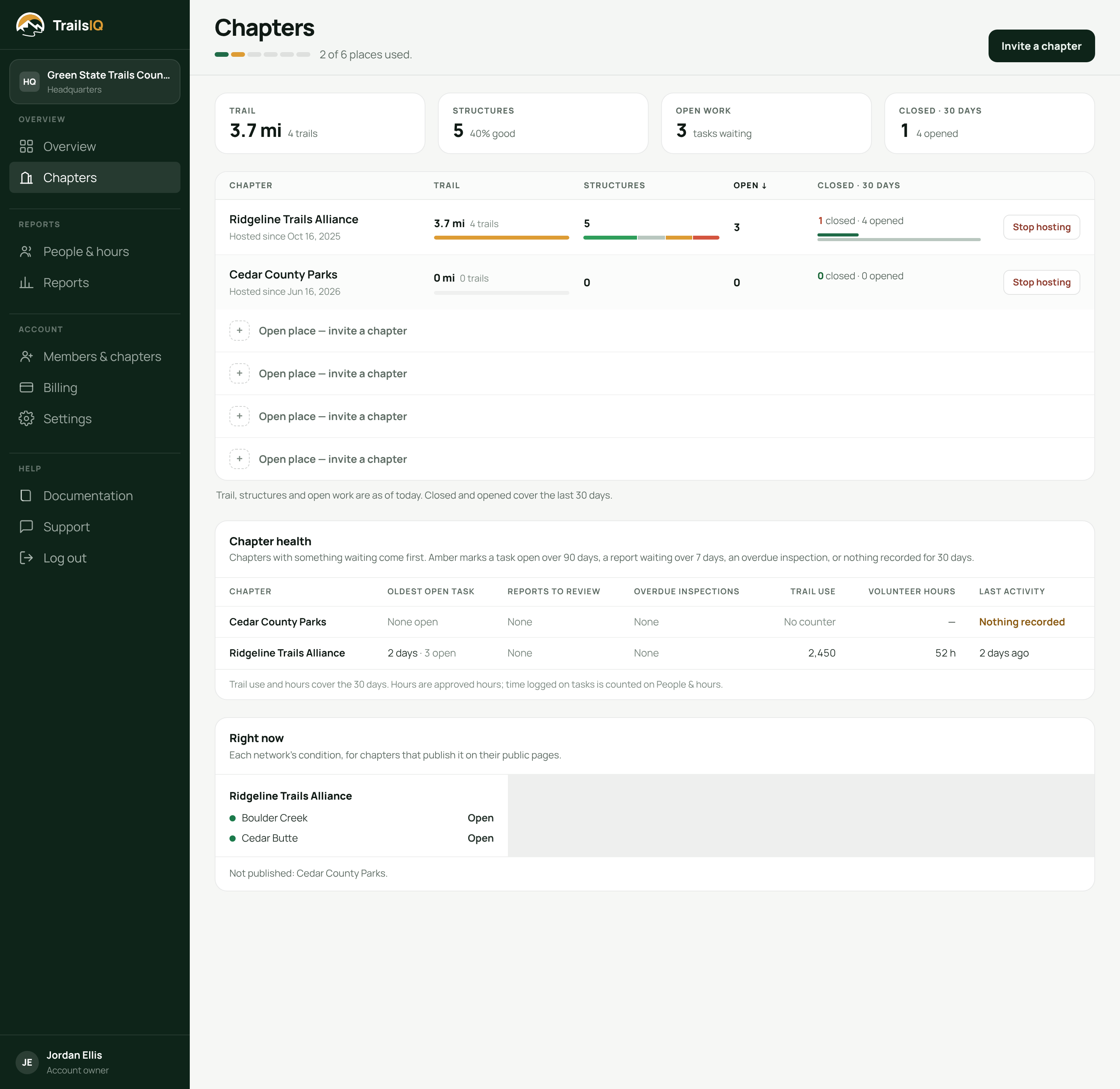
HQ → Chapters is the list of who you host, who you have asked, and how many places you have left.
Inviting one
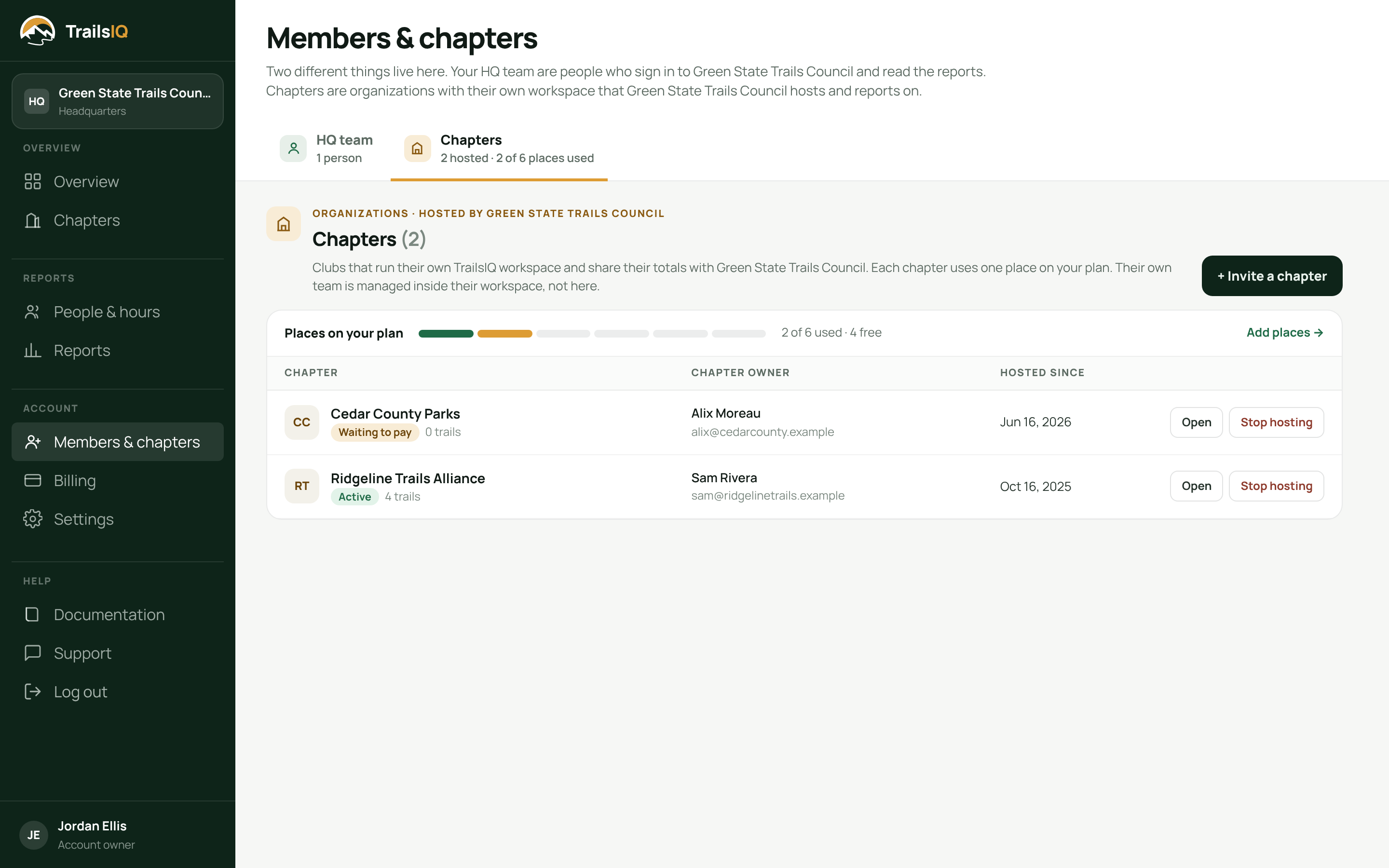
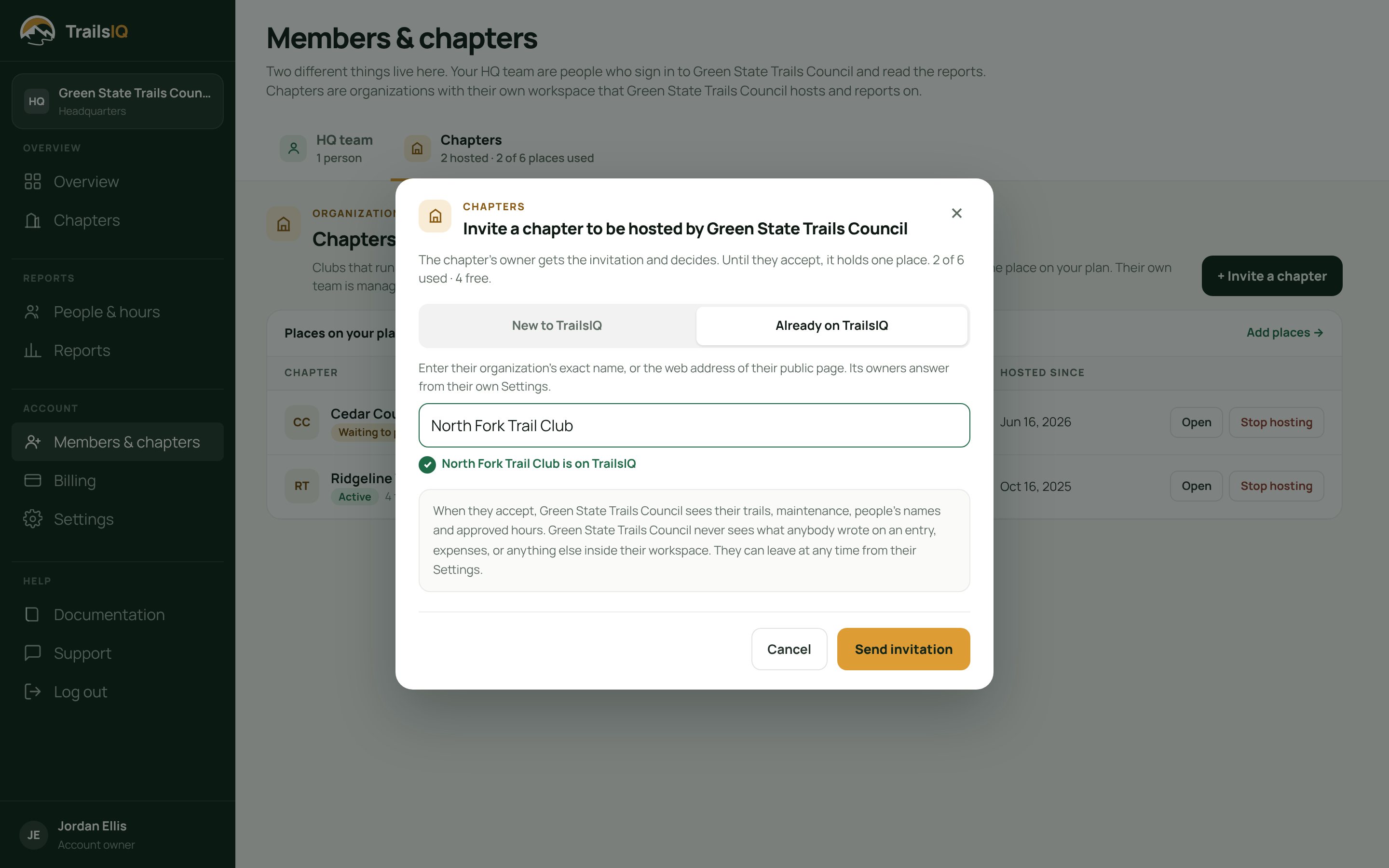
Invitations are sent from HQ → Members & chapters. Invite a chapter on the Chapters page takes you there with the invitation already open.
There are two doors, and the box takes either:
- An organization already on TrailsIQ. Type their name, or paste the web address of their public page. They get an invitation and decide whether to accept.
- An email address. For an organization that is not on TrailsIQ at all. The link sets up their workspace and joins them to you in the same step, so they never have to sign up first and then wait to be found.
For an organization already on TrailsIQ, a green check appears once what you typed matches one exactly, with its name, so you know the invitation is going to the right place. Part of a name never matches: it is a lookup, not a directory. If the organization is one you already host, the box says so and Send invitation stays off.
An emailed invitation can carry a short note. It is the one part of an invitation that makes it read as a person asking rather than as a system sending.
An invitation holds a place while it is outstanding. If you host eight of ten and invite two more, you have none free until somebody answers — which is what stops an account quietly promising more places than it bought. Withdrawing an invitation gives the place straight back.
Accepting is theirs
You cannot add a chapter, only ask one. Somebody with the owner role at that organization has to accept, and until they do, nothing about them is visible to you.
An emailed invitation lasts three weeks. After that the link stops working, but the place stays held until you withdraw it: the list marks it expired, so a place never frees itself without you seeing why. An invitation to an organization already on TrailsIQ does not expire.
Who needs a call
Under the list are the two panels that answer "which chapter should I ring", all over the last 30 days:
- Chapter health — one line per chapter: how long its oldest open task has been open, how many public reports are waiting for review, how many structures are past their inspection date, its trail use and hours, and when anybody last recorded anything. Chapters with something waiting come first, and the figure that is the reason is marked. It is a count or a date every time, never which task, report or structure.
- Right now — each network's condition today, for chapters that show it on their own public pages. A chapter that keeps its trail status private is named at the bottom instead, and you see nothing more of it here than the public would.
Stopping
Stop hosting takes a chapter off the account. It asks you to type the chapter's name first, because it is not a decision somebody there made: their plan goes back to whatever they pay for themselves, the same day.
They can also leave on their own, without asking you. That is deliberate — an organization that cannot get out of an arrangement it agreed to has not agreed to anything.
A chapter's own page
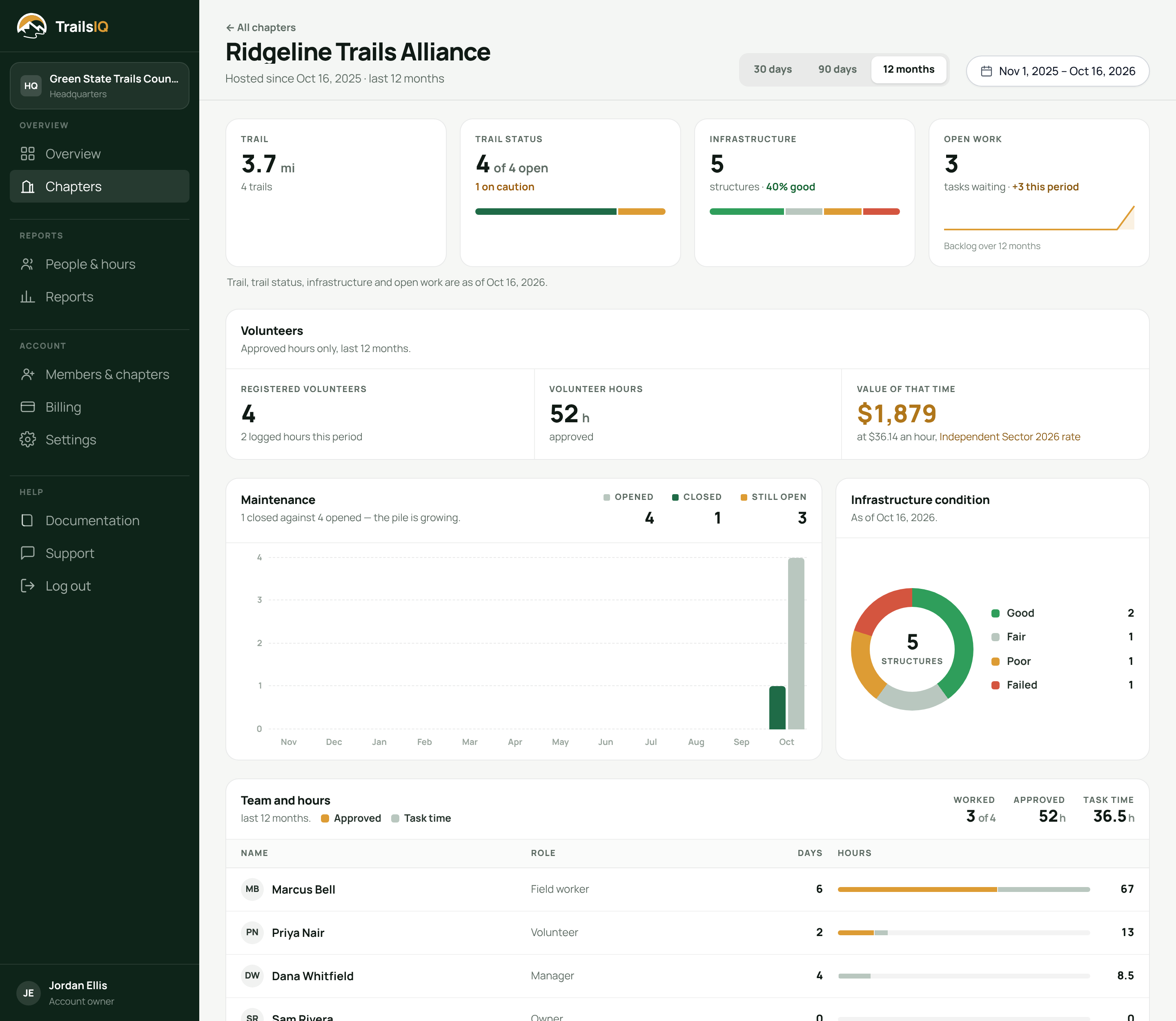
Clicking a chapter opens the same figures for that one organization, over a window you pick. It opens on 12 months, like the overview:
- Trail, trail status, infrastructure and open work as of today. Trail status counts how many of the chapter's trails are open, on caution or closed; a trail on caution still counts as open. A chapter that keeps its trail status private shows that instead of the counts.
- Volunteers: registered volunteers (the team and the Volunteers list, paid staff left out), how many of them logged approved hours, those hours, and what that time is worth.
- Maintenance: tasks opened, closed and still open, bar by bar across the window.
- Infrastructure condition and Team and hours, with everyone on the chapter's team and the hours they worked.
It is a reading screen. You cannot open their workspace from it, edit anything in it, or close a maintenance item on their behalf.
People and hours
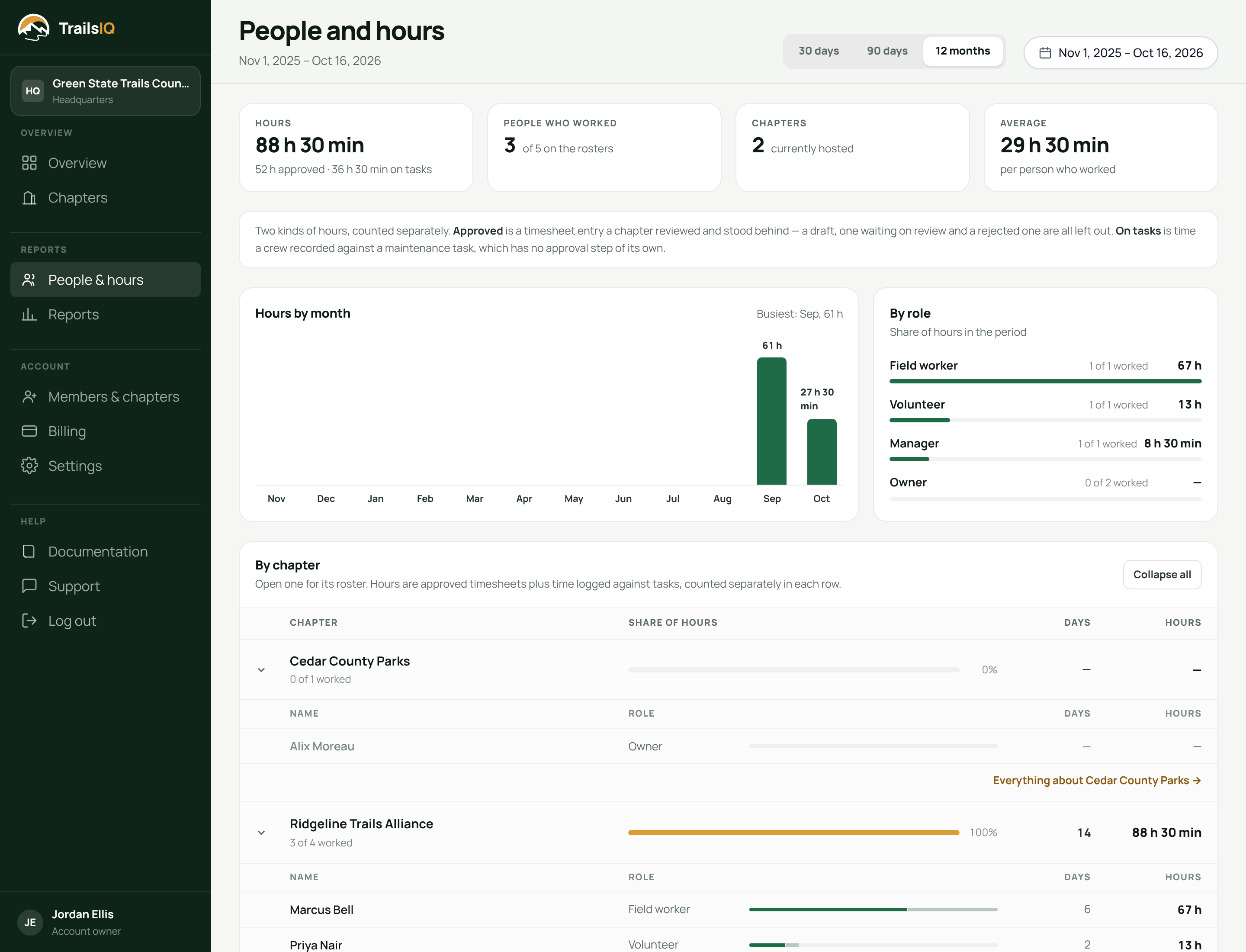
HQ → People & hours is every volunteer and staff member across every chapter, with the hours they have worked in the window.
It defaults to the last twelve months rather than thirty days, because the question this screen is usually open for is an annual one — an insurance return, a grant report, a board pack. You can pick any range with the date picker, and a range you choose wins over the tabs.
It shows:
- Hours by role, so you can see how the work splits across the chapters.
- A month-by-month strip of hours across the whole account.
- Every person, with which chapter they belong to, how many hours, and how many separate days they turned out.
- Every chapter, with its people, its hours and its days worked.
Approved hours and task time are counted separately, and that is not a rounding decision. An approved work-hours entry has been through somebody's review at the chapter. Time logged against a maintenance task has not yet — it is what a crew recorded while they were doing the job, and it reaches the chapter's review as a work-hours draft. Adding the two together would report hours as reviewed that nobody has reviewed, so they sit side by side under their own headings. When the chapter approves a session's draft it moves out of task time and into the approved hours, so it is counted once.
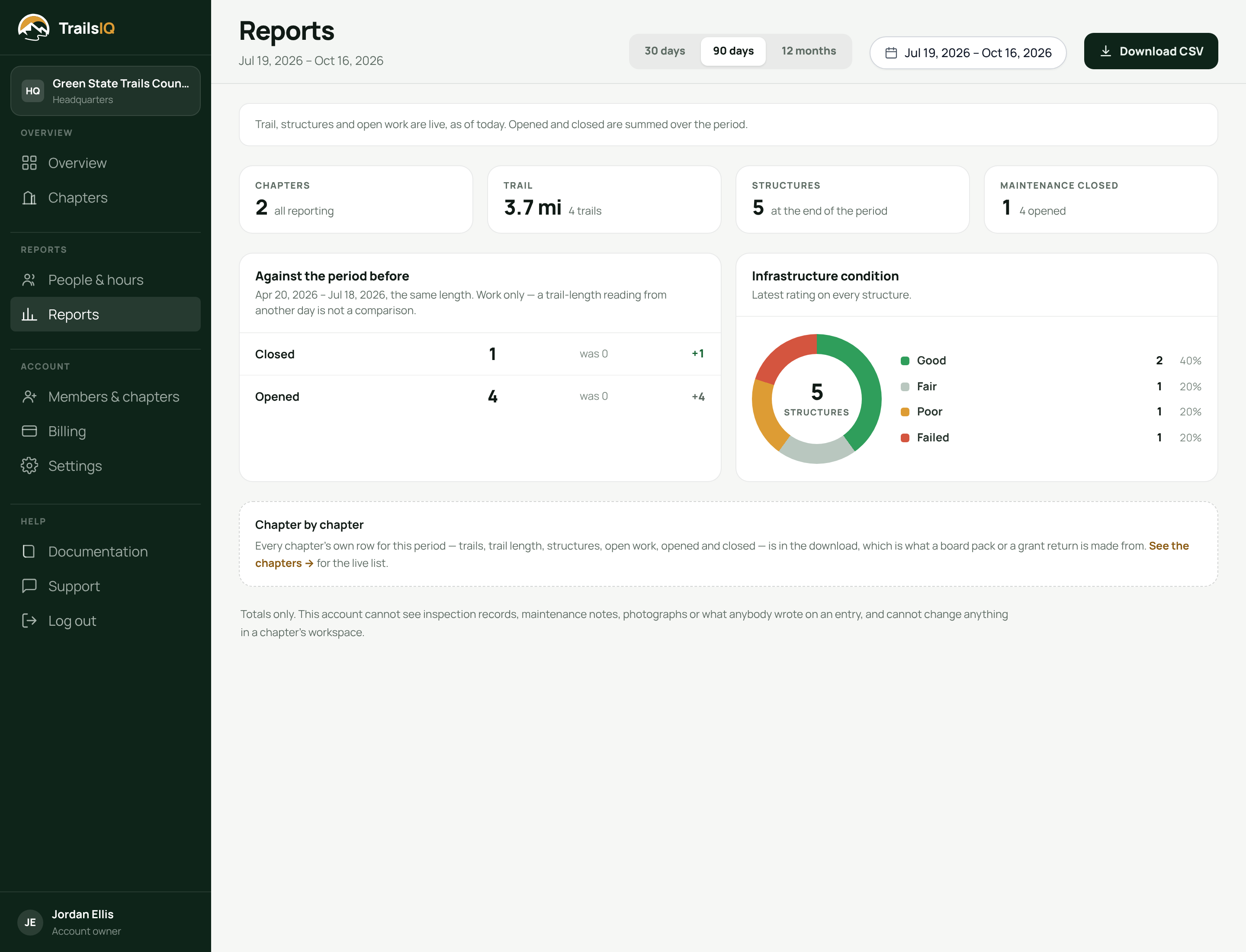
Reports
HQ → Reports is your chapters' figures with a different job: it is what a board pack or a grant return is made from.
Three things it does that the overview does not:
- Any date range, not just the three windows.
- The period before, the same length, beside the current one. A quarter means very little without the quarter before it, and working that out by hand meant running the report twice and subtracting.
- Export, which gives you a spreadsheet with a row per chapter. The per-chapter table is in the file rather than on the screen, because a table you cannot take away was the wrong half to keep.
The comparison covers work opened and closed and nothing else. Comparing trail length or structure counts between two periods compares two readings taken on different days — close to meaningless if a chapter joined in between — so the page does not offer a number it cannot stand behind.
A chapter that left during the range is still in the figures, and the page says how many. Its work still happened inside the window you asked about; a total that silently dropped it would be a different number every time somebody left.
Members and chapters
HQ → Members & chapters has two tabs, and they are different things.
- HQ team is who can sign in to the umbrella account: your board and staff. A Reader reads the reports; an Owner can also invite chapters, add people and change the account. Somebody who already has a TrailsIQ account is added straight away, and emailed to say so with a link to this account. Anybody else is emailed an invitation, and joins once they accept it. This is not your chapters' own teams. Those are managed inside each chapter's workspace, and nobody on the HQ team can open one.
- Chapters is the organizations you host, with each chapter's owner and the date it joined, and every invitation still waiting for an answer. Each chapter is marked Active once it is accepted and paid for, or Waiting to pay while it still has its own part of the plan to pay. The bar above them shows the places on your plan in the same colors: green for a chapter that is fully active, amber for one still to pay, pale for a place held by an invitation, and gray for a free one. The places bar on Chapters reads the same way.
Your HQ team
Two roles:
- Owner reads everything, and can invite chapters, stop hosting them, add and remove members, and change the account's own settings.
- Reader reads the reports and changes nothing.
Anybody on the account can see the list. "Who can read our chapters' figures" is a question everybody on the account is entitled to answer without asking somebody.
Somebody you add does not need a TrailsIQ account. Without one, they get an invitation instead, and its link sets one up with no workspace attached — an account for reading these reports and nothing else. They are not on the account until they follow it, so the list marks them Waiting until they do, with Copy link on the row in case the email did not arrive.
The only owner cannot be removed or demoted. An account with no owner cannot invite a chapter, change its own settings, or appoint an owner again — every way back is behind the role that just went. Make somebody else an owner first.
Your chapters
Invite a chapter opens the invitation described under Inviting one above. It reads No free places when every place is filled or held; withdraw an invitation, or use Add places to see your plan.
An invitation sent by email has Copy link beside it, for the same reason as above: if the email went astray you can send the link yourself. An invitation to an organization already on TrailsIQ has no link, because they answer it from their own Settings.
Open goes to the chapter's own page. Stop hosting works as it does on the Chapters page.
Billing
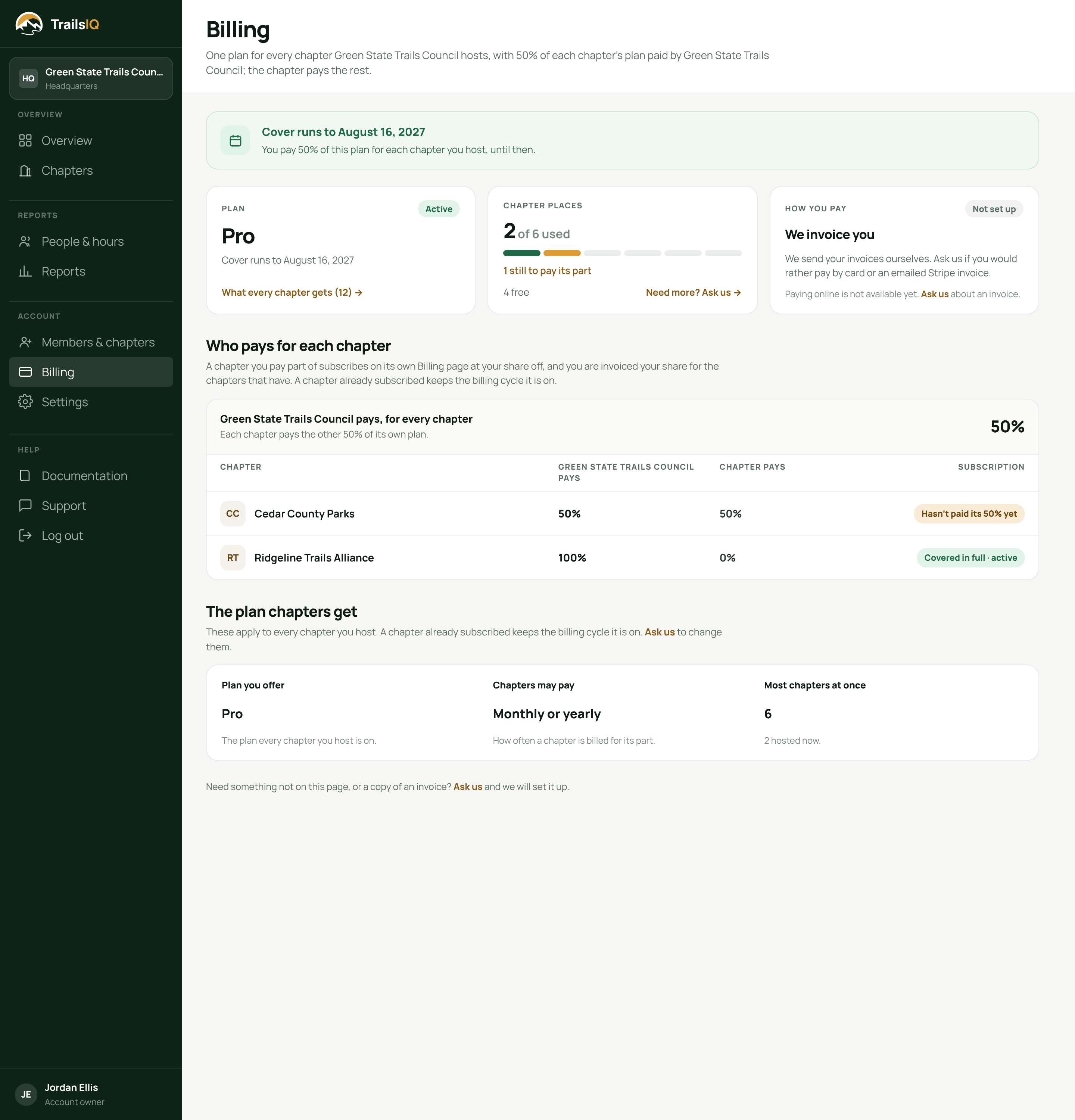
HQ → Billing shows the plan your chapters are on, the date the account is paid through, and how many places are used, held by an outstanding invitation, and free.
It also lists what a hosted chapter actually gets on that plan, in the same words their own Settings page uses.
When the account is not paid through, hosting stops entitling anybody. Your chapters go back to their own plans that day and the page here says so. It separates three cases — never paid, expired, and suspended — because "not active" with no reason behind it is not something you can act on.
Paying part of each chapter's plan
An account can pay all of each chapter's plan, or a share of it, and the share can be one figure for every chapter or set chapter by chapter. At all of it, every chapter you host is on your plan the moment it accepts, as above. Below that, each chapter subscribes to your plan on its own Billing page at your share off, and you are invoiced your share for the chapters that have.
When some chapter is paid in part, HQ → Billing lists those chapters with the share you pay, whether each has subscribed and on which cycle, and what your share comes to a month and a year. That total is what your invoice is built from.
Changing a share takes effect on that chapter's next invoice, and a chapter that leaves stops costing you from its next one.
How you pay your share
Your share is billed once a month: every chapter payment since the last invoice, on one bill, plus sales tax where it applies. A month with nothing owed sends no bill and charges nothing. An owner chooses how it is paid under How you pay on HQ → Billing, with Set up payment:
- Card on file. The invoice is charged to the card automatically. You add the card on Stripe's secure page, and the Billing page names the card it will charge.
- Emailed invoice. The invoice is emailed to the address you give, with a link to pay by card or bank transfer, due in 30 days.
Both ask for a billing address, because tax is worked out from it. Change switches between the two or updates the details at any time; the next invoice goes out the new way. The page also shows what the next invoice comes to so far and the date it goes out.
Until an owner sets this up, How you pay reads Not set up and asks for one of the two.
Some accounts have their way of paying agreed with us instead. If yours is set to a card, the button reads Add a card and that is the only choice; if it is set to an emailed invoice, we set it up for you and the page shows where it goes. Ask us to change either.
Some accounts choose this first. If your account was set up that way, every HQ page says so until an owner has picked a card or emailed invoices, and inviting a chapter or buying places waits until then. Set up payment takes you straight there.
We may set it up for you. We can set up emailed invoices for your account, and whether an owner can change how you pay is one of the settings agreed with us. If yours cannot, the Billing page says we set it up, and ask us to change it.
Some accounts pay us by check or bank transfer instead. For those, How you pay says that we invoice you, there is nothing to set up, and we mark each invoice paid when your payment arrives. If you would rather switch either way, ask us.
Prepaying for chapters
Instead of paying your share chapter by chapter, month by month, you can pay for a number of chapters a year at a time. Where your account can do this, owners see Prepaid chapter places on HQ → Billing: choose how many places, see the price, and buy them. How prepaid places work under the box opens the rules below.
- A place costs your share of a year of your plan. If you pay 40% of a plan, a place is 40% of its yearly price. If you cover chapters in full, it is the whole yearly price. Places bought while you cover chapters in full keep those chapters covered in full until the places end, even if your share is lowered in the meantime; a lower share applies to places bought after it.
- Buying more places at once can cost less. Your account may have volume discounts, such as a percentage off from ten places up. They are shown as cards in the box, and choosing one fills in that number of places, and a discount past the most chapters you can host at once is dimmed until that number is raised; the line under the price says how many more places reach the next discount. The best one your number reaches is applied, and the price shown is the price you pay, plus any sales tax.
- Places run a year from the day they are paid. They start once the payment arrives, not when you ask. If your account's end date is earlier than the last day paid for, it moves out to match. Places we set up for you, such as free places while you get started, can run between dates agreed with us instead, and can cover their chapters in full even when you pay part of each plan; HQ → Billing shows the day they end, and the chapters go back to your usual share after it. Places we give you free are listed as Free, with what they would have cost, and while they cover chapters in full the page shows those chapters at 100%.
- Your first places can start on a day you pick. When no paid places are running or waiting to start, Starts offers When paid, the default, or On a date, up to a year ahead. That lets you buy places now for a season that starts later: you pay now and the year runs from the date you chose. If your account is not covering anybody yet, it starts on that date too, so your chapters move onto your plan that day and stay on their own plans until then. HQ → Billing says when your cover starts. If the payment arrives after that date, the places start the day it is paid instead. Added places and renewals always start as described below.
- Adding places or renewing. While places run, HQ → Billing offers two choices. Add places now starts the new places the day they are paid and ends them with the ones you have, priced for the time left; together they count toward the volume discount. Renew for a year costs nothing extra for paying early: the new places start the day after your current ones end.
- Your plan and share are fixed while places run. Places are priced on the plan and the share of the day you buy them, so an account that can change those on HQ → Billing cannot while paid places run. Ask us if they need to change sooner.
- Your longest-hosted chapters fill the places. A chapter you have set to pay nothing toward never takes one. They join with the same cover as any other chapter, and their share is not billed monthly or when they pay. Chapters beyond your places are billed your share as before. When a chapter in a place leaves, the next one in line takes it.
- If you cover chapters in full, chapters beyond your places are billed monthly. While your places run, each chapter past them is billed your plan's monthly price on your monthly invoice, from the 1st after it joins, until a place is free for it or you buy more. The month your agreement ends is billed only for the days it still covers. HQ → Billing says how many there are.
- How you pay for them follows how you pay your share. With a card on file the card is charged straight away. With emailed invoices, Pay now takes you straight to Stripe's payment page to pay by card or bank transfer, and a copy of the invoice is emailed as well, for your records or for somebody else to pay. A purchase still waiting on payment has its own Pay now button. If you have not chosen how you pay yet, the buy button reads Set up how you pay and opens that choice first, and once it is saved you can pay for the places straight away. If we bill your account by hand, we send you an invoice, and the places start when we mark it paid.
You can have one purchase waiting on payment at a time. Once it is paid you can buy more. To change your mind about one still waiting, press Cancel beside it: nothing has been charged, and its invoice is voided so the emailed copy can no longer be paid. Places that are already paid cannot be canceled from here; ask us about a refund.
When the agreement is ending
Thirty days before the agreement's end date, the account's owners get an email saying it is ending and what it means for each chapter. Your chapters are not told at that point, so renewing in time means they never hear about it.
If the date has not moved two weeks before it, each chapter's owners are told what happens to their plan. A chapter you cover in full goes back to its own plan the day after. A chapter paying the rest by card is not charged full price: its subscription is set to stop at the end of the period it has paid for, unless it chooses to keep the plan at full price. Renewing later brings the share back for anybody still on the plan.
Changing your own settings
Some accounts can change their own terms on HQ → Billing: the share you pay, under Who pays for each chapter (for every chapter, and each chapter's own share), and under The plan chapters get, the plan, which billing cycles a chapter may pay on, and the most chapters you can host at once. Prepaying for chapters and choosing how you pay are among these permissions too. Which of these your account can change is agreed with us, and only owners can edit them; the rest are shown as plain text, so you can see them but not change them. A chapter already subscribed keeps the cycle it is on, and the most chapters can never drop below the chapters you already host, or below prepaid places you have paid for. No limit beside it lets you host any number of chapters; places are then counted rather than capped, and every volume discount is within reach. Each chapter under Who pays for each chapter says whether it is fully active or still has its own part to pay, and the Chapter places bar shows the same: green for fully active, amber for a chapter still to pay, and pale for one still to answer its invitation. The places bars on Members & chapters and Chapters use the same colors.
Changes are not saved one by one. A bar at the bottom of the page counts what you have changed, and Save changes saves all of it at once, or Discard puts it back. Chapters see the changes on their next bill.
For anything your account cannot change itself, ask us.
Settings
HQ → Settings is the account's own details: name, legal name, country, timezone, logo, color, contact email and website.
The web address of the account is shown and cannot be edited here. It is in every link anybody has bookmarked and in the address of every invitation already sent, so changing it would break those with nothing saying so. If you need it changed, ask us.
What you cannot see
This is the same list every chapter reads before accepting, and it is worth reading from this side too — a request to a chapter for something on it is a request they cannot fill from inside TrailsIQ.
- Your inspection records, including the answers and the photographs.
- Your maintenance items themselves — the descriptions, the notes and the photographs your crew takes.
- What anybody wrote on a work-hours entry or a task log. They see the hours and the category, never the description of the work.
- Time off. Holiday, vacation and sick days are left out of everything an umbrella sees, the entries and the totals alike.
- Work-hours entries nobody has approved. A draft, a submitted entry waiting on review and a rejected one are all invisible to them. (Task time has no approval step of its own, which is why it is counted under its own heading rather than added to the approved total.)
- WHICH task somebody's time went on. They see that a person worked three hours on a Tuesday; they do not see the item, the trail or anything written on it. The same line the maintenance items themselves are on, said again here because a log of hours against work is the one place it would be easy to assume otherwise.
- Which structures are overdue for inspection, or your counter readings by counter, day or hour. They see a count and a total for the organization.
- Your expenses.
- Any ability to change something. They cannot edit, close or delete anything in your organization.
The short version: you see totals, names, conditions and hours. You do not see the work itself — the descriptions, the notes, the photographs, or which task anybody's time went on. And you cannot change anything in a chapter's organization, including closing one of their maintenance items.
Common gotchas
- HQ is a separate place from your own workspace. If your organization also uses TrailsIQ, the switcher at the top of the sidebar moves between them. Changes you make in one are not changes in the other.
- Inviting is not hosting. Nothing about a chapter is visible to you, and their plan does not change, until somebody with the owner role there accepts.
- A chapter you pay part of is not on your plan until it subscribes. If one is missing features, check whether HQ → Billing shows it as subscribed.
- An outstanding invitation is using a place. If Billing says none are free and you host fewer than your number, check the pending list.
- A chapter can leave without telling you. They do not need your permission, and the trail figures they contributed stop being visible the same moment.
- The screens open on different windows. The overview, a chapter's own page and People & hours open on 12 months, the Chapters list reads the last 30 days, and Reports opens on 90 days. Check the window before comparing a figure on one with a figure on the other.
- Hours from a chapter that has not approved them are not here. A draft, a submission waiting on review and a rejected entry are all invisible to an umbrella. If a chapter's hours look low, it is usually a queue at their end rather than a quiet volunteer season.
- If you belong to more than one umbrella account, the account you are looking at is the one in the sidebar, and every page carries it in its own web address. A link you send a colleague opens the account it was copied from.