Settings
Workspace modules — showing only the sections your team uses
TrailsIQ serves teams who run trail networks and teams who build them. Pick which you are at signup and the menu matches; switch individual sections on and off afterwards in Settings. Switching one off hides it — it never deletes anything, and it is not a permission.
TrailsIQ is used by two quite different kinds of team. Some run and maintain a trail network — a club, a land manager, a park, a land trust. Some build trail — contractors and crews who design, quote and construct, then hand the finished work over and move on. Plenty of teams do both.
Those teams need different halves of the product, so a workspace only shows the sections it uses. Settings → Workspace modules is where that is decided.
Picking what your team does
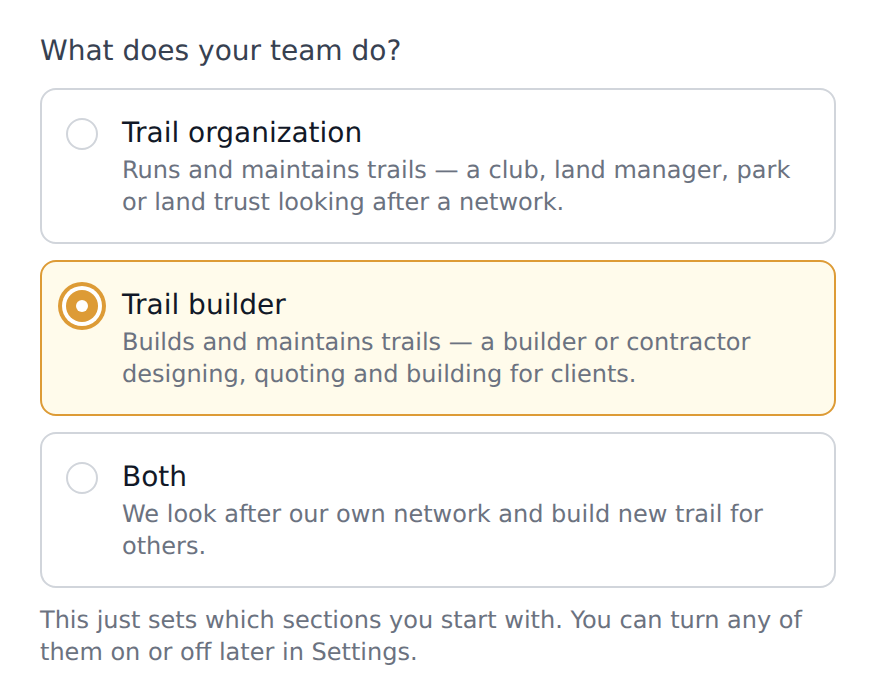
You are asked when you sign up, and again whenever you create another workspace:
- Trail organization — runs and maintains trails. The full operator set; this is the default and it switches everything on.
- Trail builder — builds and maintains trails. The design-and-deliver set: the trail planner, projects, clients, infrastructure and the money modules, without conditions, lifts, counters, the daily report and the public site.
- Both — everything on. Pick this if you look after your own network and build new trail for others.
The answer is a starting point, not a category you are locked into. It decides which switches are on the first time you sign in, and after that the switches are yours. Nothing else in TrailsIQ behaves differently because of which one you picked.
One account can hold as many workspaces as you need, and they are fully separate — their own trails, team, settings and billing. Somebody who volunteers for a club and also runs a trail-building business wants two, and switches between them from the sidebar. Settings → Advanced → New organization creates one.
What each preset switches on
| Section | Trail organization | Trail builder |
|---|---|---|
| Trail conditions | on | off |
| Projects | on | on |
| Clients & job pipeline | off | on |
| Maintenance | on | on |
| Infrastructure | on | on |
| Points of interest | on | on |
| Lifts | on | off |
| Trail counters | on | off |
| Daily report | on | off |
| Expenses | on | on |
| Work hours | on | on |
| Inventory | on | on |
| Build cost estimates | on | on |
| Contracts | off | on |
| News | on | off |
| Events | on | off |
| Website builder | on | off |
| QR builder | on | on |
The shape of the builder column is the point. Conditions, lifts, counters and the daily report all describe a trail system somebody is operating; a builder hands theirs over at the end of the job. News, events and the website are an operator's public face.
Clients & job pipeline and Contracts are the two that run the other way. Every other row is on for the operator and sometimes off for the builder; these two are the only ones a builder gets that an operator does not. An operator has no clients — they are the client, and there is nobody to sign an agreement with. A club that takes on the occasional paid build for a neighbor can switch both on. See Clients and the job pipeline and Contracts for won jobs.
Contracts is off for operators for the same reason, and it is not the same switch as Build cost estimates. An organization pricing its own work still wants the estimate; it has nobody to send a contract to. Switching Contracts on adds the Contract button to a won job, the contract section in the field app, and the legal name, registered address and terms fields under Organization details — those three are only there when the module is on, because they are legal detail nobody who never sends a contract needs to read.
Switching it back off hides all of that, and stops new contracts being prepared. It does not hide a contract that already exists: a job that has one keeps its button, and the file and the fingerprint stay reachable. A signed agreement is a record you may need years later, and a switch on a Settings screen is not the decision to give that up — withdrawing is, and it is a different button.
Maintenance stays on for builders on purpose. It is already the right shape for a build punch list — the things that need putting right before handover — and switching it off would leave nowhere to record them.
Build cost estimates is on for both, and is the row most often switched off by hand. It governs the trail planner's priced breakdown — what a proposed alignment would cost to build, in line items with a contingency and a total. Plenty of organizations would rather it were not on the screen: the figure is a model rather than a quote, and a number a board member or a volunteer reads over somebody's shoulder tends to be repeated as though it were one. Switching it off hides the estimate on the planner page, on projects, in the field app, in the comparison table, and on the proposal a client sees. Everything else about the planner — the line, the grades, the sustainability score, the drainage analysis — is untouched. See The trail planner.
Turning individual sections on and off
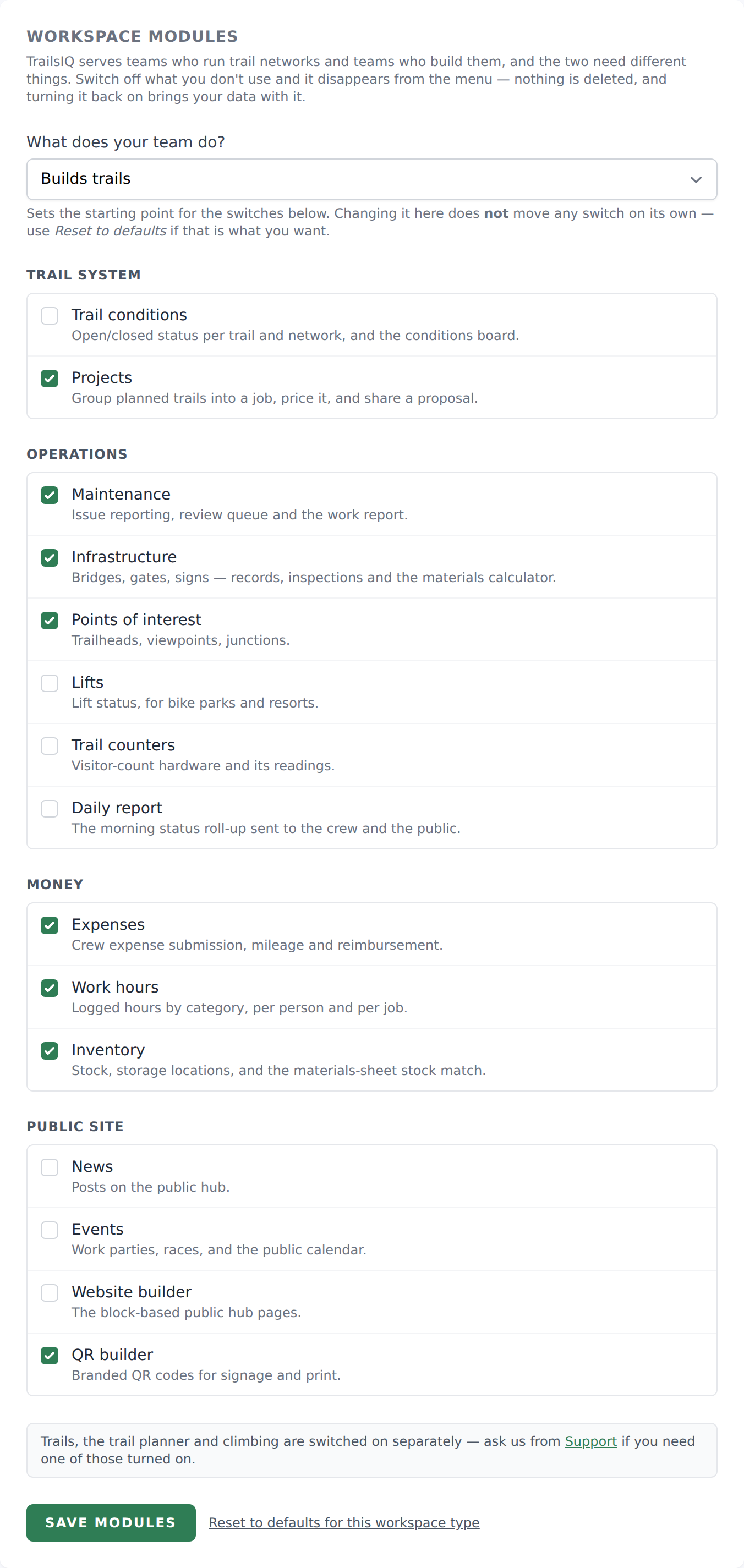
Every row on the Workspace modules screen is an independent switch, whichever preset you started from. A building company that also runs a demo loop can turn Trail conditions back on; a club with no lift can turn Lifts off. The switches always win over the preset.
Two things worth knowing about the screen:
- Changing the "What does your team do?" dropdown does not move any switch. It only changes the label and what Reset to defaults will do. This is deliberate: if changing a dropdown silently undid a dozen switches you had set by hand, you would not find out until a section you rely on had quietly gone.
- Reset to defaults for this workspace type does move them — all of them, back to the table above. It asks first, because it overwrites everything you have changed.
Only owners and managers can reach Settings, so this is not something a volunteer can change by accident.
Nothing is deleted
Switching a module off hides it from the menu — and from Settings. It does not delete anything, and it does not stop anything that already exists from existing.
The Settings half is worth spelling out, because it is what most people notice second. Turn off Infrastructure and Infrastructure types leaves the settings list with it; turn off the public daily report and its settings page goes too. A switched-off module should not leave a row behind asking you to configure something you do not have. Settings → Workspace modules is never hidden, so whatever you switched off, the way back is always in the same place.
Turn Events off and your events are still there — the calendar entries, the signups, the history. Turn it back on and they are exactly as you left them. The same goes for every module on the list.
This also means a module switch is not a permission. Someone who has bookmarked a page in a section you have hidden can still open the bookmark, and anyone you have granted the matching permission still holds it. If your intent is to stop a person reaching something, the tool for that is Settings → Roles & permissions, not this screen. Use Workspace modules to keep the menu honest about what your team actually uses.
Sections that are switched on separately
Three things are not on this list, because they are capabilities rather than menu items and turning them on has effects beyond the sidebar:
- Trails
- The trail planner
- Climbing (crags and routes)
A builder workspace gets the trail planner switched on automatically, since it is the reason to be here. If you need one of the three changed on an existing workspace, ask us.
Common gotchas
- A section vanished from my menu. Somebody switched the module off in Settings → Workspace modules. Your data is untouched — switch it back on.
- A settings page I used has gone. Same cause: settings follow their module. Switch the module back on and the settings page returns with everything still set the way you left it.
- An article mentions a screen I do not have. Same cause. The docs describe the whole product; your menu shows your modules.
- Changing the preset dropdown did nothing. Correct — it sets the label and the defaults, not the switches. Use Reset to defaults if you meant to move them.
- Reset to defaults overwrote my switches. That is what it does, and it warned first. There is no undo; set the ones you want again.
- I picked the wrong option at signup. No harm done — change the switches, or change the dropdown and reset. There is nothing else attached to the answer.
- I need a second, separate workspace. Settings → Advanced → New organization. It is a whole other workspace, not a section of this one, and you pick its type the same way.
- Hiding a module did not revoke anyone's access. It was never meant to. Use Roles & permissions for that.