Getting started
Reading your Dashboard
The four numbers at the top of the Dashboard, the Trail Health table below them and the column beside it: what each column counts, why a trail can show as closed without anybody closing it, and how to find the trail that needs you today.
Dashboard is the first screen after you sign in, and it answers one question: what needs a decision today? It has four numbers across the top, a table of every trail you look after with its status and outstanding work, and a column beside it showing what those numbers are made of and what has happened lately.
Everything on the page is a link. Tapping a number takes you to the list it counted. If the number is a single item, it takes you straight to that item.
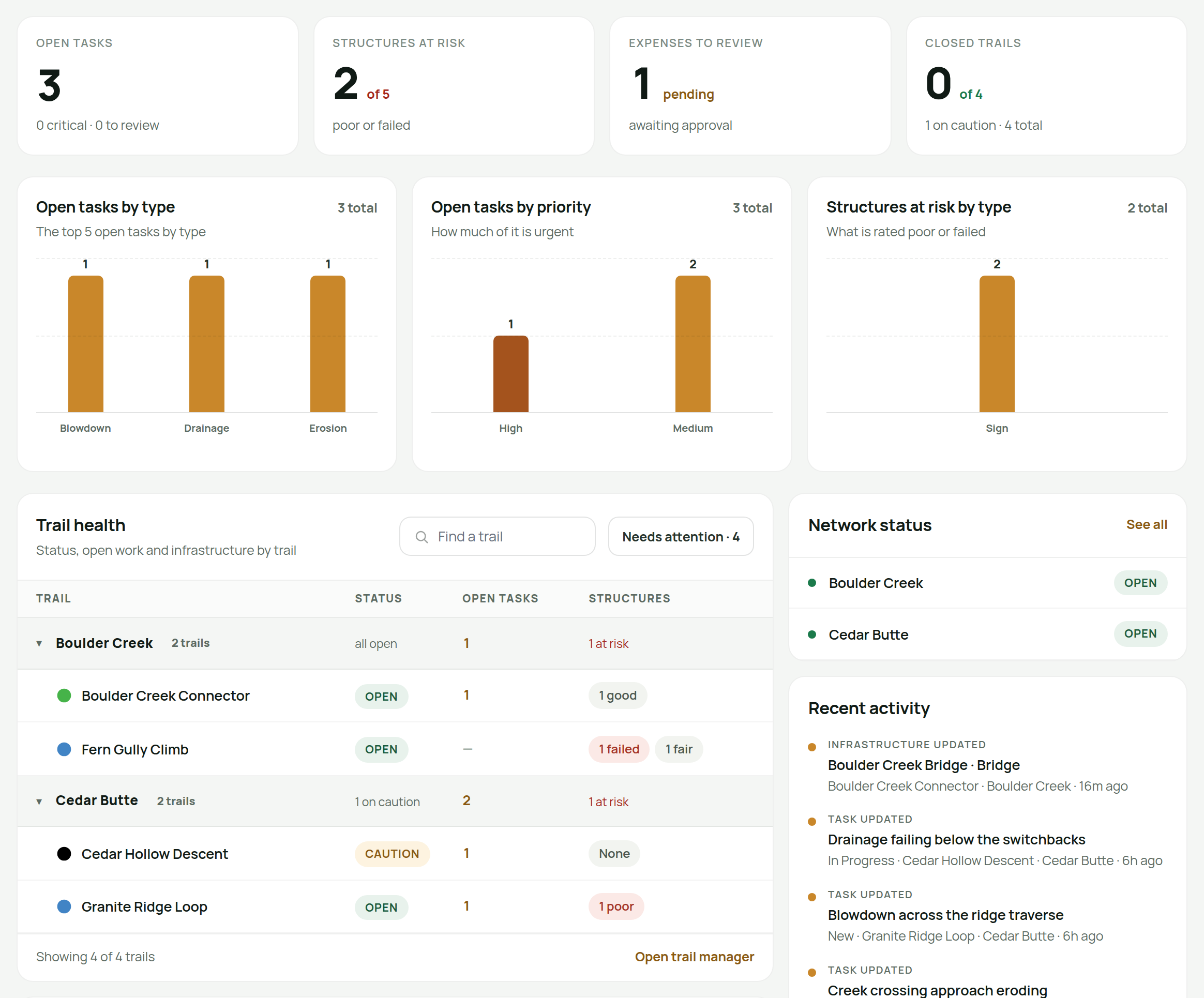
The four numbers at the top
Open tasks is work somebody still has to go and do: maintenance tasks that are Open or In progress. Reports waiting for a decision are not included. They appear on the line underneath as to review, because deciding to accept a report is a separate step from doing the work.
Under the big number: how many of those open tasks are marked critical.
Structures at risk is every piece of infrastructure rated Poor or Failed. It counts bridges, signs and gates whether or not they are attached to a trail, so it can be larger than the total in the trail table below. The difference is infrastructure at a trailhead or parking area rather than on a trail. Tapping it opens your infrastructure list with the At risk filter already on.
Expenses to review is the count of submitted expenses waiting on an approval. You only see this tile if you are allowed to approve expenses. If you are not, the same spot shows Awaiting review instead: reports from the public that need checking before they become work.
Closed trails counts trails that show as closed to a visitor right now. That is not the same as trails somebody closed by hand. A trail set to follow its area takes its status from the area, and then from its network. So closing a whole network closes every trail in it, and this number goes up to match. The line underneath adds how many are on caution.

The column on the right
Four things sit beside the table, in the order you are likely to need them.
Network status has one row per network, showing its condition. Tap a row to change it. This is the only place on the page that tells you whether a whole valley is closed, so glance at it before reading the table. When a network is closed, every trail in it shows as closed without anybody touching them.
Three breakdowns split up the biggest tiles. They add up to the numbers above them. If a breakdown ever disagrees with its tile, trust neither and tell us.
- Open tasks by type is the same open work split by what kind of job it is: blowdown, drainage, signage, whatever your types are. It is the fastest way to see that half your season is one recurring problem.
- Open tasks by priority is that work ranked. A tall critical bar is the one reading on this page that should change what you do this week.
- Structures at risk by type splits the poor and failed infrastructure by what it is. Six failed signs and one failed bridge look the same on the tile, but they are completely different jobs.
Long lists show nine bars, and the rest are grouped into a gray Others bar. They are still counted, so the numbers still add up. Press a bar to open its list, filtered to exactly what that bar counted. You can press anywhere on the row, so a short bar is as easy to hit as a long one. The gray Others bar does not open anything, because it covers several kinds and there is no single list for it. A breakdown with nothing in it shows a gray outline and says so.
Recent activity shows the last few changes anywhere in your organization, such as a condition changing, a bridge being updated or a task being filed. Each one links to what changed.
Trail health
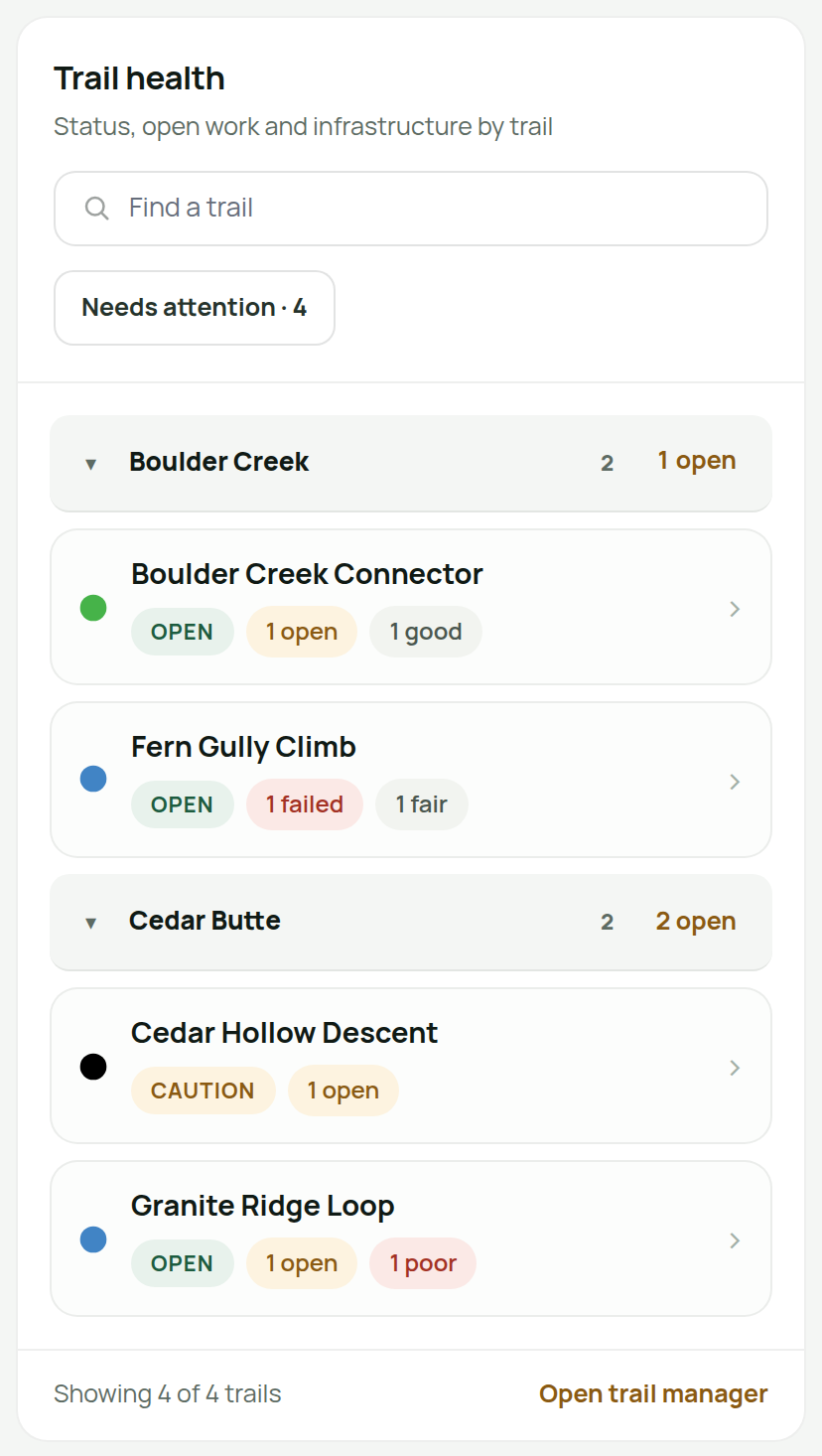
Trails are grouped by network. A band across the top of each group sums it up: how many trails there are, how their statuses break down, the open work and whether any infrastructure is at risk. Each row below it is one trail, with its name, status, open work and structures.
A trail in more than one network is listed once, under the first one. That is also the network it takes its status from, so the band above a trail always names the network its status came from.
Every trail carries its difficulty icon in front of its name, in the same shapes and colors the Trails list uses. The shapes depend on what the trail is mainly used for. Mountain bike trails get the familiar circle, square and diamond, alpine and nordic trails get the ski area signs, and everything else gets a plain colored circle. A trail with no difficulty set shows a gray circle, so the names still line up.
Status
The Status column shows the status visitors actually see, which may not be what was set on the trail itself. A trail with no status of its own takes the worst status of any area it is in, and if there is none, its network's status. Hold the pointer over a status to see where it came from, such as Set on this trail, From area: Wet Bottom or From network: Cedar Butte.
Press a status to change it. It opens Trail Conditions (under Operations in the sidebar) with that trail in view and outlined. It is the quickest way to fix a trail that shows the wrong status. It works the same way in the field app, where the editor opens on top of the list.
A trail that belongs to no network is the one exception: there is no band for it on Trail Conditions, so its pill opens the trail's own settings instead.
This matters more than it sounds. A trail that looks open in its own settings can be closed to the public because its whole valley is closed, and this column is the only place on the row where you can see that.
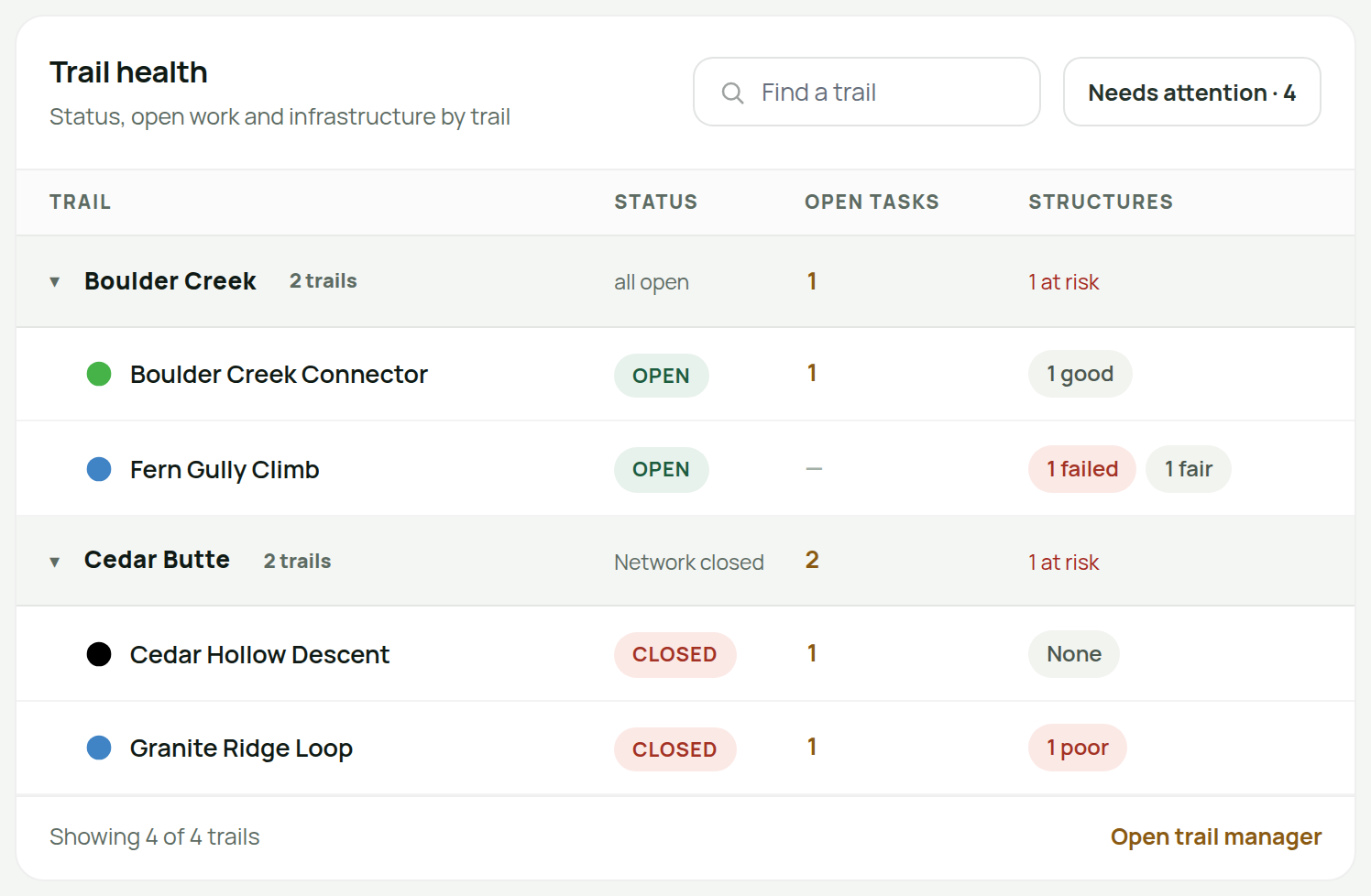
Open tasks
This is the work on that trail somebody still has to go and do: Open plus In progress. It counts the same way as the tile at the top of the page, so the column adds up to that tile.
A dash means there is none.
Next to it, you may see a review label. That counts reports filed on the trail that nobody has accepted yet. They are not in the main number, because a report does not become a job until somebody accepts it.
Tapping either one opens what it counted: the task itself if there is one, or that trail's filtered list if there are more.
Structures
This column shows a label for each condition rating worth knowing about, Failed, Poor, Marginal or Fair, with how many structures have it. The ratings come from your inspections. An inspection filed from the field app sets the structure's condition from the answers.
Anything in Failed or Poor is on the Structures at risk tile above.
Two short forms keep the column easy to read. A trail whose structures are all in good shape shows N good instead of four zeros. A trail with no structures shows None, because an empty cell would look like the row failed to load.
Tapping a label opens what it counted: the structure itself if there is one, or your infrastructure list filtered to that trail and rating if there are more.
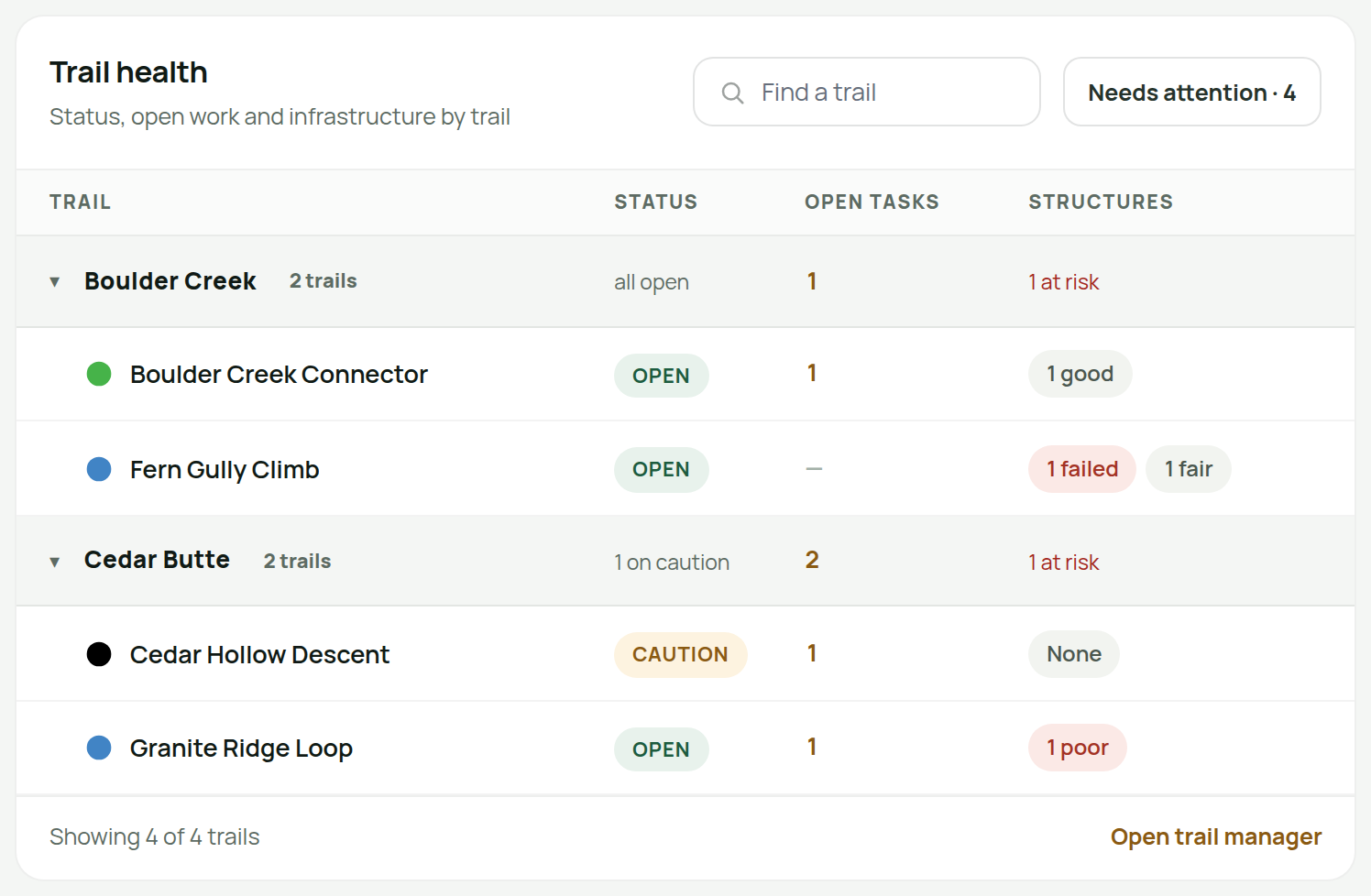
Finding one trail quickly
Two controls sit in the panel's header:
- Find a trail filters the table as you type. It only searches names, and it filters what is already on the screen, so there is no waiting.
- Needs attention shows only trails with something to act on: anything not fully open, any outstanding work, or any structure rated Poor or Failed. The number next to the button tells you how many.
A line at the bottom of the panel says how many of your trails you are looking at. When a filter is hiding rows, it has a Show all link, and there is also a link to the full trail list.
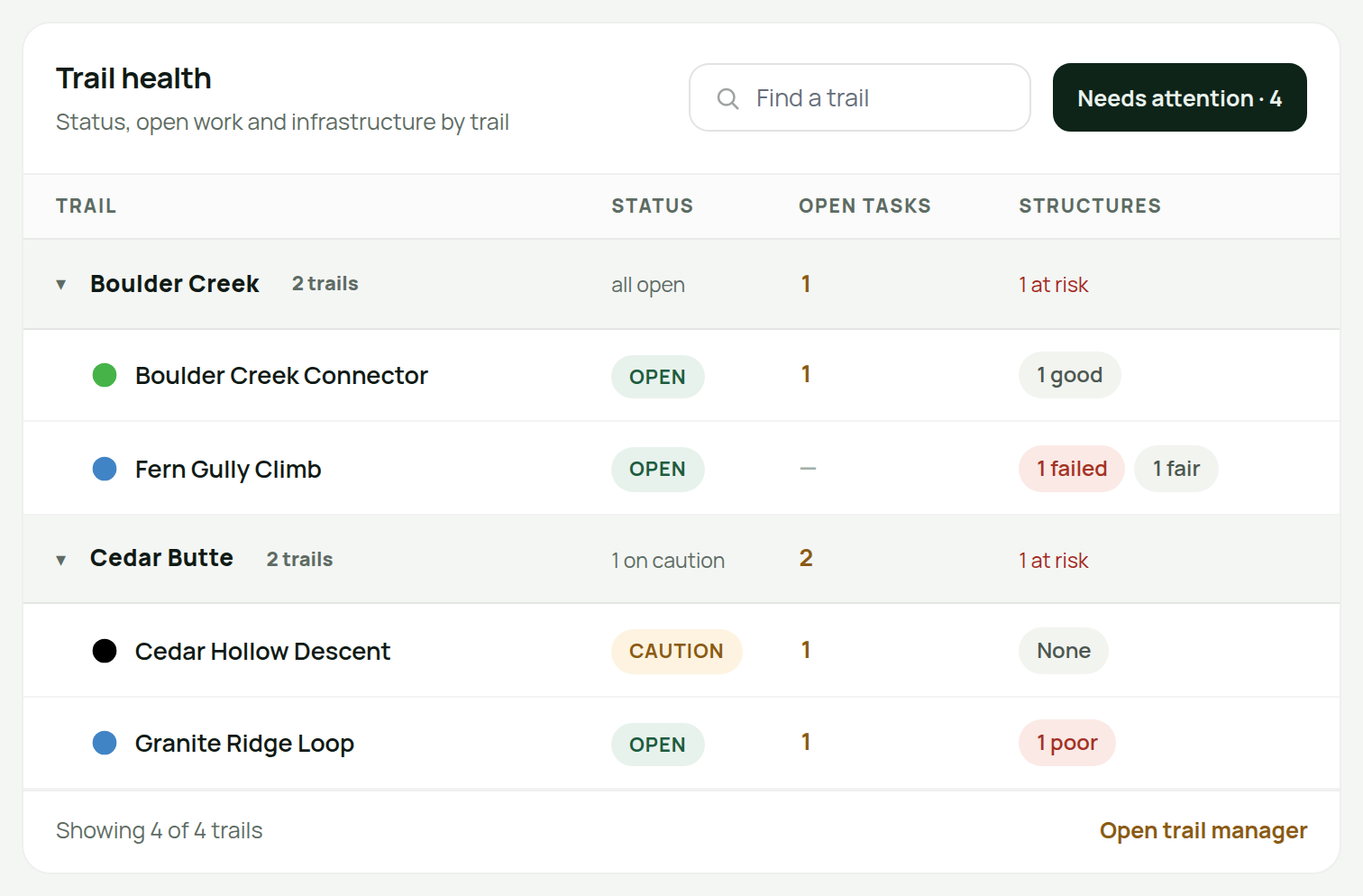
On a phone
The table becomes one card per trail, showing the difficulty icon, the name, the status, any counts that are not zero, and the network underneath. A trail with nothing outstanding still shows its status, so no card is ever blank.
Everything else works the same way. Search still filters, Needs attention still narrows, and the numbers below the table stack into one column in the same order.
What you see depends on your role
The tiles follow what you are allowed to do. Somebody who cannot approve expenses does not get an expenses number they can only look at; they get the submissions queue instead. The rest of the page is the same for everybody in the organization.
If a whole section of TrailsIQ is turned off for your organization under Settings → Workspace modules, its numbers do not appear here either.