Infrastructure
Lifts — chairs, gondolas, T-bars, and daily status
Add and manage lifts on TrailsIQ — from the seasonal status of the machine to the day-of "wind hold" flip that lift ops make from the top shack. Includes inspection cadence, map behavior, and the field-app quick-update sheet.
Lifts are first-class in TrailsIQ. Chairlifts, gondolas, trams, T-bars, platters, J-bars, rope tows, magic carpets and funiculars all live in the same list, sit on the same map, and share the same inspection + operational-state machinery. Both winter ski ops and summer lift-served bike-park operations are supported through the Serves tags.
What a lift looks like in TrailsIQ
Every lift carries two independent states:
- Status — the seasonal posture: Operational, Seasonal closed, Maintenance, or Decommissioned. Set-and-forget for the season; drives the filters and the pill on the list.
- Operational state — the day-of posture: Open, Wind hold, Mechanical hold, Closed, or Maintenance. This is what lift ops flip during the day when a gust puts a triple on hold, or a hauling rope needs a splice check. Every flip is logged to an append-only event stream that feeds the daily report, the dashboard activity feed, and the public hub.
The two never fight each other. A lift whose seasonal status still reads Closed for the season while its operational state reads Open is unusual and perfectly legal — opening day, for instance, before anybody has flipped the seasonal switch.
Alongside those, each lift has an inspection cadence (last inspection date + next inspection due), the same pattern as Structures, so the overdue-inspection widget on the dashboard reports on lifts and structures together.
Adding a lift
Only owners and managers see the + New lift button in the header. Click it and the slide panel opens on the right with the full create form already expanded. Nothing needs to be saved to a draft — hit Cancel to bail cleanly.
Fresh org? The list area reads "No lifts yet. Chairlifts, gondolas, tramways, and surface lifts live here." — the New lift button in the header is still the entry point.
The panel title reads "New lift" while creating. Submit posts to the same endpoint the field-app import uses; on success you land on /lifts/{id} with a "Lift created." flash and the panel automatically re-opens on the freshly created row.
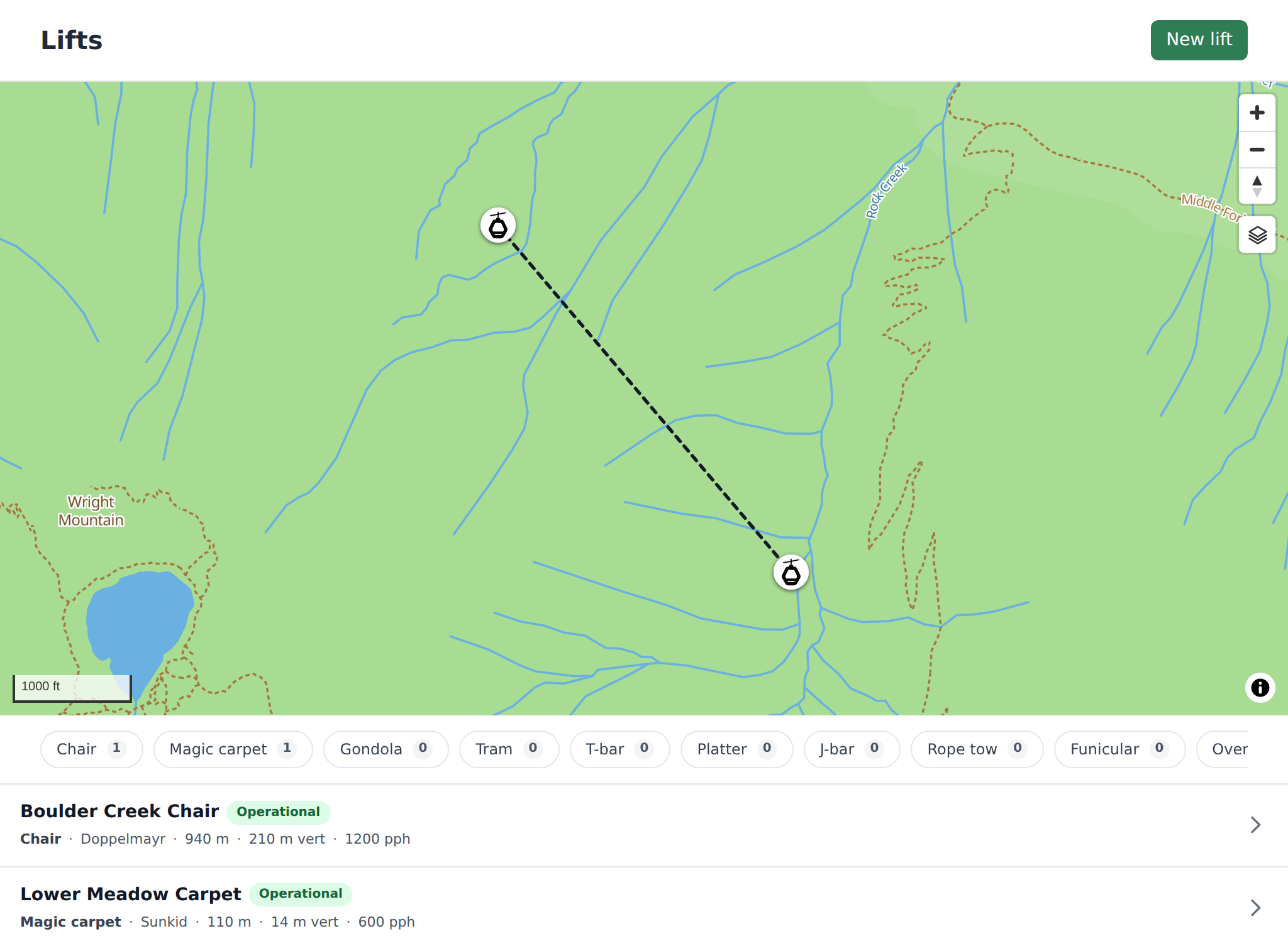
Every field on the form
- Name — required, plain text, up to 255 characters. Shows on the list, the map pin tooltip, and every place a lift is referenced (daily report, dashboard activity, field app).
- Type — dropdown of Chair, Gondola, Tram, T-bar, Platter, J-bar, Rope tow, Magic carpet, Funicular. Default is Chair. Type filters the chip strip at the top of the list.
- Status — dropdown of Operational, Seasonal closed, Maintenance, Decommissioned. Default is Operational. This is the seasonal state, not today's up/down.
- Length (m) and Vertical (m) — integer, both optional. Length auto-fills from a haversine between the base and top coordinates as you type them; once you type your own value it stops auto-syncing so a hand-measured length isn't clobbered. Vertical is always manual (there's no elevation-lookup on save).
- Capacity (pph) — people per hour. Integer, up to 20,000. Used for context; not enforced anywhere.
- Manufacturer — free-text, optional. Doppelmayr, Leitner-Poma, Skytrac, whatever the plate says.
- Install date — optional. Helpful for anyone asking "how old is that lift?"
- Base lat / Base lng and Top lat / Top lng — decimal degrees, monospaced input. These two pairs are how a dashboard-created lift ends up on the map: the platform synthesises a straight base→top line whenever a full polyline hasn't been imported. A future map-editor upload of a multi-point polyline is preserved verbatim.
- Serves — pill toggles for ski, snowboard, mtb, sightseeing, foot. Tag whatever the lift actually carries — a summer bike-park chair gets mtb + sightseeing, a T-bar might be just ski.
- Description — free-form, up to 5000 characters. Shows on the detail panel below the stats grid; a good place for "loading tips", "closes early on windy days from the north-west", etc.
If validation fails, a red "Couldn't save:" panel appears at the top of the form with the specific errors listed below.
Editing a lift
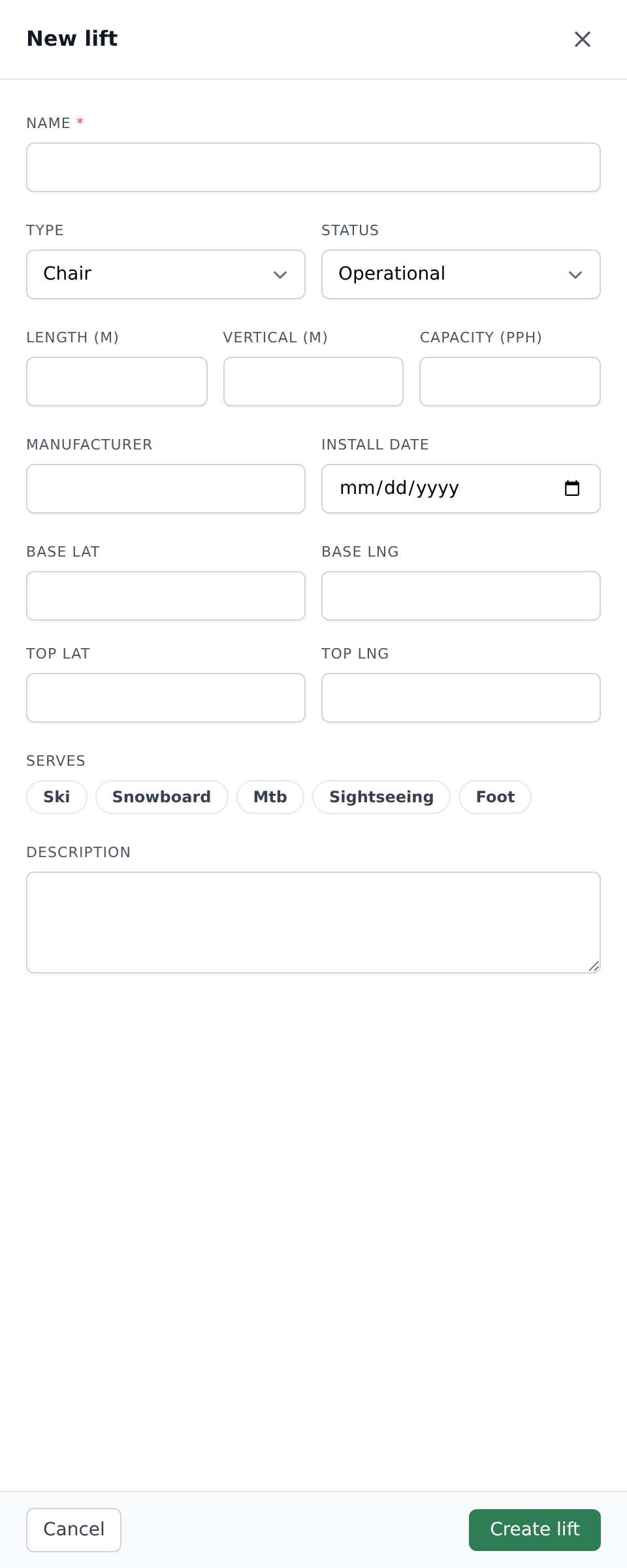
Open any lift from the list. The slide panel shows a read-only summary: type + status pills, the operational-status card, the stats grid (length / vertical / capacity / manufacturer), the dates grid (installed / last inspection / next inspection), the Serves pills, and the description.
Below the summary is an Edit details toggle with a chevron. Click it and the same form used for creation expands, pre-filled with the current values, scrolled into view. Save refreshes the panel with a "Lift updated." flash — no page reload.
Managers also see a red-outlined Delete button in the panel footer. Deleting asks for confirmation: "Delete "…"? This cannot be undone." Flash on success: "Lift removed." The lift leaves the list, and any dashboard activity or daily-report timeline entry that mentions it still reads correctly — history does not lose the lift's name when the lift goes.
Operational status (day-of updates)
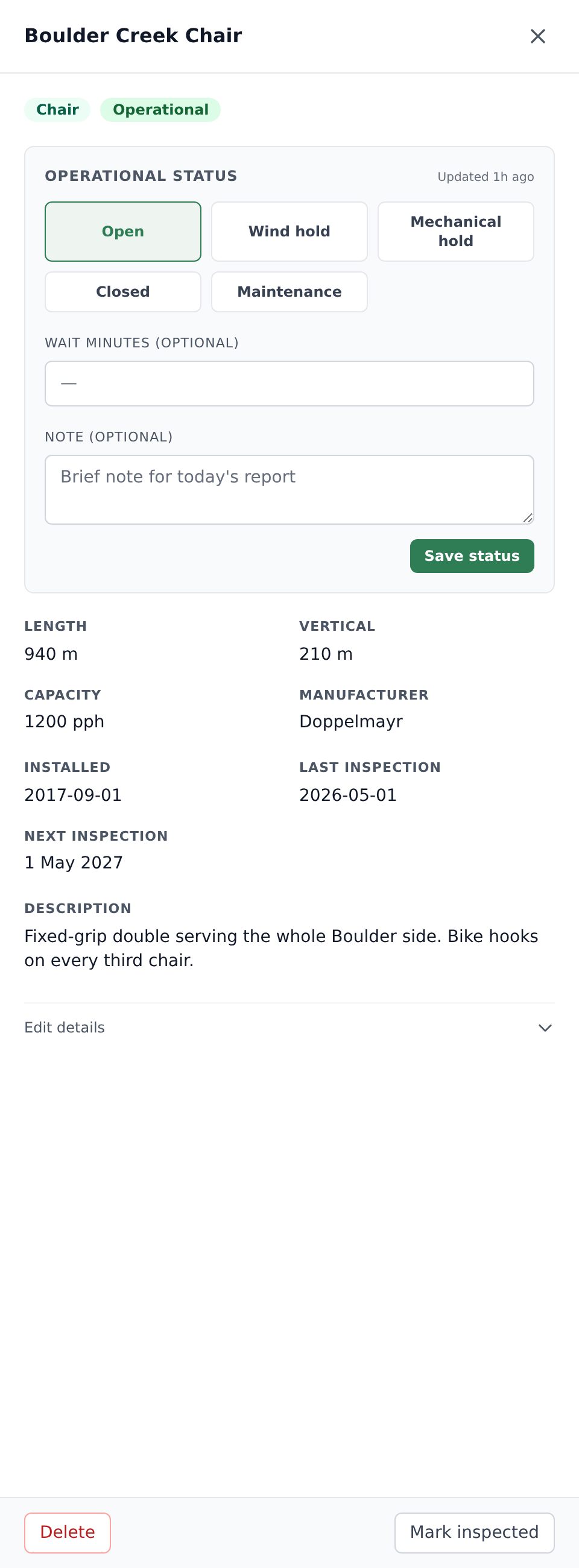
The Operational status card sits at the top of the detail panel for anyone who can see the lift — this is the day-of flip that lift ops make when things change on the mountain. The card header reads "OPERATIONAL STATUS" with a right-aligned age line ("Updated 12m ago" / "Updated 3h ago" / date after 30 days).
Five buttons in a grid: Open, Wind hold, Mechanical hold, Closed, Maintenance. Pick one, optionally fill in:
- Wait minutes (optional) — for busy Saturday mornings when you want the public daily report to show the lift line as ~15 minutes. Numeric, 0–600.
- Note (optional) — placeholder "Brief note for today's report". Free-form context that lands in the event row and shows up in the daily-report timeline. Great for "gust to 45mph on the summit stanchion" or "power dip — reset the drive".
Hit Save status (button reads "Saving…" while in flight, then a green "Saved." confirmation).
Any active org member can update operational state — this isn't gated to owner/manager, because on a real operating day the person at the top shack needs to be able to flip it. The status write is idempotent: pressing Save without changing the state or wait minutes writes nothing. Notes on their own don't create an event — you have to change state or wait minutes for the write to land.
The same 5-button sheet exists on the field app: tap a lift line or terminal pin on the field-app map and the full-screen quick-update sheet slides up with identical controls. Save failure shows "Could not save lift status. Check your connection and try again."
Every real change fires a push notification to org members subscribed to lift-status events and appears immediately on the dashboard's activity feed, the daily report's "Lifts — right now" card, and the public hub's Lifts section.
Marking an inspection
The panel footer has a Mark inspected button — any active member can use it (not just owners/managers). The dashboard flow is quick: a browser confirm asks "Record an inspection for today?" and on confirmation stamps last inspection date to today and advances next inspection due by 12 months (the state-tramway-board annual baseline).
The button is the quick path and only offers "today, 12 months". For any other date or cadence — a back-dated walk, a weekly pre-op check — set Last inspection date and Next inspection due on the lift's own form instead. An inspection date may not be in the future, and an interval runs from one month to sixty.
A lift is overdue once its next inspection date has passed. Overdue lifts get:
- A red Overdue pill on the list row.
- An orange Overdue inspection pill in the detail header.
- Inclusion in the header Overdue inspection filter chip (click to filter the list to just those lifts).
- Inclusion in the dashboard's org-wide overdue-inspections widget alongside overdue structures.
Flash after saving: "Inspection recorded."
The Lifts page — list, chips, map
The page is one URL: /lifts and /lifts/{id} both render the same list-plus-slide-panel surface. Deep-linking to a specific lift (from the daily report, dashboard activity, or overdue widget) auto-opens the slide panel on that row.
Sticky map at the top. MapLibre or Mapbox depending on the org's engine choice. Every lift renders as a dashed black line (the conventional ski-map cue for "lift, not run"), 2.5px wide with a [2, 2] dash pattern. Each end gets a 28px white circular pin with the lift icon in the middle. Clicking a pin selects the lift and flies to it. On mobile there's a grab-handle at the bottom to expand or contract the map.
Chip strip. One chip per lift type present in the list, ordered by count (busiest type first). Chip label = "Chair (12)" / "Gondola (3)". Selected chip is primary-tinted. To the right sits a stand-alone orange Overdue inspection chip that toggles the overdue filter on/off. Search field also sits in the header (matches name, manufacturer, description).
Flat list. No grouping — a resort with 12 lifts sees a 12-row list. Each row shows:
- Line 1 — name, status pill, and an "Overdue" pill if applicable.
- Line 2 — type · manufacturer · length m · vertical m vert · capacity pph.
- Line 3 — the Serves pills.
Two empty-state variants:
- With filters active: "No lifts match the current filter."
- No filters, no data: "No lifts yet. Chairlifts, gondolas, tramways, and surface lifts live here."

Where lifts show up elsewhere
- Daily report — the right-hand "Lifts — right now" card shows every lift with its current state pill and wait minutes. The main activity timeline shows every lift-status flip alongside trail conditions, grooming, maintenance, and weather. Clicking a lift row jumps to
/lifts/{id}. - Public daily report — the public hub's Lifts section renders each lift with its state badge and wait pill (subject to the org's public-visibility switches — see the Daily report article for the master toggles).
- Dashboard activity feed — every operational-state flip appears with the lift icon and links back to
/lifts/{id}. - Every other dashboard map — Structures, POIs, Trail Conditions, Maintenance, and the main Dashboard map all layer the same dashed lift lines and terminal pins on top, so a lift is visible wherever operators are looking. The Climbing tab is the exception — lift pins are hidden there because they'd just add noise.
- Field app — tapping a lift on the field-app map opens the quick-update sheet (same 5 states, same wait minutes, same note field).
- Overdue inspections widget — org-wide widget on the dashboard groups overdue lifts and structures together.
Common gotchas
- A lift needs both base AND top coordinates to appear on the map. Fill in Base lat / Base lng / Top lat / Top lng on the form and the platform draws the base→top line automatically. Missing any of the four = no map line.
- Length auto-fills from base + top coordinates, but only until you type your own value. Once you override it, subsequent coordinate edits stop touching Length. A brand-new lift starts with auto-fill on; an existing lift with a length already set starts with auto-fill off.
- Operational status saves are idempotent. If you tap Save status without changing state or wait minutes, nothing writes and no notification fires. Notes on their own don't create an event either — the goal is to keep the timeline free of no-op rows.
- Mark inspected on the dashboard always stamps today. For a back-dated inspection or a non-standard cadence (weekly pre-op, for instance), set the two inspection dates on the lift's form instead.
- Managers-only edit, everyone-flips-state. The seasonal Status field, the specs, the coordinates — all owner/manager. But the day-of operational state is any active member so lift ops can update from the shack without needing a manager role.
- Lifts imported with a multi-point polyline are protected. If somebody imports a real geometry (from GPX or the map editor), moving base/top lat/lng on the form does NOT redraw the line. This is deliberate — the platform can't tell whether the imported geometry was hand-tuned. To go back to a straight base-to-top line, re-import the lift without the detailed geometry, then edit base and top.
- The daily-report "Lifts — right now" card and the lift's own timeline always agree. The card shows the current state; the timeline shows how it got there.
What's next
- New to lifts on TrailsIQ? Start by adding your busiest chair with base/top lat/lng — the map line and the daily-report card will light up immediately.
- Once one lift is in place, walk through Operational status on the field app so the crew at the top shack knows how to flip it from their phones.
- Read the Daily report article next — every lift flip you make becomes a row on that page.