Maintenance
Projects and work planning
Group maintenance items AND planned trails into projects so you can track a "spring rehab" or a "ridge expansion" as one thing — one page with every attached issue, the trails on a map, rolled-up hours, a combined build estimate that charges machine mobilization once, and a single public proposal link for the whole job.
Projects group related work under a single banner — a "spring rehab", a "storm cleanup", a "ridge expansion", a "bridge rebuild grant". Two kinds of work go in: maintenance items your crew closes out, and planned trails you're about to build.
There are two types. A project is work your organization does for itself — a volunteer workday, a clean-up week, a set of drainage fixes. A job is build work you are pricing — planned trails, a client, an estimate and a proposal. Both live on the same Projects page and work the same way; a job simply asks and shows more.
Bundling work gets you one page showing every attached issue's status, the trails on a map, the total hours crews have logged, and — on a job — one combined build estimate that charges machine mobilization once instead of once per trail, plus a single public proposal link covering the whole job.
What is a project?
A project is a lightweight container for work. It has a name, a color, an optional description, optional start / end dates, and a status of either Active or Archived. That's it — no phases, no budget, no assignees, no comments. The point isn't to duplicate a project-management tool; it's to have one place to see "here's every task that belongs to this initiative and where each one is at."
Every project belongs to your organization, and it can hold two kinds of work:
- Maintenance items — the tasks your crew closes out.
- Planned trails — lines from the Trail Planner that are going to be built on the same visit.
A project can hold either, or both. "Ridge Expansion" might be three new trails to build and five drainage fixes to make while the machine is already up there. Structures and areas aren't organized into projects directly.
Each item and each trail belongs to at most one project at a time. Moving one from one project to another is a single click.
Projects and jobs
Pick the type when you create it; you can change it later from the edit form.
- Project — for work you are not pricing for anybody. The page shows progress, the map, hours and actual spend. No client, no stage, no build estimate, no contract and no public proposal, so a volunteer workday is not asked which client it is for. A project can still hold planned trails: a volunteer day that builds a new line can have that line in it, drawn on the map beside the tasks, just not priced.
- Job — for build work. Everything a project has, plus planned trails priced as one job, the client and the stage it is at (from lead to handed over), estimated against actual spend, a contract once the job is won, and a shareable proposal.
The type choice appears when your workspace has any of Clients & job pipeline, Build cost estimates or Contracts switched on in Settings → Workspace modules. With all three off there is nothing a job would add, so every project is a project — including one you create from a planned trail's Project box.
Switching a job back to a project hides its client, stage, estimate and proposal controls without deleting them — switch it back and they return. One exception: a proposal link that is already shared stays on the page until you stop sharing it, so a public page is never left running with no way to withdraw it.
On the Projects list, a Projects / Jobs filter appears once you have both, and the stage filter counts jobs only.
Creating a project
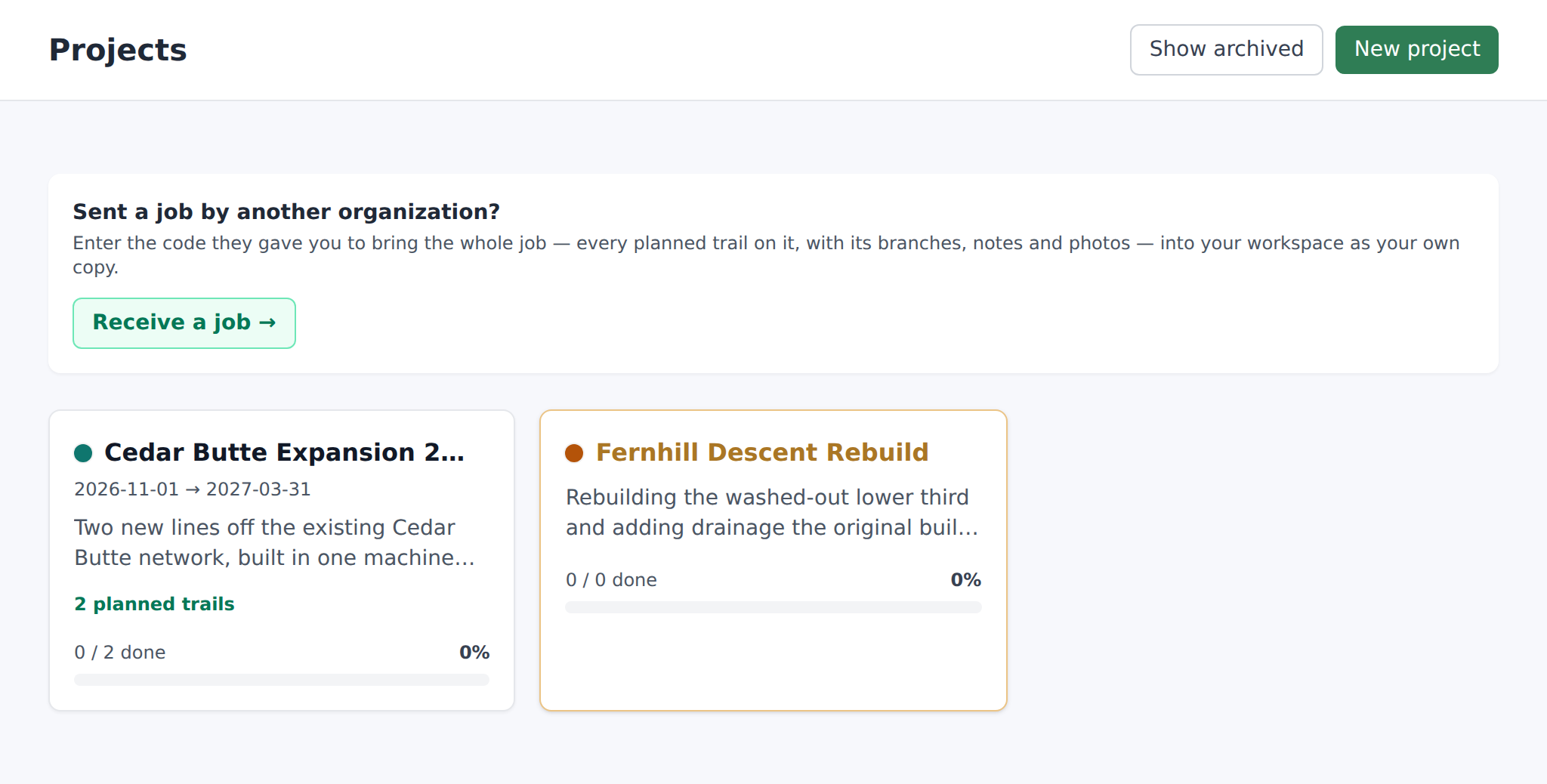
Open the Projects tab from the sidebar. In the header you'll see two buttons:
- Show archived / Hide archived — toggles archived projects into the list (default is Active only).
- New project — opens the create form. Managers and owners only. Field workers and volunteers don't see the button (or the "manage projects" permission by default).
- New job — the same form with Job already picked. Shown when your workspace can make jobs.
Fresh org? The empty-state reads "No projects yet. Create one to bundle several maintenance items under a single banner." — same Create your first project button as any other empty-state.
The submit button reads Create project or Create job, to match the type you picked (or Creating… while the request is in flight). On success you land on the project's detail page with a "Project created." flash.
Every field on the form
- Type — Project or Job. See Projects and jobs above.
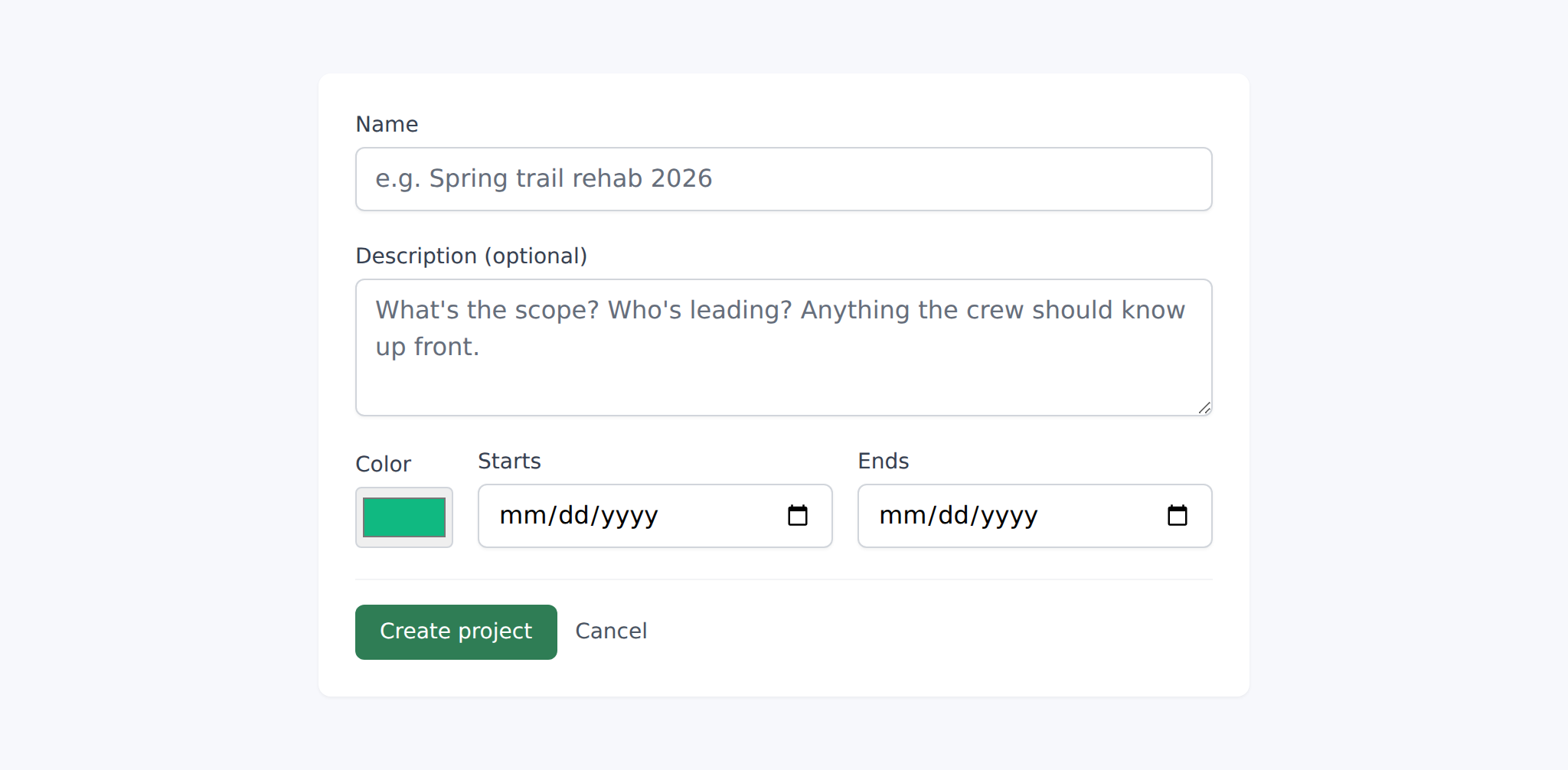
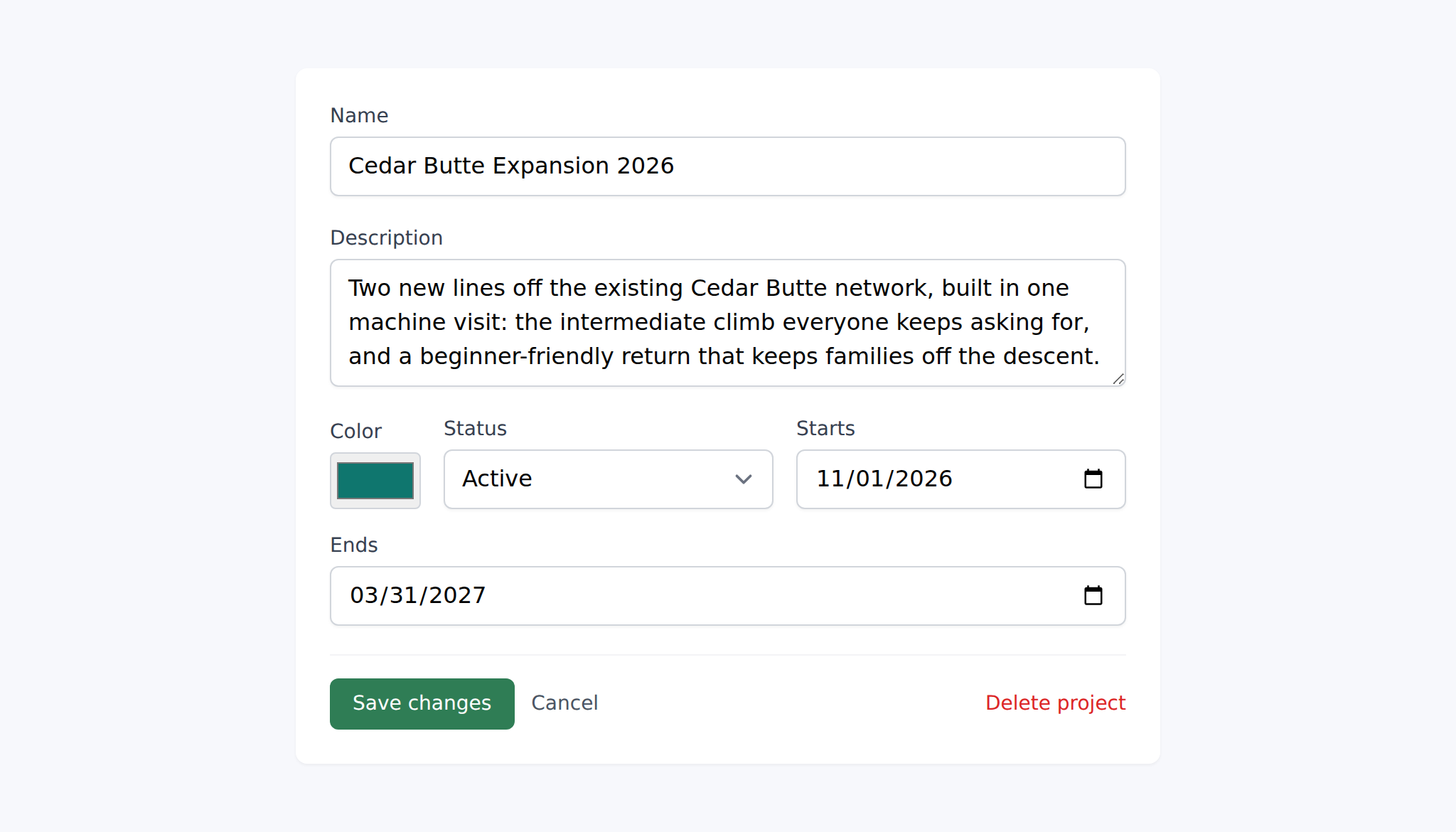
- Name — required, plain text, max 120 characters (placeholder: "e.g. Spring volunteer workday", or "e.g. Ridge flow trail build" for a job). This is what shows on the projects list, in the maintenance item dropdown, and on the project's detail page header.
- Description (optional) — free-text explanation of the scope (placeholder: "What's the scope? Who's leading? Anything the crew should know up front."). Renders as the top card on the Show page — helpful for team members opening the project cold.
- Maintenance items (optional) — + Link a maintenance item opens a search over your open and in-progress items, by title, trail or category. Press Enter to take the first match, Escape or Done to close. An item already in another project says so on its row, and linking it here moves it.
- Planned trails (optional) — on a job only. + Add a planned trail works the same way over your planned trails, and they are priced together once the job is saved.
- Color — eight swatches, plus + for any color you like. Used as the project's badge on the maintenance list, as the map-marker tint on the project's Show page, and on the sidebar chip. Pick something distinct if you're running several projects at once so items are easy to spot on the shared list.
- Starts — optional date. What day the project kicks off.
- Ends — optional date. Must be on or after Starts. What day the project wraps up.
- Contract work — on a job only, and only when the Clients module is on. A fold-out section with the Stage (Lead through Handed over, or Lost) and the Client. New client adds one by name without leaving the form, and picks it; fill in the rest of their details from the Clients page later.
The Status field only appears on the edit form (a new project always starts as Active). Options: Active or Archived — see the editing, archiving, deleting section below.
Adding work to a project
Maintenance items
Three paths, use whichever fits the moment. The first is the create form itself (see above), so a project can start with its work already in it.
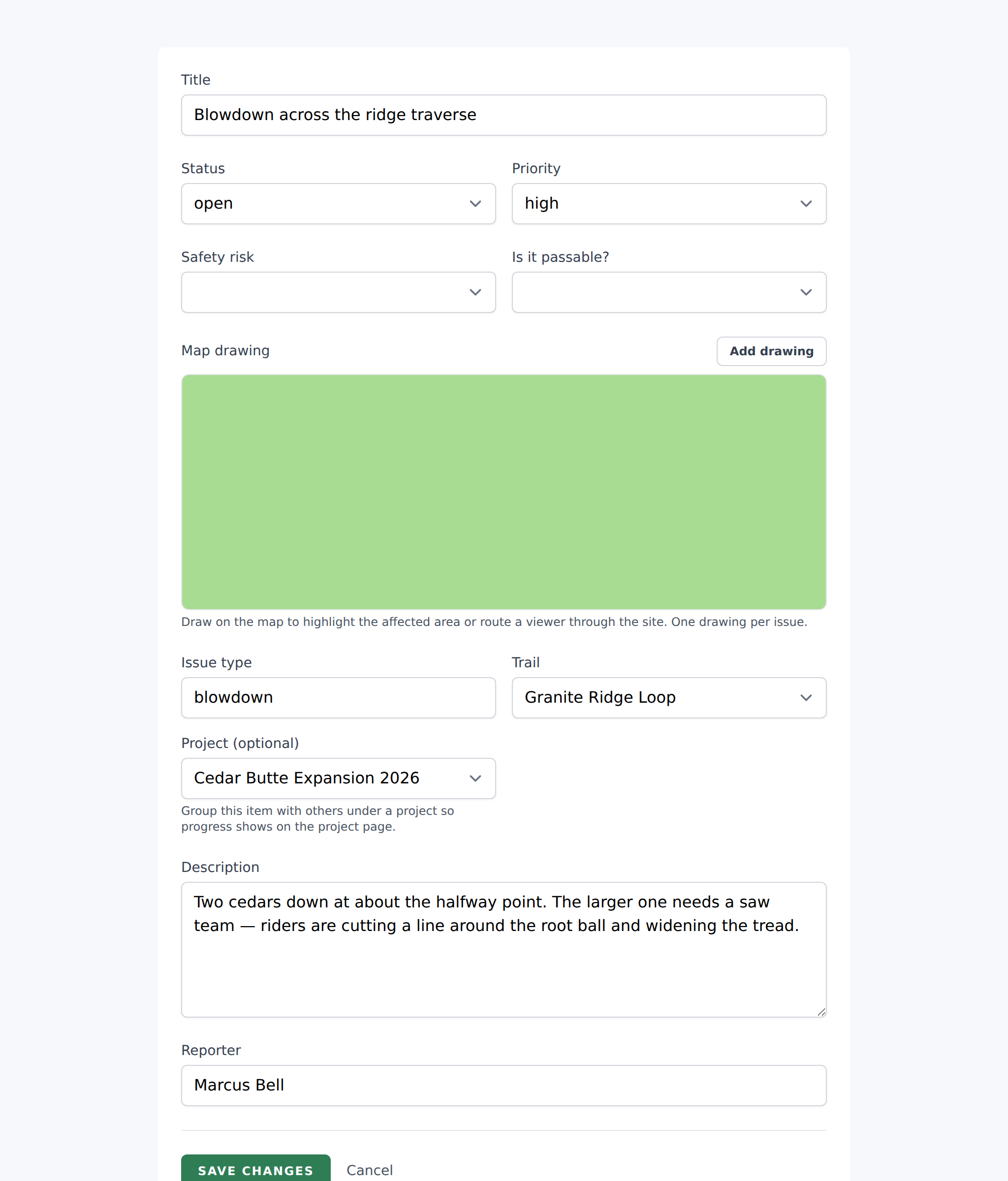
From the maintenance item's edit page. Every maintenance issue has a Project (optional) dropdown near the top with a "— not in a project —" default. Helper text under the field reads "Group this item with others under a project so progress shows on the project page." Pick a project from the dropdown and save; the item now belongs to that project (only one at a time — assigning to a second project moves it out of the first).
From the project's Show page. Under Add maintenance items there's a search field with the copy "Type to search, or pick from the recent items list above." Only open and in-progress items are searchable — resolved items aren't shown because you're planning work, not archiving. If you pick an item that's already in a different project, a red badge next to the row reads "Moves from other project" so you don't accidentally steal it — the linking will succeed but you'll see the badge and can bail.
Both paths end in the same state: the item is linked to the project and appears on the project's page. Unlinking is a single × button on the project's linked-items list — confirms with "Unlink this item from the project? The item itself is kept; only the project link is cleared."
Planned trails
Also two paths, and the same in both directions:
From the trail. Open a planner recording and use the Project box. Pick an existing project, or type a name and hit Create + add — you do not have to leave for the Projects screen and come back. This works in the Field App too, from the planner detail panel.
From the project. Planned trails → + Add planned trails searches every planned line in your organization. A trail already in another project is offered with a Move badge rather than hidden, because moving one is a legitimate thing to do and a picker that silently omits a trail you can see exists just looks broken.
Branches come with their parent. You can't add a branch — an alternate, reroute or spur — to a project on its own, and the app will say so if you try. A branch belongs to its parent trail and reaches the project through it. This is not fussiness: a branch that was also a member would be counted twice in the price, once rolled into its parent's estimate and again on its own.
That holds however deep they go. An option on an option is still part of the trail it hangs off, so it is drawn on the project map, listed with the trail, and inside the project's estimate — and on a shared proposal it appears under Options on this line, labeled with the option it belongs to rather than as another alternative to the main line. Which of them are in the price is decided by the include-branches switches, one hop at a time — see The trail planner.
What the project page shows you
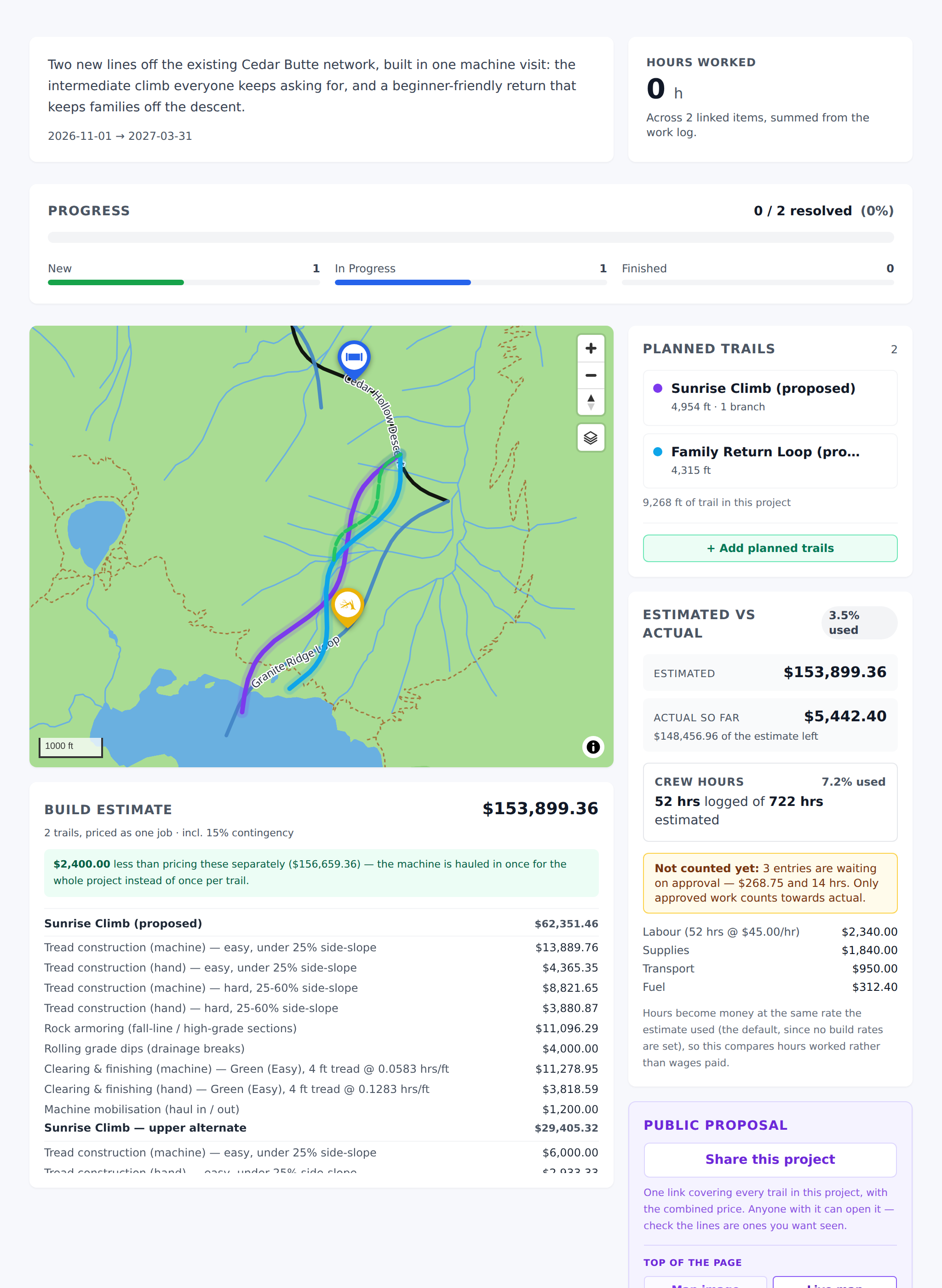
The project's Show page has four blocks:
- Description card — whatever you wrote in the description field, or an empty placeholder if you skipped it.
- Hours worked tile — summed from every hour logged against an item in this project. If your team's been logging time via the field app's time-log entry on each maintenance item, this rolls it up automatically. Zero if nobody's logged anything yet.
- Progress bar — three-color chip showing the count of items by status: open / in progress / resolved. When every attached item is resolved, the bar fills and the project is de facto complete (there's no auto-flip to a "completed" status — you'd archive it manually at that point).
- Map — a MapLibre map with a marker for every linked item, tinted the project's color. The project's planned trails are drawn on it too, each in its own color, with their branches dashed. If a project is only planned trails, the map opens framed on those.
Below those blocks: Planned trails, then the Linked items list with every attached maintenance issue, its status chip, its priority, and a per-row × to unlink. Click any row to jump to that item's Show page.
The progress bar stays a maintenance measure. A planned trail has no resolved / unresolved axis — it is built or it is a plan — so folding trails into that percentage would make it mean two things at once. The trail count sits beside it instead, on the project card and the project page.
Planned trails, priced as one job
This is the reason to group trails at all, and it happens on a job. A plain project that holds a planned trail lists it and draws it on the map, but does not price it — switch it to a job to get the estimate.
Three new trails on the same hillside are three lines and one job. The excavator is hauled in once for all of them. Pricing them separately and adding the totals bills your customer for three haul-ins of the same machine, which is a number you will have to defend and cannot.
So a project's build estimate charges machine mobilization once across every trail in it. The estimate card names the difference: what the same trails would have cost priced separately, and how much the shared haul-in takes off. That is the line you want when somebody asks why the project is cheaper than the sum of its parts.
Some detail worth knowing before you quote from it:
- Only mobilization is shared. Tread, armoring, drainage dips, culverts and labour all scale with the trail in front of them and are simply added up. The test is not "is it a fixed cost" but "is it charged per visit."
- A hand-built trail never had a haul-in to drop. Mixing hand and machine trails in one project is fine; the saving only appears where two machine-built trails would each have carried one.
- A trail's branches are included only if that trail says so. The Include this trail's branches in the price switch on each trail still decides. Turning it off means you have marked that spur a maybe, and the project is not going to quietly put it back in front of a landowner. That also gives you the sentence that makes the total explainable: the project total is what each trail's own page quotes, with the haul-in charged once.
- Rates are yours. Same Settings → Trail build rates the single-trail estimate uses. Set them before quoting anybody.
- The whole estimate can be switched off. Settings → Workspace modules → Build cost estimates removes it here, on the planner, in the field app and on the shared proposal. A project with costs switched off still shows its trails, its map, its issues and the hours logged against it — the money panel becomes Actual spend rather than Estimated vs actual, because there is nothing to compare against. See Workspace modules.
The numbers on a phone
The estimate is on the Field App too, on the same Projects → open a project screen. Under the planned trails you get the total length of the job, the branch count on each trail — and whether that trail's branches are in the price — then the build estimate, and estimated vs actual: what has been spent against what was quoted, the percentage used, and hours worked against hours estimated.
That last panel is the one worth having in a pocket. Somebody standing on the site deciding whether to keep going is exactly the person who needs to know there is 8% of the budget left, and exactly the person not sitting at the dashboard.
Two things about it:
- The percentage is not capped. A job at 130% of its estimate says 130%, in red. Rounding that down to 100 would hide the only case where the number changes what somebody does next.
- Hours and expenses awaiting approval are named, not counted. The panel says how many entries are pending underneath the totals. Work somebody has recorded is work they have done, whatever the paperwork has caught up with, and folding it into "actual" before it is approved would make the figure disagree with the one your books will show.
It is cached on the device when you open a project, so the numbers are there on the next launch with no signal — which is the launch that matters. A project you have never opened with signal shows its trails and no money, rather than a row of zeros that would read as a job worth nothing.
One link for the whole job
Public proposal → Share this project creates a single org-branded page covering every trail in the project, with the combined price — the same page a single trail's proposal uses, one level up. That is the link to hand a landowner or a council: one URL, one map with all the lines on it, one card per trail — each with its own elevation profile — one number.
Sharing is off until you turn it on, and Stop sharing kills the link for good — re-enabling makes a new one, so anything already circulating stays dead. Everything the single-trail proposal respects is respected here: notes you switched off stay off, and Hide build cost from shares is a per-project switch for when the job is going out to tender. A member trail's own Hide build cost is respected too, and one is enough: if any trail in the project hides its cost, the project page shows no estimate at all — a total that quietly left out one trail would read as the full price, and each trail's section is labeled with its name.
And the reader can download the whole thing as a PDF. The project proposal carries a Download PDF button, the same as a single trail's does — one document covering every trail in the job, with the map at the top, each trail and its options, and the combined estimate if the page is showing one. Whoever you sent the link to can take it away with them; they need no account. A link can be forwarded and lost, and Stop sharing kills it, which is right for the live page and wrong for the copy a council is deciding from. Everything the page withholds the document withholds too — a hidden cost stays hidden in both. See The trail planner for how the picture at the top is chosen.
There is a QR code as well. Next to Open page, the QR code button draws the link as a code and offers it as a PNG — for a site-hut wall, a public-meeting handout, or the back page of a printed tender. It is a picture of the same link, not a second one, so Stop sharing takes the code down with it. The single-trail proposal has had one for a while; the project page now does too.
All of it works from the Field App. Projects → open a project → Public proposal, with the same four actions: share, copy the link, show the QR, stop sharing. It is one switch, not two — turn sharing on from a phone and the dashboard shows it on, and the other way round. The point is who is standing where: the person with the landowner on the hill is not usually the person at the desk, and "I'll email it tonight" is a worse answer than holding up a phone.
Sharing is owner or manager only, on both surfaces. A volunteer who taps it is told exactly that rather than shown an error code.
Offline, the field app still shows a link that is already live, and will copy it or draw its QR for you — a link that exists keeps working, and the code is drawn on the device rather than fetched. Creating one needs signal, because the token is minted on the server; the app says "You're offline. Creating a proposal link needs signal." rather than appearing to work.
The button only appears on a job with at least one planned trail linked to it. An empty job has no proposal to show, and a plain project is not pitched to anybody.
Editing, archiving, and deleting
The Edit button is next to the name on the project's Show page. Every field on the create form is editable — name, description, color, dates — and you also get the Status picker with Active and Archived.
Archiving a project doesn't delete it or touch any of its linked items. It just hides the project from the default Projects list. The Show archived toggle in the header brings it back into view. Archived projects still show up in the maintenance item's project dropdown, so items linked to an archived project still say which project they're on.
Deleting a project asks "Delete "…"? Linked maintenance issues will be unlinked but kept." — same message on both the browser confirm and the danger-zone card on the edit page. The confirmation is literal:
- The maintenance items themselves stay put — every linked issue keeps its title, description, status, coordinates, photos, and audit trail.
- They are no longer linked to a project — they show up on the main Maintenance list without a project badge.
- Time logs stay attached to the individual items — the aggregate rolls off the project (because the project is gone) but the per-item logs remain.
If you want to soft-delete instead — hide from the list but keep the data — archive rather than delete.
Common gotchas
- Changing the type loses nothing. A job switched to a project keeps its client, stage and proposal settings; they are only hidden until you switch it back.
- A maintenance item or a planned trail can only be in one project at a time. There's no many-to-many. Assigning to a second project moves it out of the first — the badge on the picker is your warning.
- You can't put a branch in a project. Alternates, reroutes and spurs belong to their parent trail and join the project through it. Adding the parent brings them; adding a branch on its own is refused, because it would be priced twice.
- Deleting a project doesn't delete its trails. They survive, unlinked, and can be grouped again. Same as maintenance items.
- The shared haul-in is the point, and it only fires where it's real. Two machine-built trails in a project charge one mobilization. A hand-built trail never had one to drop, and a project of one trail saves nothing — the estimate says so rather than showing a saving of zero as if something happened.
- No phases, no budget, no assignees. By design. If you need those, you're probably reaching for a project-management tool; Projects here are a lightweight rollup for reporting and planning.
- Only open + in-progress items appear in the project search. Resolved items don't. If you want to add a resolved item to a project retroactively, go to the item's edit page and pick the project from its dropdown.
- Archived projects still show in the item dropdown. So an item linked to an archived project keeps its project badge. If you want the item off the project, unlink it before archiving.
- Color matters. The project's color is used as the map-marker tint on both the project Show map AND the maintenance list's project column. Pick something visible against your basemap.
- The Hours worked tile depends on the field app's time-log entries. If your team files items but never logs time, it stays at 0. Not a bug — just no data.
What's next
- If projects are new to your team, start with a single one — a two-week "cleanup week" is easier to trial than a year-long "Q1 backlog".
- Once you've got a few projects running, use the Maintenance list's project filter to see just one project's items at a time.
- Read the How to create a maintenance item article for the file-work side of the flow.