Team
Members, roles & permissions — invite your team
Everything about getting your team into TrailsIQ — the four roles (Owner / Manager / Field worker / Volunteer), the full permission catalog, inviting people, the invitation email + accept flow, per-user overrides, multi-org membership, and removing members.
Every TrailsIQ organization has one owner, one or more managers, and any number of field workers + volunteers. This article covers everything about getting your team in — inviting people, what each role can and can't do, adjusting the defaults, granting one-off exceptions per user, and cleaning up when someone leaves.
The four roles
Every membership row carries a role. Four options:
- Owner — one per org. Full access to everything, including the Manager row on Settings → Roles & permissions and the danger-zone actions (deleting the org, transferring ownership — see below). Bypasses every permission gate at resolution time.
- Manager — bypasses every permission gate, same as the owner, but can't touch the Manager permission row in Settings, can't remove or change another manager, and can't promote anyone to Owner. Everything else is fair game — invite people, edit trails, manage projects, publish news, run the website builder, sign off on hours.
- Field worker — the crew role. Not gated by seat cap by default rules (Plan-cap check counts field workers). Defaults on for Change trail conditions, Manage inventory, Publish day notes, View inventory, Manage crags and routes, See the trail planner, See projects, See clients, and See reports awaiting review — everything else defaults off but can be flipped on per-role or per-user.
- Volunteer — functionally identical to Field worker at resolution time, but exempt from the paid-seat cap. Meant for unpaid helpers you want in the field app without pushing you over your billed field-worker count. Defaults are stricter than Field worker (nothing on by default) so a fresh volunteer sees a read-only Field App.
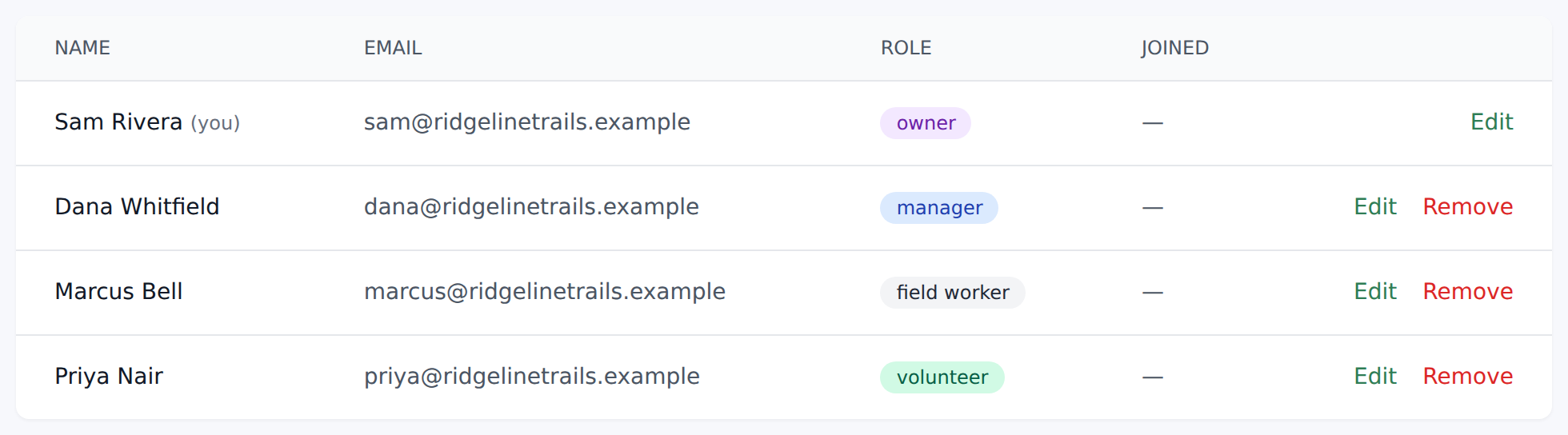
Role badge colors on the members list: Owner purple, Manager blue, Field worker gray, Volunteer emerald.
Promotion / demotion rules:
- Nobody may change their own role via
/members: "You cannot change your own role here." Use Profile → Leave organization if you need out. - Only the owner (or a platform admin) may touch a manager row: "Only the owner can change a manager's role."
- Only the owner may promote anyone to Owner: "Only the owner can promote a member to owner."
- Managers can only change roles on field staff (field worker + volunteer).
The permission catalog
Owners and managers bypass every gate. The permissions below only actually matter for field workers and volunteers — but they're editable per-role AND per-user for anyone.
Approvals
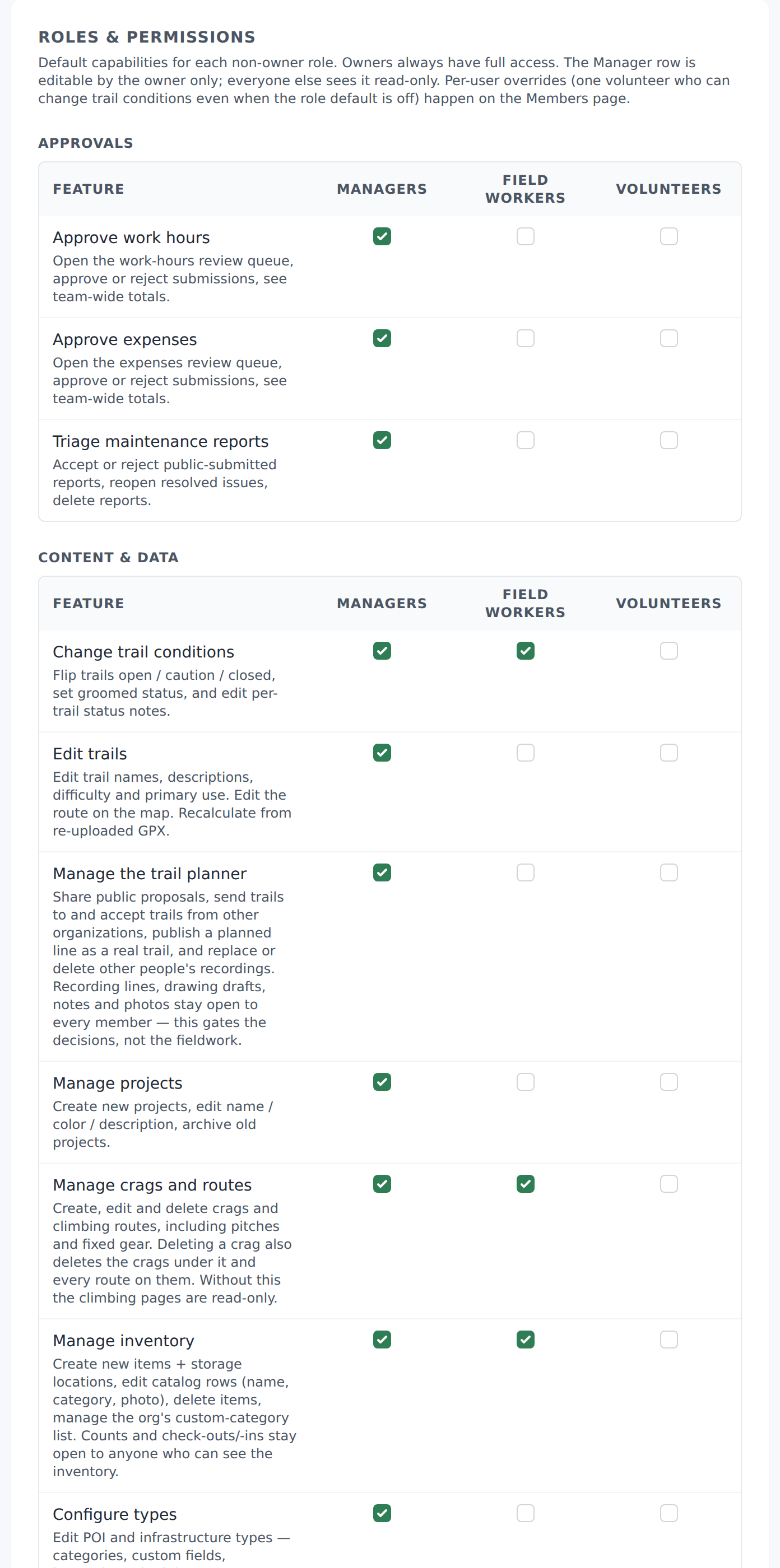
- Approve work hours — open the work-hours review queue, approve or reject submissions, see team-wide totals.
- Approve expenses — open the expenses review queue, approve or reject submissions, see team-wide totals.
- Triage maintenance reports — accept or reject public-submitted reports, reopen resolved issues, delete reports.
Content & data
- Change trail conditions — flip trails open / caution / closed, set groomed status, edit per-trail status notes.
- Edit trails — edit trail names, descriptions, difficulty and primary use. Edit the route on the map. Recalculate from re-uploaded GPX.
- Manage the trail planner — share public proposals, send trails to and accept trails from other organizations, publish a planned line as a real trail, and replace or delete other people's recordings. Recording lines, drawing drafts, notes and photos stay open to every member — this gates the decisions, not the fieldwork.
- Manage projects — create new projects, edit name / color / description, archive old projects.
- Manage inventory — create items + storage locations, edit catalog rows, delete items, manage the org's custom-category list. Counts and check-outs/-ins stay open to anyone with View inventory.
- Manage crags and routes — create, edit and delete crags and climbing routes, including pitches and fixed gear. Deleting a crag also deletes the crags under it and every route on them. Without this the climbing pages are read-only.
- Configure types — edit POI and infrastructure types — categories, custom fields, inspection schedules.
- Publish day notes publicly — flip a daily-report post to Share publicly. Without this the Share publicly toggle stays off and any hand-rolled API request is coerced to private server-side.
Public-facing surfaces (all Pro / Enterprise only — the toggle has no effect on Free orgs)
- Manage news posts — create, edit and delete news posts that show on the org's public hub + website.
- Manage events — create, edit and delete events on the org's public hub + website, approve / decline signups.
- Manage website — edit the website-builder pages, navigation, theme, and the home + about content that surfaces on the public hub.
- Use the QR-code builder — open the QR-code workshop to design printable signage with org branding. Output is downloadable PNGs — no impact on the public site.
Information access
- View team-wide totals — see who-owes-what summaries on the Month views for hours + expenses. Read-only; doesn't include approval rights.
- View inventory — see the inventory list, item details, stock counts and asset-checkout status. Required to use any of the inventory surfaces. Counting stock and checking assets in/out are allowed for anyone with this right.
- See the trail planner — open the Trail Planner and the lines in it. Recording and drawing need this too, since both start from that screen. What somebody may DO with a line once there is governed separately by Manage the trail planner.
- See projects — open the Projects list and a project's detail. Creating and editing projects is governed separately by Manage projects.
- See clients — open the Clients list and a client's detail, including their contact details and the jobs filed against them.
- See reports awaiting review — see public-submitted maintenance reports before anybody has accepted them: the Pending Reviews list and its count. Accepting or rejecting one is governed separately by Triage maintenance reports.
How resolution works: owner or manager → always true. Then per-user override (if set) → wins. Then the org's role defaults matrix. Then the built-in defaults for that role. Otherwise no.
Inviting your first team member
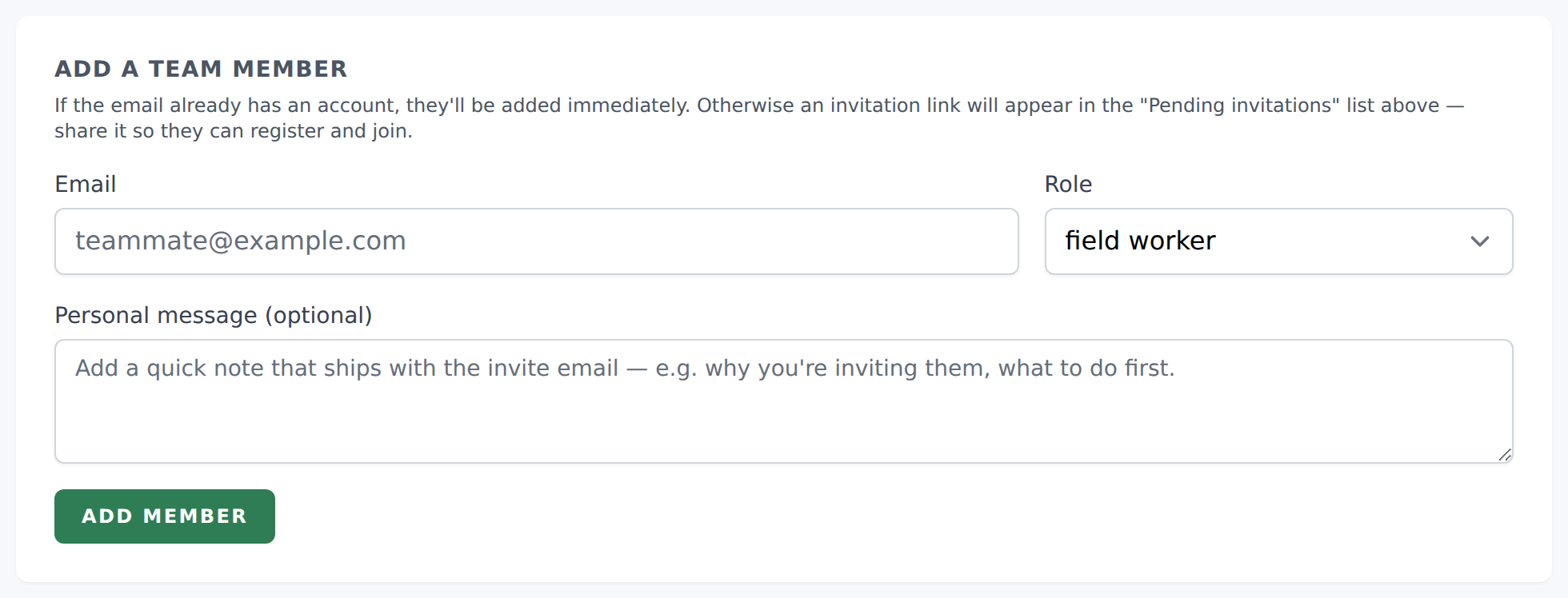
The Members link in the sidebar appears for owners and managers.
The page header reads "Team". Near the bottom sits Add a team member. Everybody you add gets an invitation, which appears under Pending invitations with a link to share.
Fields:
- Email — placeholder "teammate@example.com".
- Role — default Field worker. Owners see the full list including Owner; managers see everything except Owner.
- Name (optional) — how they show on the lineup and on Work hours before they have an account. Without one, their email is shown.
- Personal message (optional) — up to 1000 characters. Ships with the invitation email. For somebody added to the lineup it is kept and goes out when you press Send invitation, and Resend includes it too.
Click Send invitation. An invitation is created with a 30-day expiry. Flash: "Invitation sent to {email}. Share the accept URL from the Pending invitations list if it doesn't arrive." They get an "You're invited to {org} on TrailsIQ" email with an accept link.
That is the same whether or not the address already has a TrailsIQ account. Somebody who already has one joins when they open the link and sign in as that address, so nobody is added to a workspace they did not agree to join.
Duplicate check: "This user is already a member." if you invite an email that's already in the org.
Your own address has to be confirmed before you can send. If it is not (for example, just after you changed it under Profile), the form says so and a note on the page has a Send the link again button. Add without sending still works in the meantime. Each workspace can send up to 50 invitations in 24 hours; resends count. If you need more than that in a day, ask us.
Add without sending: the lineup
Add without sending sits next to Send invitation and saves the person without emailing anybody. Use it to line people up ahead of a season, or for volunteers you are signing up on paper at a work day.
- They appear under Pending invitations marked Not sent yet, with no link to copy. The invitation does not work until it is sent, so nobody can join from it early.
- Managers can already log their hours. On Work hours, open Log hours and pick them under Invited, not signed up yet in Hours for. The hours are approved as you save them, and the row on the Members page shows how many hours are waiting for them.
- Send invitation on their row emails the invitation and starts its 30 days. If the email already has a TrailsIQ account by then, they are added to the team straight away instead, as the form does.
- When they accept, every hour logged for them moves to their account, so their timesheet starts with it.
- Remove takes somebody off the lineup. It is refused while hours are logged for them, because those hours would then belong to nobody. Delete the entries on Work hours first, or keep the invitation.
Plan-cap check. Managers count against the managers bucket; field workers against the field_workers bucket; volunteers skip the check entirely (that's the point of the role). If you're at cap: "Your {plan} plan is limited to {N} {resource}. Upgrade in Billing to add more."
The invitation email + accept flow
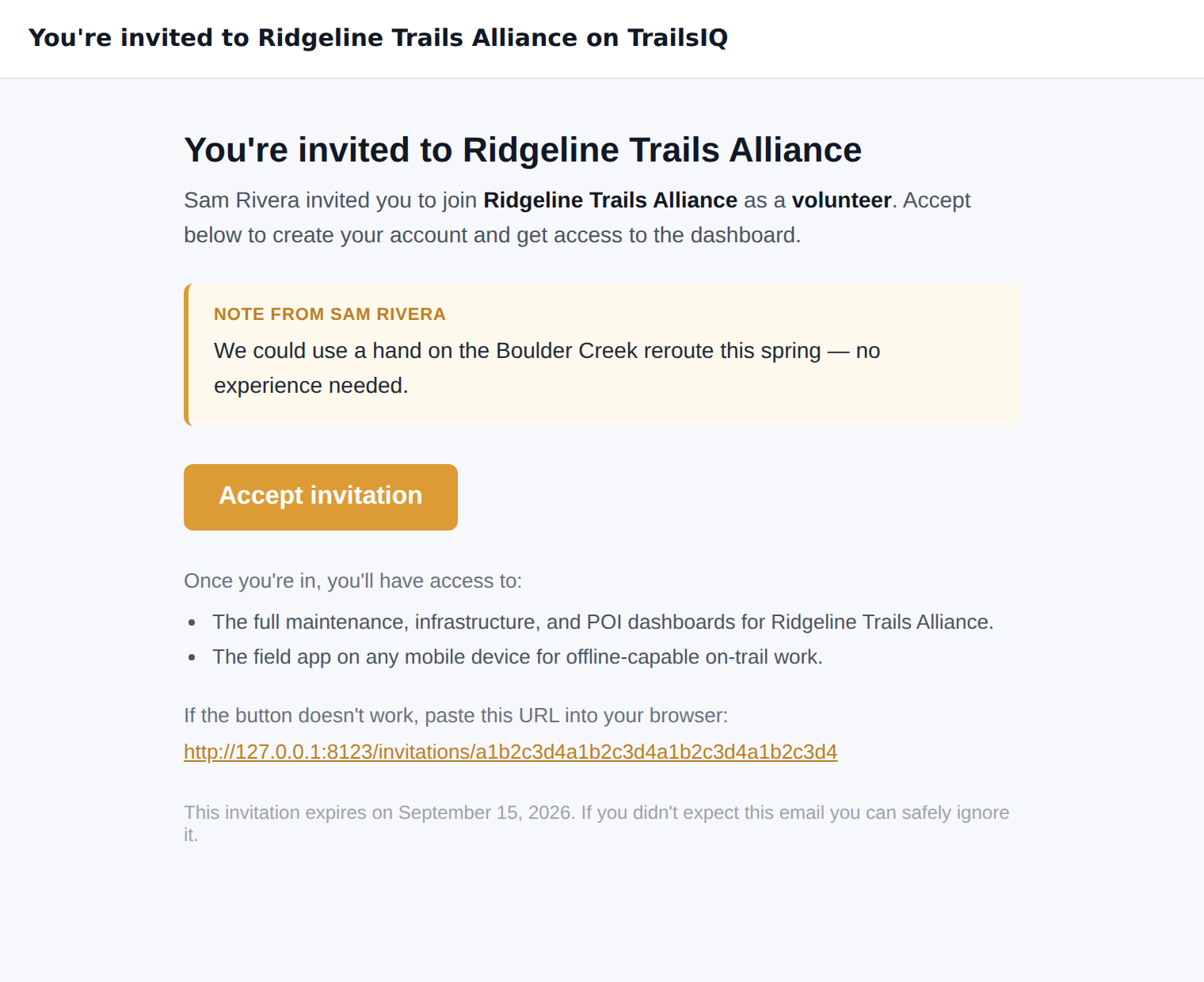
Subject: "You're invited to {organisationName} on TrailsIQ".
Body: "You're invited to {organisationName}" headline, then "{inviterName} invited you to join {organisationName} as a {role}." If you filled in the personal-message box it shows below as "Note from {inviterName}" in an amber note block.
Field workers see follow-up copy: "Accept below to create your account — the field app will be waiting for you on the other side." with a bullet list about logging maintenance issues, offline sync, and the mobile app.
Managers / owners see admin-oriented bullets ("Member management — invite and remove team members from the Members page.", etc.) and the copy: "Accept below to create your account and get access to the dashboard."
Footer: "This invitation expires on {date}. If you didn't expect this email you can safely ignore it."
Accept flow. The Accept invitation button in the email takes them to /invitations/{token}. Idempotent — the same link handles three cases:
- Not signed in, no account yet → redirected to
/registerwith the email prefilled. - Not signed in, already has an account → "Sign in as {email} to accept your invitation." and bounced to
/login. - Signed in as a different email → "This invitation is for {email}. Sign out (or open the link in a private window) and try again." The invitation stays claimable.
- Signed in as the right email → attached to the org, dashboard opens with the flash "You joined the organization."
If the token is expired or wrong: "This invitation is no longer valid." — deliberately generic so nothing about the state leaks.
Managing pending invitations + join requests
The Members page has a Pending invitations section listing any invitation that hasn't been accepted, including expired ones, which are marked expired, and the lineup, marked Not sent yet and listed first. A sent invitation shows its accept link with Copy link, Resend and Revoke; a lineup row shows Send invitation and Remove.
- Copy the URL if the invitation email didn't land in their inbox (spam filter, wrong address, corporate email-block). Send them the URL directly via chat / SMS.
- Resend email re-sends the same invitation. Flash: "Re-sent invitation to {email}." On an expired invitation it also gives it a fresh 30 days, and the flash says the new date: "Re-sent invitation to {email}. It now expires on {date}." The link stays the same, so one you already shared works again.
- Revoke asks for confirmation, then deletes the invitation outright. Flash: "Invitation revoked." Like Remove on the lineup, it is refused while hours are logged for the person.
Join requests — a separate section on the Members page (labeled "Requests to join" with an amber dot) shows anyone who signed up naming your org. Convert into a real invitation by picking a role (Field worker / Volunteer / Manager / Owner) and clicking Send invitation — confirm dialog "Send an invitation to {user_email}?", flash "Invitation sent to {email}." Dismiss button asks "Dismiss {user_email}'s request to join?", flash "Join request dismissed."

Reading the members table
Four columns, and the last one is the useful one: Last active says
when that person was last signed in and using TrailsIQ, or Never
signed in for somebody who was invited, accepted, and has not come
back since. A member who has never arrived looks exactly like an
active one in a list that does not carry it — which is usually the
answer to "did they ever actually start?"
The count above the table says how many are in that state, so you can
see it without reading down the list.
Changing roles
Two entry points, both writing to the same endpoint:
- Inline role dropdown on the members table — pick a new role from the dropdown next to any member. No-op when the role is unchanged.
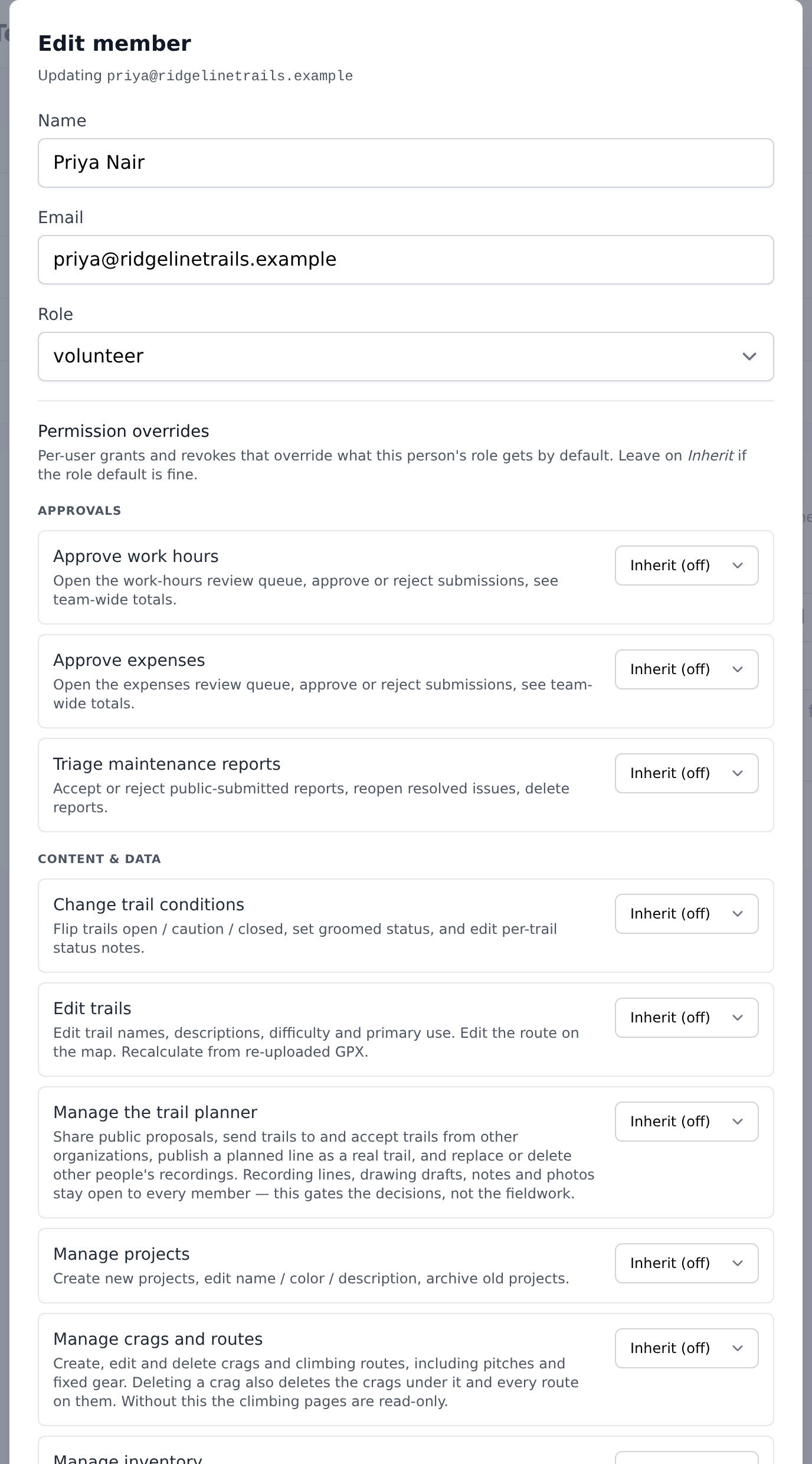
- Edit modal — click Edit on any member. Modal title reads "Edit member" with subheading "Updating {email}". Supports Role and per-user permission overrides in one save. Name and email belong to the person rather than the workspace, so they are shown but locked: each member changes their own from their profile. On your own row you can fix your name here, and the modal points you at your profile for your email.
Non-owners can't see Owner in the role list. Non-owners can't edit the Role field on a manager row (it's hidden with the message "Manager overrides can only be edited by the organization owner.").
Successful save: flash "Member updated."
Paid staff
The Edit modal also has a Paid staff switch. It is off for everybody to start with, so every member counts as a volunteer until you say otherwise, and a member who is switched on shows a small Paid tag beside their name.
When you switch it on or off, the window asks from when, and today is filled in. Hours are counted by the role the person had on the day they were worked, so a long-time volunteer you hire today keeps every volunteer hour they gave before. Pick an earlier day if they started being paid before you got round to the switch, or clear the date to count all of their time the new way. While the switch is on, the same field reads Paid staff since and can be changed at any time; everything already logged is re-counted to match.
It changes nothing about what the person can do. What it changes is how their hours are counted: the Work report shows paid staff hours apart from volunteer hours, and if your organization is hosted by an umbrella account, a paid member's approved hours are reported as crew hours, beside the volunteer hours rather than inside them, and are not given the dollar value a volunteer hour is. See Umbrella accounts.
Per-user permission overrides
Every permission has a role default. Overrides let you grant a specific field worker one permission they wouldn't otherwise have, or revoke one that comes with their role by default.
Overrides live inside the Edit modal on any member whose role is Manager / Field worker / Volunteer. Owners always pass every gate, so no override UI shows for them.
Section heading: "Permission overrides" with a small "Owner only" badge on the Manager row when the viewer isn't the owner. Helper text: "Per-user grants and revokes that override what this person's role gets by default. Leave on Inherit if the role default is fine."
Every permission renders as a tri-state select:
- Inherit (on|off) — the current role default. This is the "no override" state.
- Grant — force this permission on for this user, regardless of role default.
- Revoke — force this permission off for this user, regardless of role default.
Common patterns:
- One volunteer who can flip trail conditions — set Change trail conditions to Grant on their row while every other volunteer stays read-only.
- One field worker who runs the news blog — set Manage news posts to Grant while everyone else stays default-off.
- One manager you want to hold back from publishing publicly — set Publish day notes publicly to Revoke. (Won't actually take effect while they're a manager since managers bypass, but it survives a demotion.)
Rows with any overrides show a small amber "custom" pill on the members table with the tooltip "{n} permission override(s)".
Org-level role defaults (Settings)
If you want to flip a permission on for every field worker in the org (not just one), use Settings → Team → Roles & permissions.
Section blurb: "Default capabilities for each non-owner role. Owners always have full access. The Manager row is editable by the owner only; everyone else sees it read-only. Per-user overrides (one volunteer who can change trail conditions even when the role default is off) happen on the Members page."
The matrix has one row per permission, grouped by category (Approvals / Content & data / Public-facing surfaces / Information access), and one column per non-owner role. Tick a box → that permission is on for every member of that role by default. Untick → it's off. Individual users can still override either direction on the Members page.
Owner-only rows (the Manager column) show "Owner only" under the column header with the tooltip "Only the organization owner can change this row." and disable the checkboxes for non-owner viewers.
Submit: Save role defaults (or Saving…), flash "Saved."
Multi-org membership
Users belong to one or more orgs. If you belong to more than one, the sidebar shows an org switcher with each org's name and a ✓ next to whichever is currently active. Tap to switch — flash: "Switched to {name}."
Platform admins see additional orgs (marked with an admin pill) that they can enter without being an actual member — used for support triage.
My organizations on the Profile page shows every org you belong to with role + status pills, joined date, a Switch to link (unless already active), and a Leave button. Empty state: "You aren't a member of any organizations yet." Owners can't leave their own org — the Leave button is disabled with the tooltip "Owners can't leave their own organization. Delete or transfer it instead."
Impersonation locks the switcher. If a platform admin is "acting as" a specific user, the org switcher is disabled with the message "Stop acting to switch organization."
Owner-only actions
Some actions are reserved for the owner alone:
- Editing the Manager column on Settings → Roles & permissions.
- Editing manager rows' permission overrides on the Members page.
- Promoting anyone to Owner (managers can't).
- Changing a manager's role.
- Removing a manager.
Danger-zone actions — deleting the organization and transferring ownership — are not exposed in the dashboard yet. They exist as platform-admin actions only. Contact TrailsIQ support to transfer ownership or delete an organization entirely.
Owners can't be removed via the Members page: "The owner cannot be removed from their own organization."
Owners can't leave via Profile → Leave: "Owners cannot leave an organization."
Removing a member
Click Remove on the member's row. Browser confirm: "Remove {email} from the organization?"
Manager restrictions:
- Managers can only remove field workers and volunteers.
- Only the owner (or a platform admin) can remove a manager: "Only the owner can remove a manager."
- The owner can't be removed.
Flash on success: "Member removed."
What actually happens. The membership pivot is deleted. The user's account is untouched — they keep their TrailsIQ login, their other memberships (they may be an owner or manager elsewhere), and any content they authored in your org stays put (trails they created, maintenance items they filed, day notes they posted). What they lose is access to your org — the moment the row is deleted they can't log into your dashboard or open your field app.
There's no "deactivate" middle state. Removal is immediate and complete; re-inviting them is the only way to give access back.
Platform admin acting-as
Platform admins (TrailsIQ staff) can impersonate any member of an org for support. Trigger from the Members page — each row shows an Act as link (only visible to platform admins, and never on their own row).
Confirmation dialog: "Act as {name}? You'll see and do everything they can — and content you create will be attributed to them. Use Stop in the top banner to switch back."
While acting:
- An amber banner across the top reads "Acting as {user name}" with a Stop acting button.
- The active org auto-flips to the target user's first active org so the tenant scope resolves.
- The org switcher is disabled ("Stop acting to switch organization.").
- Content created is attributed to the target user, not the admin.
Stop returns the admin to their own account with the flash "Stopped acting as another user."
If you see suspicious activity attributed to a user who says "I didn't do that" — check whether a platform admin was acting as them at that timestamp before blaming the user.
Common gotchas
- Owners can't self-manage via the Members page. No self-role-change, no self-remove. Use Profile → Leave for departure (except owners can't leave; they'd need to transfer ownership first).
- Volunteers are functionally identical to Field workers at resolution time — same read/write capabilities, same role defaults grid. The difference is the plan-cap: volunteers don't count against your paid seat count. Meant for unpaid helpers.
- Managers "always pass every gate". Toggling a manager checkbox in Settings → Roles & permissions has no functional effect while the person is a manager. It only matters if they're later demoted — the checkbox pre-configures the demoted state.
- Pending invites don't consume plan seats, but accepting one does. If the places have gone between sending and accepting, the person is told the team is full and their invitation stays valid — free a place or upgrade and the same link works. Volunteers skip the cap entirely.
- Invitation email address mismatch — if the person signed in as someone else opens the invite link, they see "This invitation is for {email}. Sign out (or open the link in a private window) and try again." and the invitation stays claimable.
- Invitations expire after 30 days. An expired one stays on the Pending invitations list marked expired rather than vanishing, so you can see it lapsed. Resend on it starts a fresh 30 days with the same link.
- Revoke deletes outright. There is no revoked-invitations history — once revoked, the invitation is gone. If you need a record of who was invited when, keep it in your own notes.
- The invitation email is dispatched asynchronously. If it doesn't land (spam, wrong address, silent bounce), the flash tells you to "Share the accept URL from the Pending invitations list" — use the Copy button on the row.
- News / Events / Website builder / QR builder permissions require Pro or Enterprise. The Free plan doesn't unlock those features; the permission toggles have no effect on Free orgs.
- Change trail conditions is ON for field workers by default. If your policy is "only managers change conditions", switch it off in Settings → Roles & permissions.
- Publish day notes is ON for field workers too. Same place if you want tighter control over what reaches the public daily report.
- Volunteers see the Field App read-only by default. Flip Change trail conditions, View inventory, or any other permission on in Settings to open specific surfaces for them.
- Volunteers do not see the trail planner, projects, clients, or reports awaiting review, and the climbing pages are read-only for them. These are the planning and commercial sides of an organization — what it intends to build, what it is being paid for, and who by — and a volunteer turning up for a work party has no call on them. An organization run by a volunteer committee flips any of them on for the role in one place. Nothing changed for owners, managers or field workers.
- Closing a workspace or handing it to a new owner is not self-serve. Ask us and we will do it with you.
- Removing a member doesn't delete their content. Trails, maintenance items, and day notes they authored stay put — the author byline still names them.
When we ask for your password again
A few actions ask you to type your password even though you are
already signed in. Inviting someone, changing or removing a member,
revoking an invitation, lending a trail to another organization and
taking that back are all in this group, and so are deleting your own
account, changing your email address, and pointing a custom domain at
your site.
It is about a device rather than about you. A signed-in session
lasts a long time on purpose — the Field App has to keep working for
days in places with no signal, and being logged out at a trailhead is
its own kind of failure. The cost of that is a phone left on a tailgate
or a laptop open in a truck stop. Asking again in front of the handful
of actions that change who can get in, or that cannot be undone, is
what keeps a borrowed screen from becoming a borrowed organization.
Everything a crew does is untouched. Filing maintenance, recording
inspections, planning trails, counting stock, posting to the daily
report — none of it asks. A prompt you cannot answer without a
connection would be worse than useless out on the ground.
Confirming covers the next half hour, so a run of changes asks
once rather than once per row. The account-level ones — your email,
your account, your domain — use a shorter fifteen minutes, because
those are the ones worth being sure about.
A passkey answers it instead, if you have one. Add your phone or
laptop under Profile & preferences and the same prompt asks for a
fingerprint, your face or your screen lock rather than a typed
password. It is optional and changes nothing else — see Passkeys.
Your work is not lost while you confirm. The prompt opens over the
form you were filling in, and whatever you were saving goes through as
soon as you have confirmed. If you change your mind, nothing is saved
and nothing is changed.
One exception worth knowing. You can change your name and your
units from My account in the Field App, but not your email address
— there is no way to confirm on that screen, so the app says so and
points you at the dashboard. Everything else on that panel saves from
the phone as it always has.
Getting out of an impersonation session never asks, and neither does
resending an invitation that is already pending.
What's next
- Walk through Settings → Roles & permissions before inviting a big team so the defaults match your ops policy.
- If you'll be running volunteer days, invite the volunteers as Volunteer (not Field worker) so they don't push you over the paid seat cap.
- Once your team is invited, walk them through the TrailsIQ Field App article — that's where their day-to-day happens.
- If someone loses access to their email account and can't accept an invite, revoke and re-invite to the new address — the old accept URL becomes invalid the moment the row is deleted.