Website
Website templates, donations and forms
Switch your website between templates without losing a word, add starter pages, take donations through your own PayPal or Stripe, and read what visitors send through your forms.
Your website has a template: the design every page is drawn in. Pick a different one at any time and every page, block and word comes along, redrawn in the new design. This article covers choosing a template, the starter pages, taking donations, and the inbox your website's forms send to.
Choosing a template
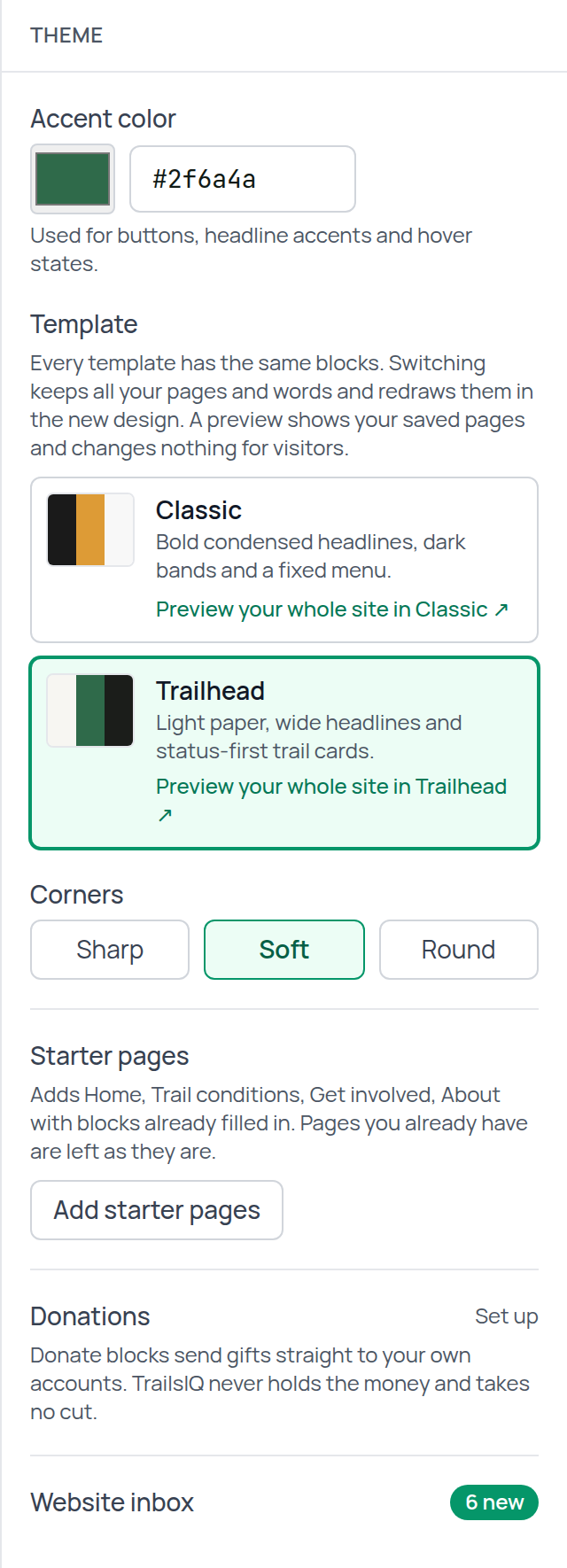
Open the website editor and click an empty part of the right panel, or the back arrow at its top, to see Theme. Under Template there are two:
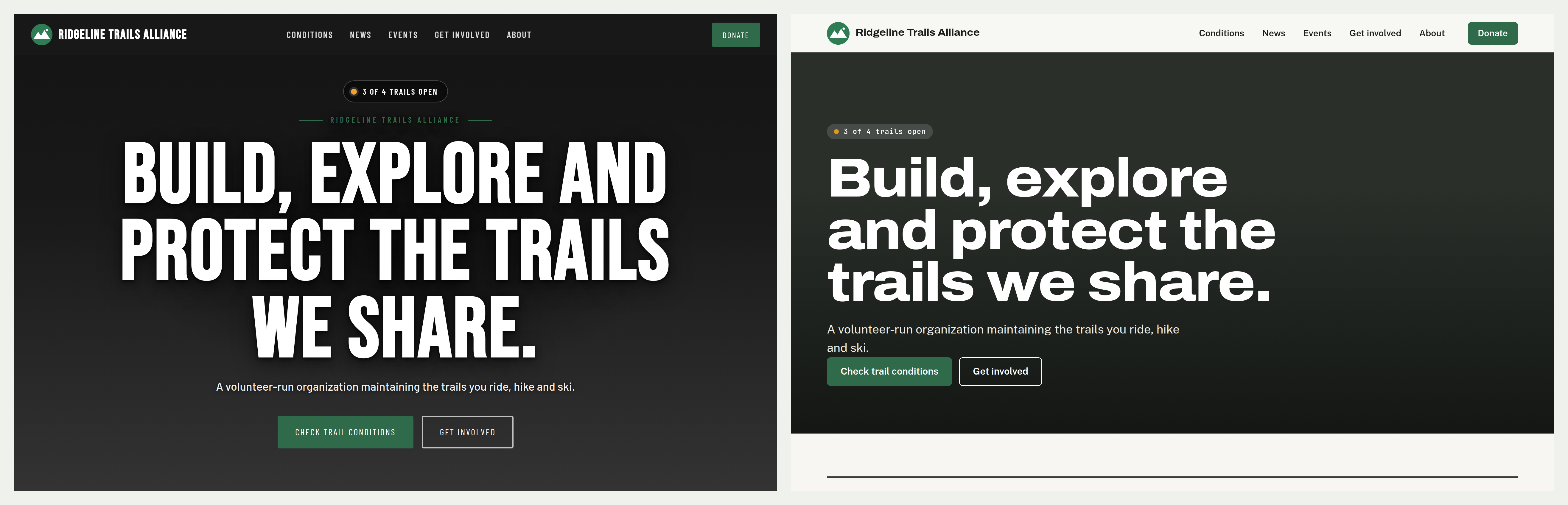
- Classic — bold condensed headlines, dark bands and a menu fixed to the top of the screen.
- Trailhead — light paper, wide headlines and status-first trail cards, with a menu that folds into a button on a phone.
Click one and the canvas redraws straight away. Nothing is saved until you press Save, and Undo takes a template change back like any other edit.
Every template has every block and every block setting. A setting a template's own design had no place for has been drawn in that template's style, so nothing you write disappears when you switch. Colors you set on a block are kept too. Trailhead offers fewer per-block colors because most of its detail comes from your accent color, and colors you set under Classic are still there if you switch back.
Corners appears under Trailhead: Sharp, Soft or Round, for buttons, cards and photos across the whole site.
Pages to start from
Add starter pages, in the same panel, adds four pages with blocks already filled in:
- Home — a hero showing how many trails are open, links to join, donate, volunteer, news and events, trail conditions, news, events, a call to action and a newsletter signup.
- Trail conditions — hazards, every trail with a filter and search, the forecast, a map, and a grooming report if your organization grooms.
- Get involved — a volunteer signup, a donation form and common questions.
- About — your story and a contact form.
Pages you already have are left alone, so it is safe to press on a site you have been working on. The shared header and footer are only replaced if you have never changed them. Every word on the starter pages is yours to rewrite.
Taking donations
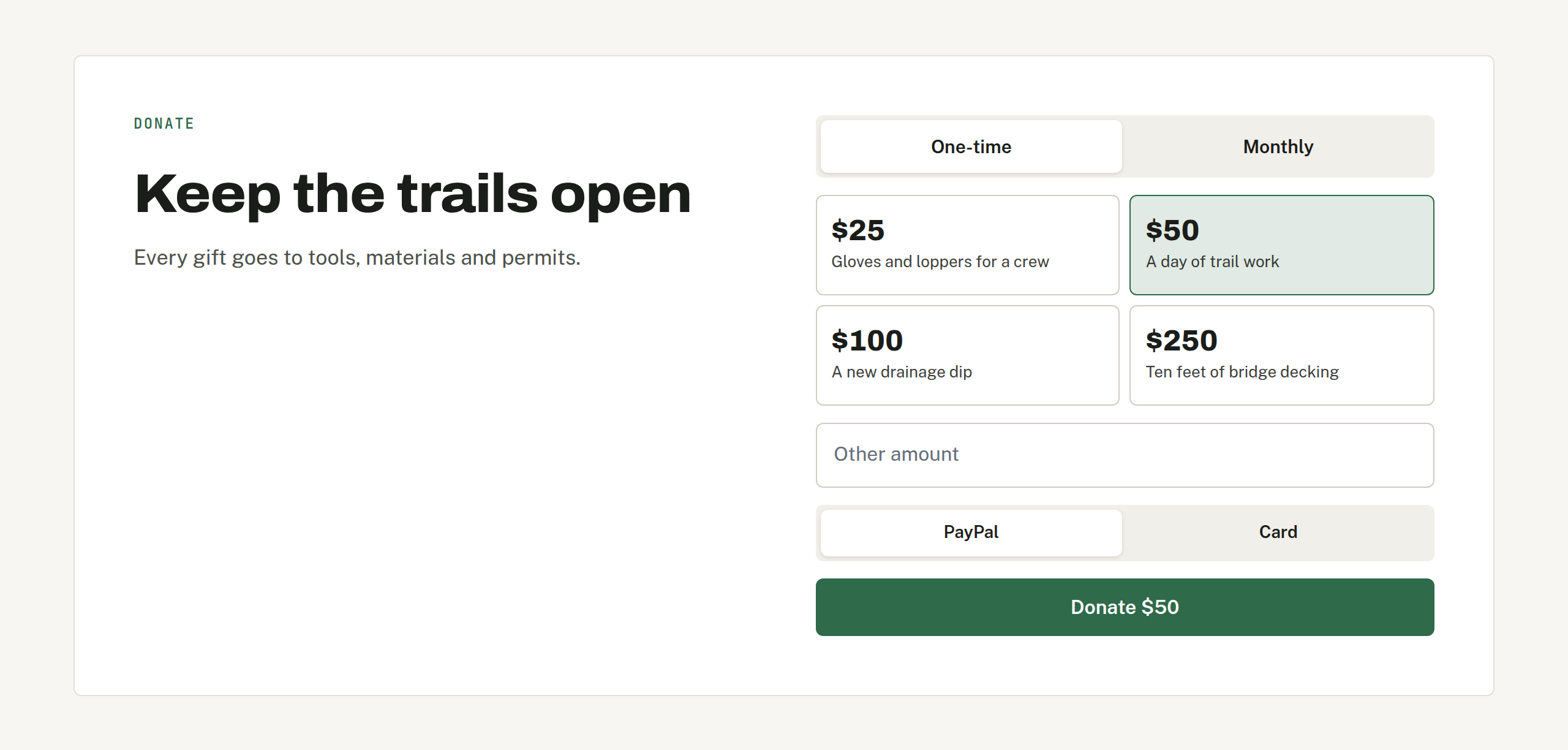
The Donation form block sends a gift straight to your own account. TrailsIQ never holds the money and takes no cut. The donor picks an amount, one-time or monthly, presses Give, and lands on your provider's page with the amount filled in.
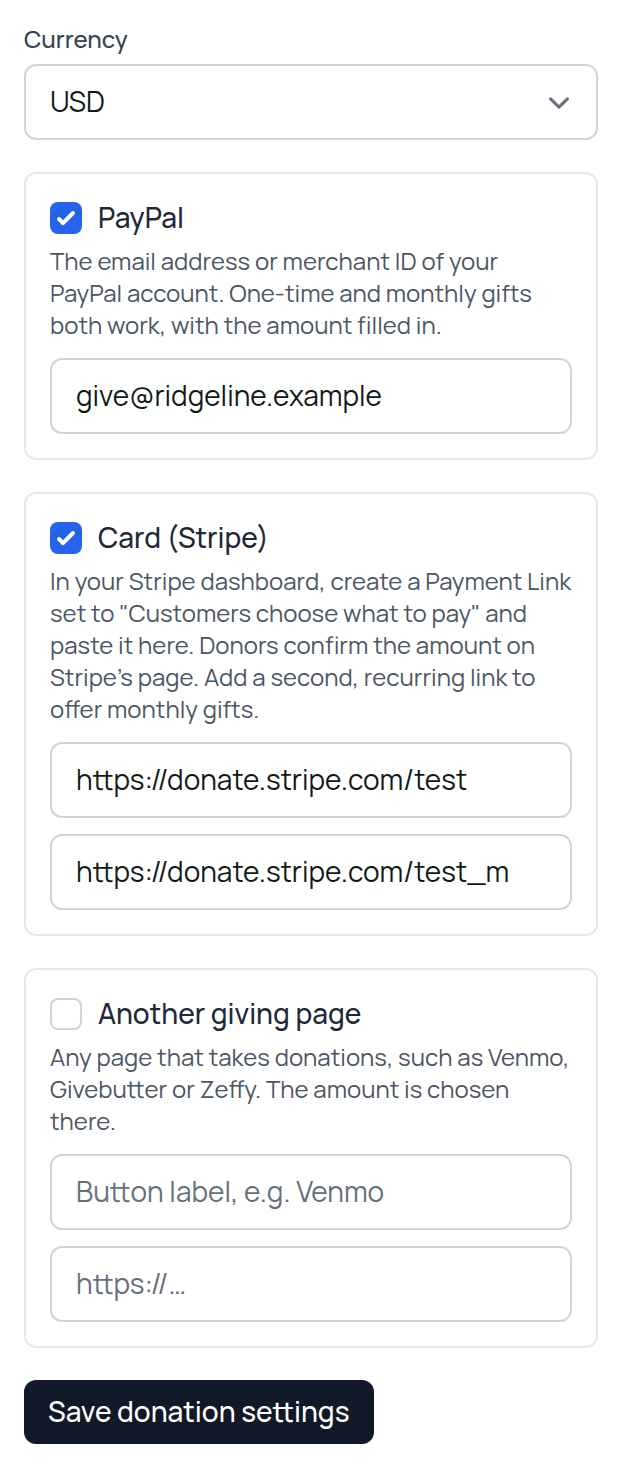
Set it up under Donations in the Theme panel and press Save donation settings. Turn on any of the three:
- PayPal — the email address or merchant ID of your PayPal account. One-time gifts open PayPal's donation page and monthly gifts open a monthly PayPal subscription, both for the amount the donor picked. Nothing else to install.
- Card (Stripe) — a Stripe Payment Link. In your Stripe dashboard create a Payment Link and set its price to Customers choose what to pay, then paste the link here. For monthly gifts, create a second, recurring link and paste it in the monthly box. Stripe does not let a link be handed an amount, so donors confirm the amount on Stripe's page.
- Another giving page — any page that takes donations, such as Venmo, Givebutter or Zeffy, with a label for its button. The amount is chosen there.
If more than one is on, donors choose between them on the form. Monthly is only offered through methods that can take it. With none turned on, the block shows a short note in place of the button, so a donate button never goes nowhere.
On the block itself you set the preset amounts and what each one pays for, whether monthly is offered and which is picked first, whether donors can type their own amount, and an optional goal. The goal's raised total and donor count are numbers you type in and update yourself; TrailsIQ cannot see what reaches your account.
Your account details are never shown on your website. The donate button asks TrailsIQ where to go, and only then is the donor sent to your provider.
The website inbox
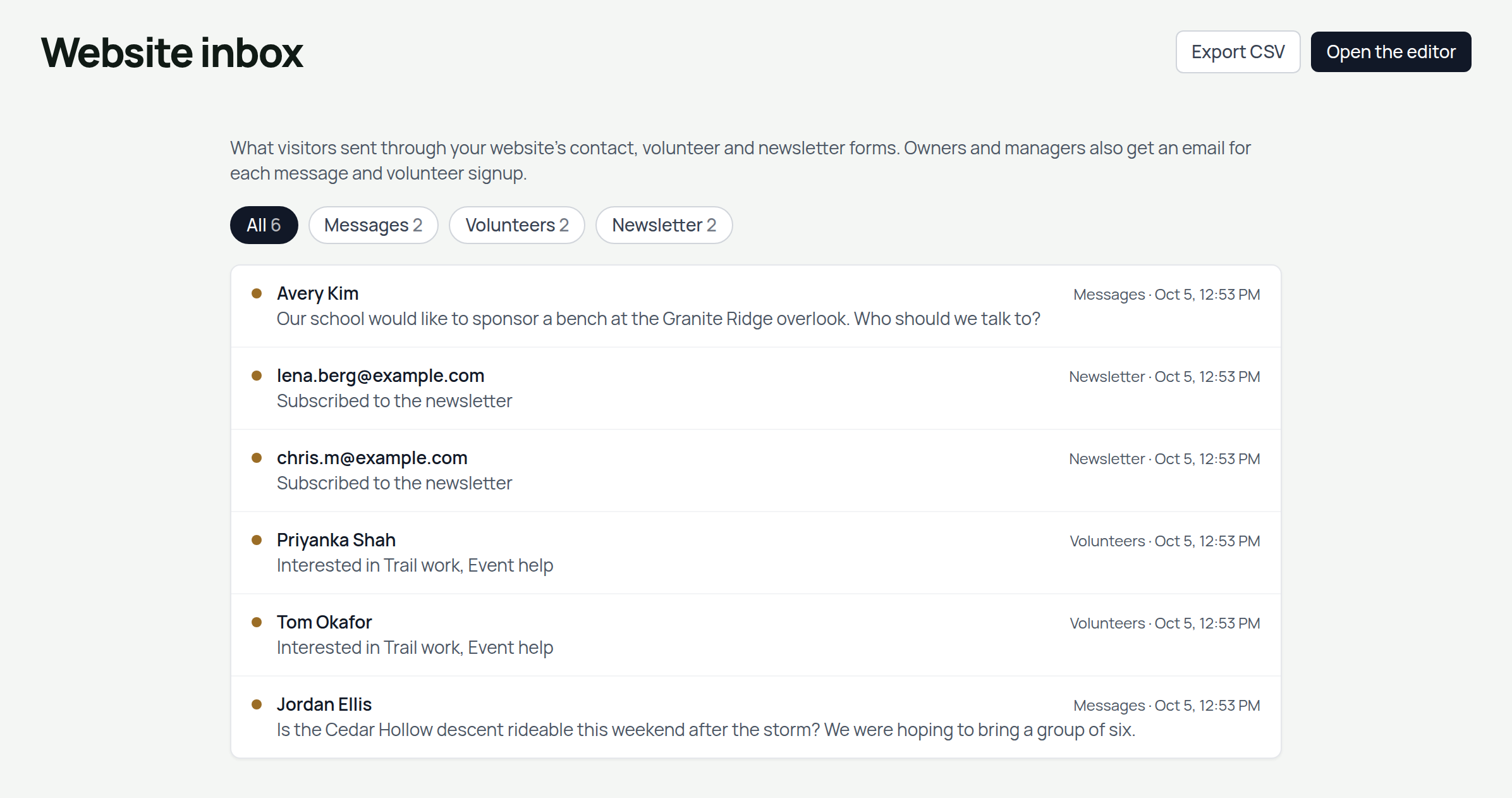
The Contact, Volunteer signup and Newsletter signup blocks all send to the Website inbox, and so does the Subscribe tile on a Get involved block. Open it from the bottom of the Theme panel. The number beside it counts what you have not opened yet.
- Messages and Volunteers also email the organization's owners and managers, with a reply going straight back to the visitor. Turn those emails off under your notification settings, as Website messages.
- Newsletter signups are listed but not emailed, so a busy week does not fill your inbox. The same address signing up twice is listed once.
Open a row to read it and mark it read. Reply opens your own email app, Mark unread puts it back, and Remove deletes it. Export CSV downloads the tab you are looking at, which is the way to move newsletter signups into the email tool you send with.
Forms are protected against spam with a hidden field and a limit on how often one visitor can send. While your site is hidden, the forms and donate button only work for owners and managers trying them out.
Common questions
- Do I lose anything switching templates? No. Pages, blocks, words, photos and links all stay. Switch back and everything is where it was.
- Can a donor give monthly by card? Yes, once you have pasted a monthly Stripe link.
- Where do I see who donated? In PayPal or Stripe. TrailsIQ is not told about the gift.
- Why does the alert bar not show? Set to automatic, it only appears while one of your trails is closed. In the editor it says so in place of the bar.