Infrastructure
Trail counters — use data from the trail itself
Register your counting units, attach them to the network, trail or infrastructure they sit on, import readings by serial number, and read the numbers honestly — including what a counter can and cannot tell you before you quote it to a funder.
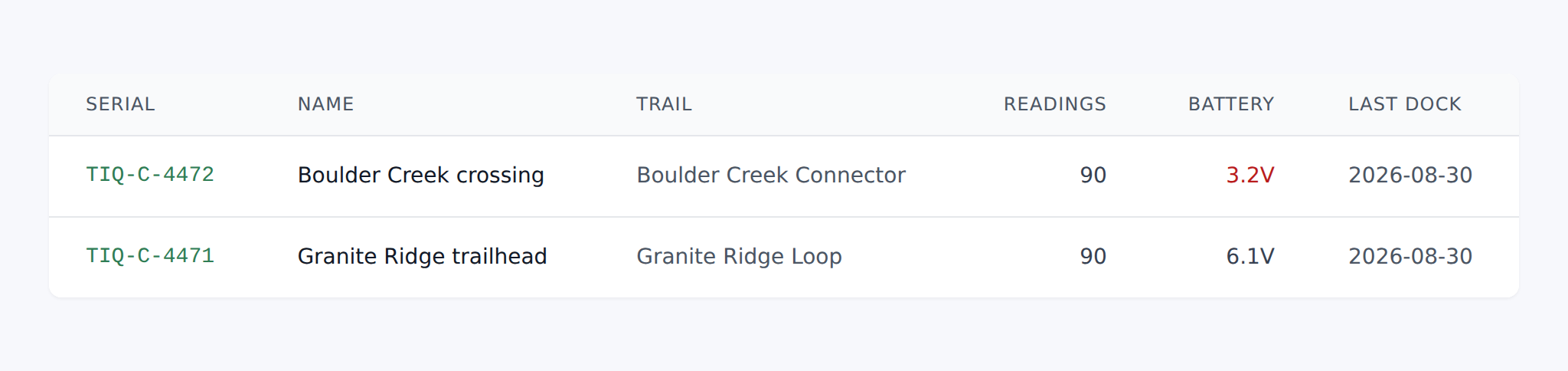
Counters are the infrared or inductive units you put out on a trail to count people passing. TrailsIQ stores each unit, its location, and the readings you dock off it — so use data lives next to the trail it describes rather than in a spreadsheet somebody has to find.
Adding a counter
You do not have to add one by hand. Importing a file creates any counter it does not recognize, using the serial number, name, mode, battery voltage and dock time out of the file's own header. For most people the first import is also the registration.
Adding one manually from Counters → New is worth doing when you want it named and attached before its first dock. Either way, a counter carries:
- Name — what you call it. "Lower Oak Ridge trailhead" beats "Counter 3". Once set in the dashboard, later imports leave it alone — the file's name does not overwrite yours.
- Serial number — as printed on the unit, and the key everything else matches on.
- Mode — how the unit counts. Refreshed from each import.
- Battery voltage — refreshed from each import.
- Last dock time — refreshed from each import.
Those last three update themselves every time you import, which is what makes them useful: a unit that has not been docked in three months either has nothing to say or has stopped saying it, and you cannot tell which from the trail.
The way to tell is to go and look at it. If you keep your counters as infrastructure as well, inspecting one asks whether it has counted since the last visit, and answering nothing recorded fails it — see Inspecting structures. A unit that is straight, dry and unmarked can still have recorded nothing since spring.
Where a counter lives
A counter can be attached to a network, a trail, or a piece of infrastructure — a trailhead sign or a bridge it is strapped to.
Attach it to the most specific thing that is true. A counter on a trail gives you that trail's numbers; one attached only to a network tells you somebody came through the area but not where. The attachment is also how you find the unit again: "somewhere near the north end" has cost more than one organization a counter.
Getting readings in
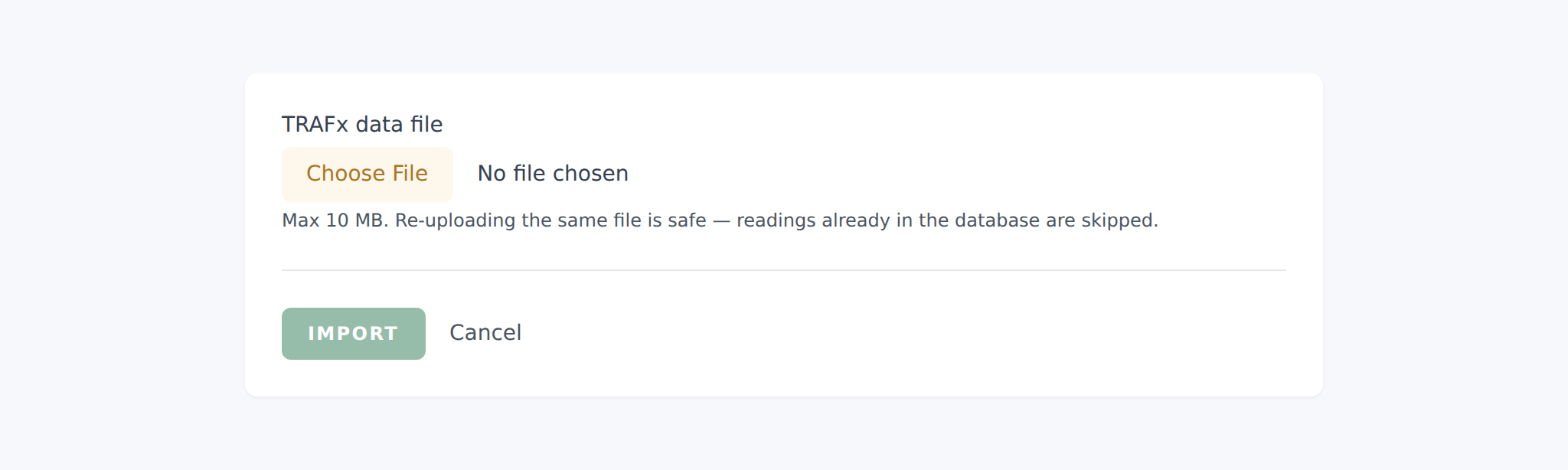
Readings arrive by import, from a TRAFx data file. Dock the unit, save the data file from the TRAFx software, and upload it — Import TRAFx file on Counters. The importer reads that format; a file from another make of counter will not import. If yours is something else, ask us.
Everything is matched by serial number, read from the file itself. A file can carry several counters' worth of data and they will each land against the right unit.
Re-importing an overlapping file is safe. Readings are keyed by counter and timestamp, so the same reading arriving twice is stored once. This matters because the usual real-world export covers "everything on the unit" rather than a tidy date range — you can dock and import as often as you like without inflating your numbers. After each import the summary reports new readings separately from the counter's total, so you can see exactly what that file added.
A serial belongs to a workspace, not to TrailsIQ. If you run more than one organization, the same file imports into each of them independently — a second-hand unit, or one you move between two workspaces you both administer, needs nothing from us. Each workspace keeps its own counter and its own readings for that serial, so a number changed in one never moves in the other.
That does mean importing into the wrong workspace leaves a counter there. Delete it from Counters and import the file where you meant to; nothing about the other copy is affected.
Reading the numbers
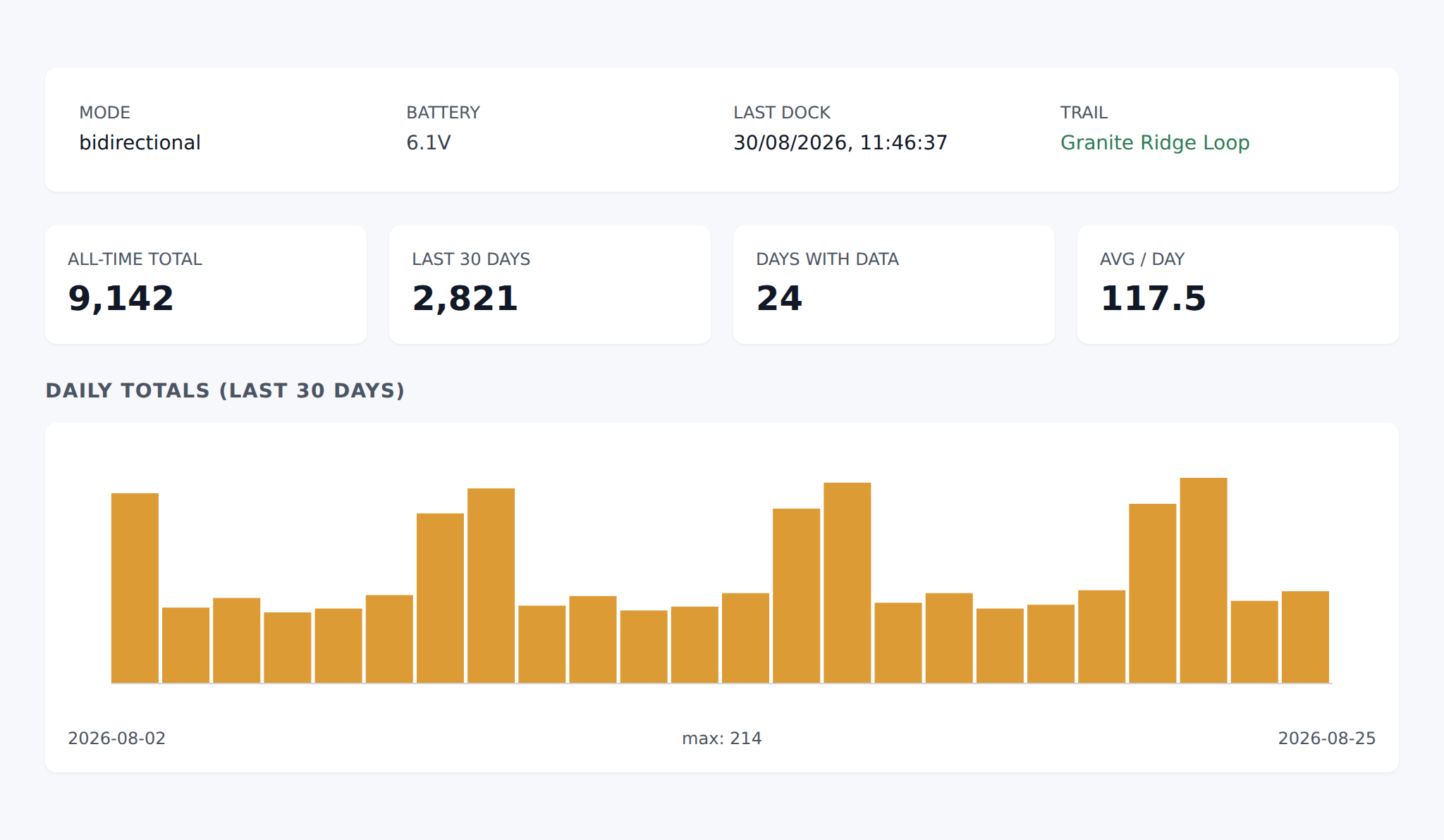
Open a counter to see its readings. Pick a range across the top — 7, 30 or 90 days, the season so far, everything, or your own dates — and the page answers for that range:
- Totals by the day, the week or the month, with weekends picked out. Turn on Compare to draw the previous period or the same dates last year over them.
- When people ride — average passes per hour for each day of the week, with the busiest hour named.
- Day of the week, and the share of the traffic the weekend carries.
- The year to date, against last year on the same date.
- Busiest days, and Data coverage: the days the counter has readings for, so a gap left by a flat battery is visible rather than reading as a quiet week.
Two things to keep in mind when interpreting them:
- Most counters count passages, not people. An out-and-back walker crosses the sensor twice. Whether you halve the number depends on your unit's mode and where it sits, and it is a decision to make once and apply consistently rather than per report.
- A counter measures its own spot. A trail with three entrances counted at one of them undercounts by a factor nobody can derive after the fact. Note where the gaps are before quoting a total to anyone who will repeat it.
Exporting
Two buttons on the counter's page export whatever date range you have selected, so the numbers can go into a grant application, a board pack, or whatever your funder wants them in.
Both exports live under Share in the header. PDF report is the one to send: it carries your organization's name, logo and color, the range you picked, and the readings — with the total count, the number of readings and the busiest single reading worked out at the top. The total is usually the number the application is asking for.
CSV spreadsheet is the raw readings and nothing else, on purpose — anyone doing statistics with your numbers wants to do their own aggregation, and a pre-summarized file is the one they ask you to re-send.
What counters are good for
Use data is the argument you cannot make from anecdote:
- Funding. "This trail carries 40,000 passages a year" is a fundable sentence. "It's busy" is not.
- Prioritising work. Maintenance effort is better spent where the traffic is, and intuition about which trail is busiest is wrong more often than people expect.
- Showing impact. A new connector's effect on use is visible in the counts on both sides of it.
- Managing pressure. Seasonal and daily patterns tell you when a trail is under strain, which is the input to a closure or a hardening decision.
Common gotchas
- A typo'd serial makes a second counter, not an error. Since the import creates unknown serials, hand-entering a serial wrongly and then importing gives you two counters with the readings split between them. If a unit's numbers look halved, check for a near-duplicate in the list.
- Dock regularly. Battery voltage and dock time only update on import, so the battery shown is the one the unit reported last time. The list flags a counter that has not been docked for two weeks under Needs a visit.
- Passages are not people. Decide your convention once and state it wherever you publish a number.
- Moving a counter breaks the series. If you relocate a unit, its history before and after describe two different places. Note it, or the trend line will lie to you later.