Infrastructure
Inspecting structures
The tap-only inspection wizard in the field app: one question per screen, a photo per question, what the answers add up to, when it offers to raise the work for you, how it behaves with no signal, and how to write your own questions for a structure type.
An inspection is a walk somebody makes to a bridge, a gate, a sign or anything else you keep on the ground, answered entirely with their thumb. It sets the structure's condition, moves its next inspection date, and — when the answers warrant it — files the work at the same moment.
Doing one
Field app → Infrastructure → tap the structure → Inspect.
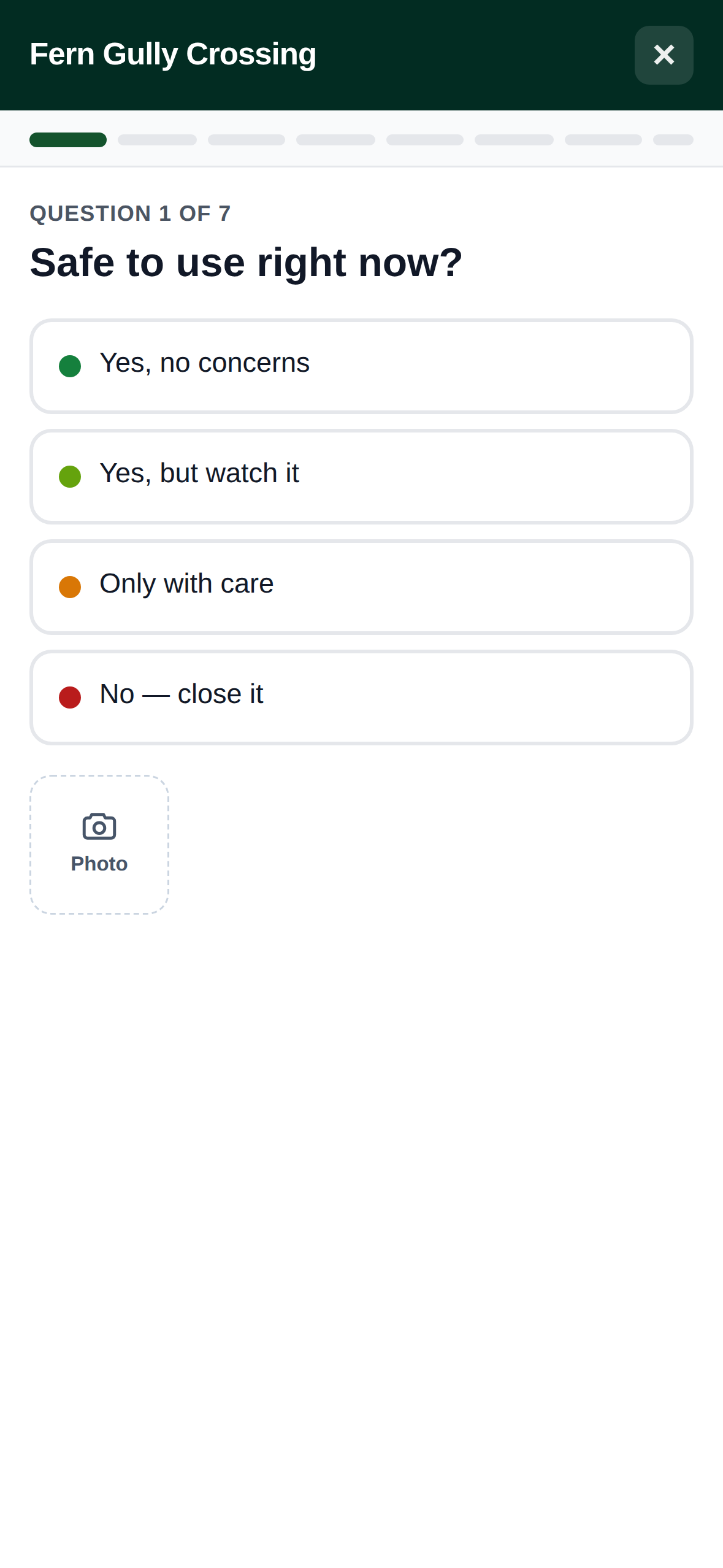
One question at a time, each with three to five answers you tap. Tapping an answer files it and moves to the next question, so a bridge in good order is a handful of taps and done — no scrolling, and nothing to type anywhere in the form.
That is deliberate rather than a simplification. It has to work with cold wet hands on a phone, and typed notes cannot be compared: the value of an inspection is that this one can be read against the last one, which needs answers that mean the same thing both times.
Safe to use right now? is always the first question. It is the only answer that can change what somebody does in the next ten minutes, so it comes before the detail; an inspector interrupted half way through has still answered the one that matters. Vegetation and drainage around it is always last. Everything between them depends on what kind of structure it is.
The bar of segments across the top is where you are. Each one is a question and each is tappable, so going back to change an answer four questions ago is one tap rather than four. The last segment is the review.
Tapping an answer you have already chosen clears it again. Every question has to be answered before the inspection can be filed: read six months later, a question nobody answered and a healthy one look the same. The review names any you have missed and takes you to them.
When a question is not about this one
Question sets are written for a kind of thing, and the things differ — a bridge with no railing, a sign with no post to check. Every question except Safe to use right now? offers Doesn't apply as its last answer, so you can pass one over without either inventing an answer or leaving it blank.
It grades nothing. A question you pass over cannot make the structure's condition better or worse, and it is never named as the answer that drove the result. It is still part of the record — "we looked, and there is no railing" is worth as much as a grade, and reads that way on the history.
A few questions already answer this themselves and so do not offer it: a railing offers None fitted, which is the better answer, because a bridge designed without one has been assessed rather than passed over.
Safe to use right now? never offers it. It applies to anything with a deck, a post or a tread, and it is the answer that changes what somebody does next.
Photos, of the thing the question is about
Every question has a camera button of its own, and a photo taken there belongs to that question. Three per question, six in all.
This is the part worth doing even when you are in a hurry. A photo filed against Deck boards shows up beside Deck boards: soft or splitting when somebody reads the inspection back — nobody has to work out which of six pictures shows the deck. Photos taken on an inspection before this worked that way are still there; they are shown as the walk's own photos rather than against any one question.
Tap a photo you have added to mark it up — the same drawing tools as everywhere else in the app, so you can circle the split you mean. The marks stay editable afterwards rather than being burned in, so the next person can move them.
And a recorded inspection's photos can still be fixed. Open the inspection history on the structure, expand the walk, and each photo has Remove photo next to it with + Add photo at the end. A blurry shot of the very thing the inspection is about used to be permanent — it was not, and there was no way to say so. What it does not do is quietly replace a stored picture: a photo is added or a photo is taken off, so the record shows what happened rather than reading as though it had always looked that way. Needs a connection.
Inspecting one as you add it
Field app → Add → Infrastructure. On the details step there is an Inspect it now button. It opens the same wizard described above, and the answers file themselves against the structure the moment it is created.
It is optional on purpose. Most of the time somebody adding a bridge is recording that it exists, and being made to assess it in the same breath turns a two-minute job into a refusal to do either. Skip it and the structure is added with no inspection, exactly as it was before.
Two things worth knowing. The photographs you add in the wizard belong to the structure, not to individual questions — a picture per question is what the full Inspect flow does, against a structure that already exists, and the wizard says as much where you add them. And the structure is never the price of a failed inspection: if the answers cannot be filed, the structure is still saved and the app tells you the inspection was not, so you can record one against it there and then.
With no signal the two go into the queue as one item. The structure and its first inspection land together or not at all, so there is never a structure on the list whose first inspection is still catching up.
What the answers add up to
Every answer carries a condition — good, fair, marginal, poor or failed — and the worst answer given is the structure's condition. One cracked stringer makes the bridge poor however sound the rest of it is, and that is the point: a summary that hides the one reading you needed is worse than no summary, because it gets believed.
The form shows you what your answers add up to as you go, and names the answer that is driving it, so the result is never a surprise at the end.
Filing an inspection sets three things on the structure: its condition, the date it was last inspected, and when it is next due. The next date is worked out from the inspection interval on that structure's type.
What it looked like last time
Every structure keeps its inspections, and both places you can open one will show them.
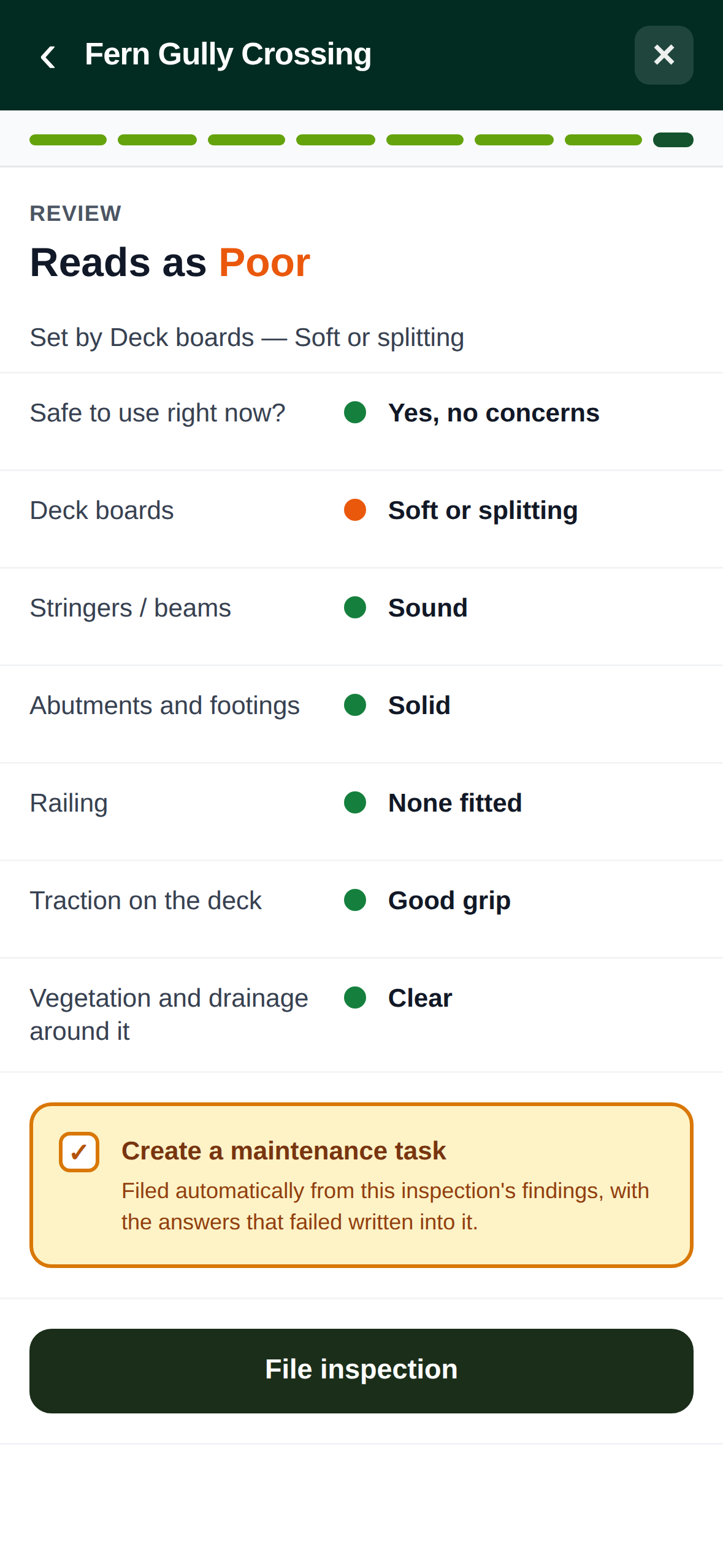
On the phone, open a structure and look at Last inspection in its summary — that is the answer to "when did somebody last stand here", and tapping it takes you straight down to the walks themselves. (An overdue structure still says Overdue on that line; the due date itself is on the list rows and in Edit.)
Inspection history is what you land on: newest first, each row dated with its rating beside it and the answer that set that rating underneath. Tap a row to see every answer it gave. Under a row, in red or green, is what changed since the walk before it — Railing: Firm → Loose — which is the question somebody standing at a bridge is actually asking.
A structure nobody has walked yet says so, and offers Inspect it now in the same breath — there is no need to go back up the panel to find the button.
It reads with no signal. The history is stored on the phone as you open each structure, and when that stored copy is what you are looking at, the panel says so. A walk you file out of range appears in the list straight away, marked Waiting to upload, with its answers and its rating already worked out — so an inspection you have just done never looks like one you have not.
On the dashboard, the same history sits on the structure's own panel under Infrastructure.
Every inspection at once
Infrastructure → Inspections is the list across all of them, newest first, with the same per-row detail: the rating, the answer that set it, what moved since that structure's previous walk, and a link to any item the walk raised.
Narrow it by date range, by rating, by infrastructure type or by who did it. Needs attention is the one shortcut worth knowing — it collects everything that came back marginal, poor or failed, without your having to pick those three one at a time.
Share in the header holds both exports, and each hands you what you are looking at, filtered exactly as it is on screen. PDF report is one row per inspection on your organization's letterhead — the document to send to an insurer or a land manager who has asked what you have on record. CSV spreadsheet writes one row per question instead, so individual answers stay sortable.
When something is wrong
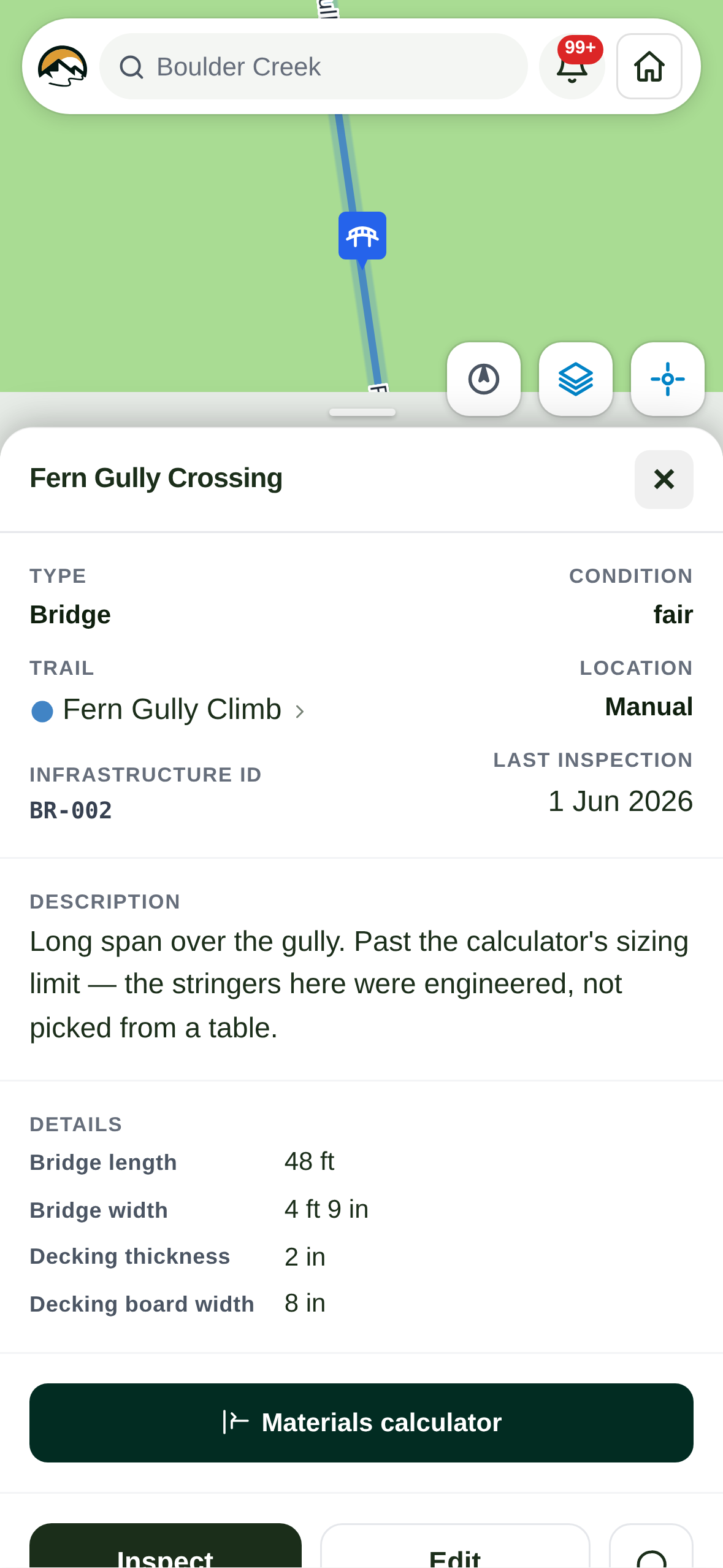
If the answers come out marginal, poor or failed, the form offers to Create a maintenance task. The inspector is standing at the problem, which is the cheapest moment it will ever be filed, so filing is one tap — but it is a tap you make. The box starts unticked.
The item writes itself from the answers. Its title names the part as well as the finding — Boulder Creek Bridge — Stringers / beams: Cracked or sagging, not Bridge — cracked — and its description lists every answer that came out worse than good, so somebody reading the queue does not have to open it to learn what is wrong. Nothing is typed to produce any of it.
A clean inspection raises nothing. An item filed off a healthy walk is noise in a queue somebody has to triage, so the offer only appears when the answers warrant it.
The box also names what is already open on that structure. A bridge with soft decking is very often a bridge somebody has already reported soft decking about, and the person who has to triage the second one is never the person who filed it. Two tasks on one bridge is sometimes exactly right — a railing and a stringer are different jobs — so the app tells you what is there and leaves the decision to you rather than refusing. The list counts work somebody still has to go and do; a public report still waiting for approval is not on it.
The box now lists the findings it is about to write in, so you can see what the task will say before you tick it. A question you passed over is not one of them — not applicable means you looked and there is nothing there, which is not something for anybody to fix.
Notes (optional) sits just above it, and is the one part of a walk the questions cannot carry: what you actually saw, and what it will take. It belongs to that inspection — it shows on that walk's own row in the history and nowhere else, and it does not change the task, open anything, or reach anybody's queue. It is there to say more about what you found. Leave it empty and nothing changes.
Warning the public
Under the task box, a structure on a trail also gets a Warn the public switch. Turn it on and the structure is listed as an active hazard on your public pages — the hub, the trail's own page (with a warning sign on its map where the structure is), the network page, the trail-status widget, your website and TrailsIQ Go — until it is fixed.
The level comes from the rating, on the same scale as hazards filed from maintenance tasks:
| Rating | Shown to the public as |
|---|---|
| Failed | Danger, with Do not use |
| Poor | Warning |
| Marginal | Caution |
The public sees the structure's name, what kind of structure it is (Bridge on the trail), the level, and the day it was inspected. It also sees what the newest inspection found wrong, in the answers' own words, worst first and at most three, for example Decking: Soft underfoot · Railing: Loose. Answers rated fair or good are left out. Your notes and photos stay with your team.
It stays up until an inspection says otherwise. The next walk that rates the structure fair or good takes the warning down by itself; there is nothing to remember to switch off. A walk that finds it worse moves the level up, and the switch starts on for a structure that is already shown, so walking it again never hides it by accident. A walk you back-date to catch up a paper record does not change what the public sees, for the same reason it does not change the structure's condition.
You don't need an inspection to post one. When you add a structure or edit it, in the field app or on the dashboard, the same switch appears under Condition as soon as you pick marginal, poor or failed for a structure on a trail. Use it when you already know a bridge is out and there is no time for a full walk. It comes down the same way, at the next inspection that rates it fair or good, or when you set the condition back to fair or good yourself.
To take one down without walking it again, turn the switch off in the edit form, or open the structure on the dashboard and press Take off public pages. Structures with a Public hazard badge in the infrastructure lists are the ones the public can see right now.
It works with no signal
The questions arrive with the app when it launches, so the form opens at the far end of a trail with no bars. Filing goes into the same queue everything else in the field app uses: the record is saved on the phone, dated the moment you did the walk, and it files itself the next time there is a connection. The photographs go with it in the same upload — with your drawings on them, and with the question each one was taken on — so an inspection never lands without the pictures that show what it found.
You can watch the queue drain from the sync badge in the header.
Catching up a paper record
Filing an inspection dated in the past records it and leaves the structure alone. A walk from last spring is history; reporting it as the structure's condition today would say the bridge is fine now because it was fine then.
So the history builds up correctly whichever order the records arrive in, and the structure always reflects the most recent walk.
Writing your own questions
Settings → Infrastructure types → Edit inspection questions on any type.
Every type starts with a set that works on the day it is created, so a type you added this morning is inspectable this afternoon. Bridges, gates, signs and trail counters come with questions written for them; everything else gets a general set. The badge beside the button says which you are on — Standard questions or Your own questions.
Editing is a question, its answers, and the condition each answer means. Order the questions with the arrows; two to six answers each. Safe to use right now? and Vegetation and drainage are not listed, because they are asked of everything and cannot be removed or duplicated.
Re-wording a question or an answer is safe: past inspections keep reading correctly against the words they were asked with, because each record keeps the questions exactly as they were put. Deleting a question stops it being asked from now on and does not remove it from records already taken.
Reset to standard questions puts a type back to the built-in set. That is also how a type on your own questions picks up an answer we add to the standard ones later — a set you have written is yours, so we leave it alone, which means it stays exactly as you wrote it until you reset it.
A trail counter is graded on whether it counted
The counter questions ask what you can see — power, what the sensor is looking at, the post, inside the case, signs of tampering — and one you cannot: has it counted since the last visit? Answering nothing recorded fails the counter outright, even when every other answer is good.
That is on purpose, and it is the only place in an inspection where an undamaged thing is graded as failed. A counter that is straight, dry and unmarked but has recorded nothing for six weeks is not in good condition; it is a post. Grading it on appearance would file it as healthy and leave the gap in your season's numbers to be found at the end of the year.