Website
News — write, publish and show articles on your site
Write and publish news posts that render at /news/{slug} on your public site and feed the News grid block. Body is the same block canvas as the website builder, so cross-posts and rich sections are one drag away.
News posts are your org's public articles — trail updates, ride reports, announcements, opening-day recaps, whatever your community wants to hear about. Each post lives at /news/{slug} on your public site, feeds the News grid block on any page you drop it into, and renders through the Post template you compose in the website builder so the layout is consistent across every article.
What a news post is
A news post is one org-scoped article. The record is intentionally small — no categories, no tags, no featured flag, no comments, no gallery, no RSS. Just:
- Title — up to 200 characters.
- URL slug — lowercase letters, digits, hyphens; unique per org.
- Excerpt (optional) — the short summary that shows on cards and the post-meta slot. Up to 500 characters.
- Hero image (optional) — one image URL, shown at the top of the article and on News grid cards.
- Body — an ordered list of website-builder blocks (the same palette as the website builder itself). Not Markdown, not rich-text — full drag-and-drop blocks.
- Draft vs Published — one boolean flag. There is no scheduled publishing.
- Published date — stamped on first publish, cleared on unpublish, preserved across re-publish so "Latest news" ordering stays stable.
- Author — the user who first saved the post.
Delete is a hard delete — no soft-delete, no trash, no undo.
Opening the News dashboard
News lives in the sidebar under Public site authoring. Two things have to be true for the row to appear: your plan includes News, and your role has the Manage news posts permission on. On a plan without it the row is not in the menu at all — the News page itself still opens and explains the plan, so a bookmark or a link from an article like this one still lands somewhere useful.
The Index page reads:
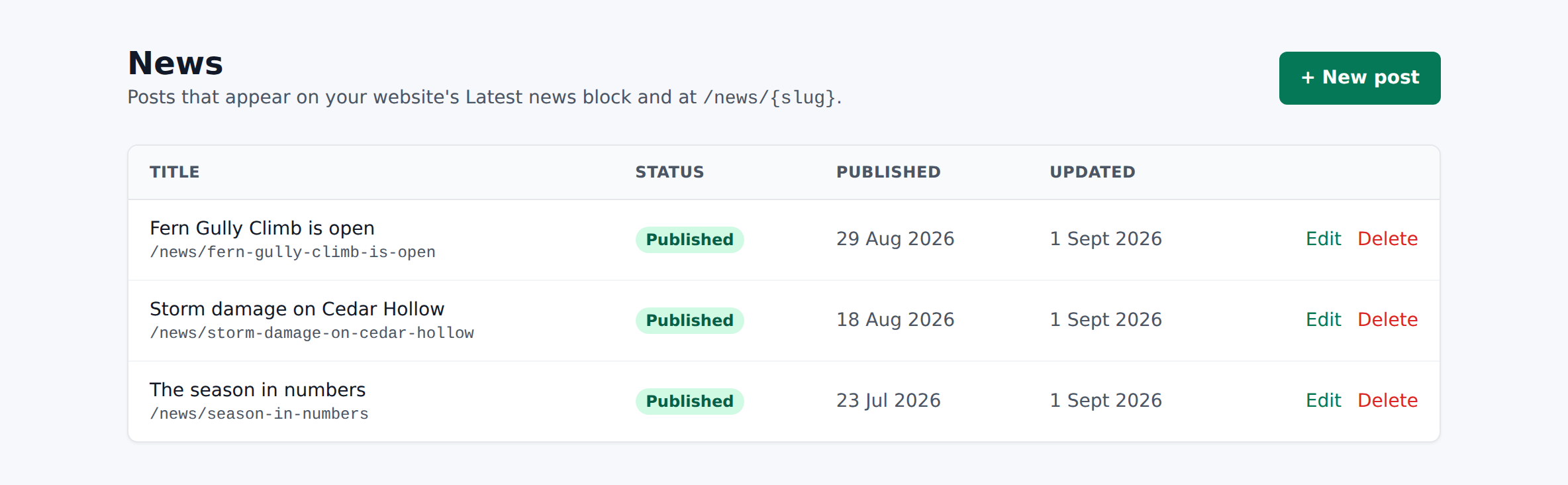
- Title "News", subtitle "Posts that appear on your website's Latest news block and at /news/{slug}."
- Primary CTA "+ New post" (top-right, emerald).
- Empty state on a fresh org: a dashed card reading "No posts yet." with a "Write your first post" button.
- Table columns: Title (with
/news/{slug}in monospace below), Status (green Published pill or gray Draft pill), Published date, Updated date, Edit / Delete actions.
Every published + draft post loads on the page — no search box, no filters, no pagination. On a mobile viewport the table collapses to a card list.
Writing your first post
Click + New post and the full-screen editor opens. It is the website builder's editor: Layers and Add block on the left, the post drawn on a canvas in the middle, and Post details on the right. Mobile falls back to bottom tabs: Details / Blocks / Preview.
The top bar carries the post's title, Desktop / Tablet / Mobile to see the post at a tablet's or a phone's width, a Draft / Published pill, All changes saved or Unsaved changes, Save, View live to open the article in a new tab (drafts show the yellow "Preview — this site is currently hidden from visitors." banner), and Publish / Unpublish, which flips the state AND saves in one shot so you can't accidentally publish without saving. On a phone the bar takes two rows.
Flash toasts, all auto-dismiss after ~3 seconds:
- "Post created."
- "Post saved."
- "Post deleted."
A beforeunload guard warns you if you try to navigate away with unsaved changes.
Every field on the form
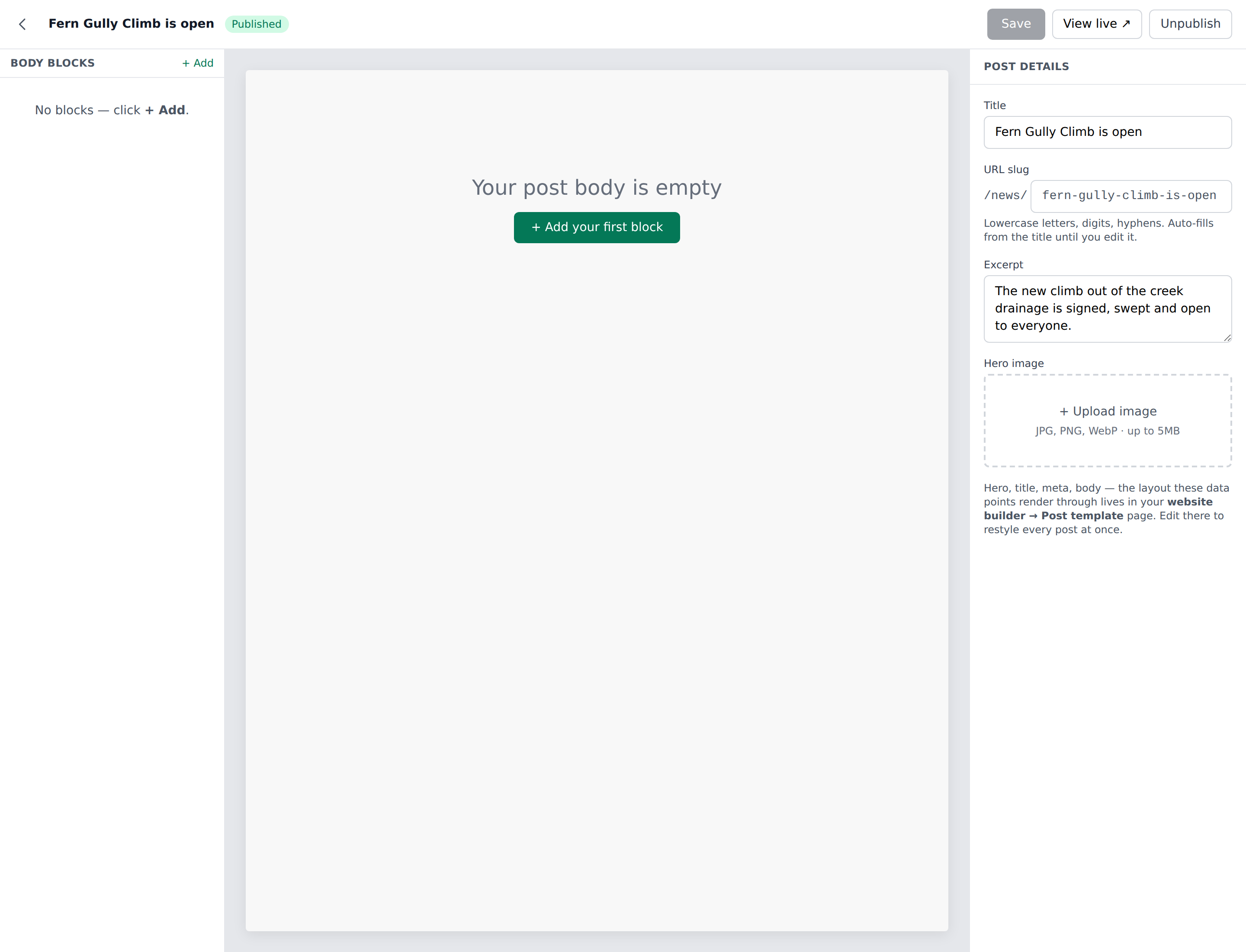
The right panel's Post details section:
- Title — plain text, placeholder "Post title". Up to 200 characters.
- URL slug — prefixed with
/news/, monospaced input, placeholder "my-post". Auto-fills from the title until you edit the slug directly. Help text: "Lowercase letters, digits, hyphens. Auto-fills from the title until you edit it." Server errors: "Slug can only contain lowercase letters, digits, and hyphens." / "A post with that slug already exists." - Excerpt — 3-row textarea, placeholder "Short summary used in the Latest news block + post-meta slot." Up to 500 characters.
- Hero image — upload widget with a "+ Upload image" dropzone and the hint "JPG, PNG, WebP · up to 5MB". Falls back to a placeholder card on News grid rows if you skip it.
At the bottom of the panel: "Hero, title, meta and body are laid out by the Post template page in the website builder. Edit it there to restyle every post at once." — a reminder that per-post styling isn't a thing; layout changes live on the Post template in the website builder and cascade across every article.
Click a block in the body and the panel shows that block's settings instead, in Content / Style / Advanced tabs. The × at the top of them goes back to Post details.
The body — same block canvas as the website builder
The post body isn't a rich-text editor. It's the exact same block canvas the website builder uses. Layers lists your blocks (empty state "No blocks in the post body yet."), Add block opens the library, the canvas renders them live, and the right panel edits the selected one.
The block library groups blocks under Default blocks (Text / embed, Columns) and Prebuilt blocks (Hero, Stats bar, Trail conditions, Hourly forecast, Card slider, News grid, Find your trail, Events list, Sponsors, Features grid, How it works, Call to action, Marketing hero, Smartphone mockup, Feature showcase, Trails list — the same palette you get in the website builder). Post template slots (post_hero, post_body, etc.) are hidden from the palette here — those slots live on the Post template page, not inside an individual post.
The empty canvas shows "The post body is empty" with an Add your first block button to get started.
If you're new to the block canvas, read the Website builder article first — the mechanics are identical.
Publishing (draft vs live)
Two states only: Draft or Published. No scheduling — flipping Publish makes the post visible to the public immediately.
Publish saves the post and publishes it in one action, so a click reaches the public site without a separate Save step. First publish stamps the published date to right now; unpublish clears the date; re-publishing an already-once-published post preserves the original date so the "Latest news" ordering doesn't scramble on re-publish.
Managers can preview a draft via View live ↗ — the URL renders with the yellow "Preview — this site is currently hidden from visitors." banner. Anonymous visitors hitting the draft URL get a 404.
Hero image + inline images
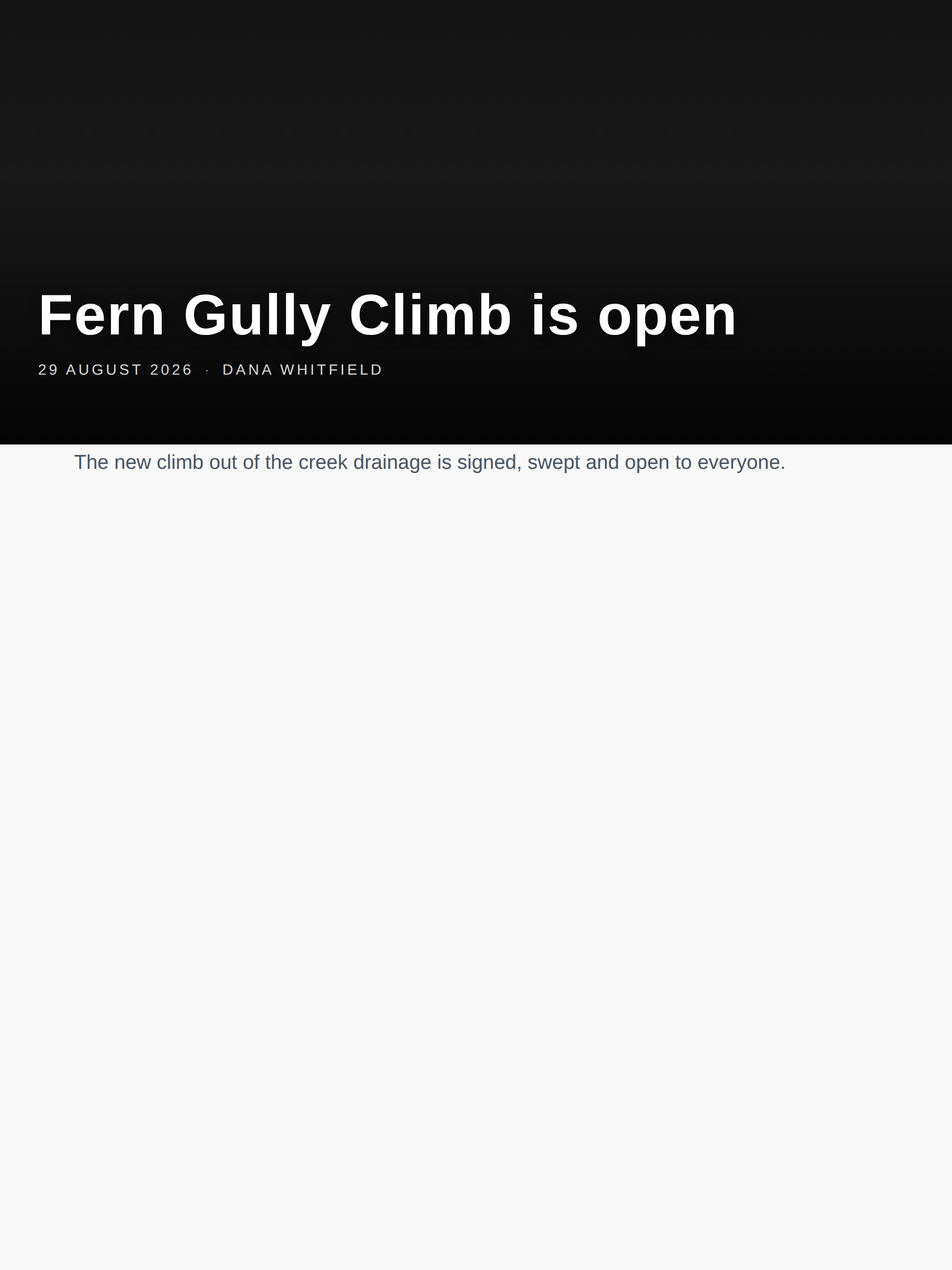
- Hero image — one per post, uploaded through the + Upload image dropzone. Shown at the top of the article (rendered by the
post_heroslot on your Post template), and as the cover on News grid cards. JPG / PNG / WebP up to 5 MB. Skip it and the card falls back to a placeholder. - Inline images inside the body — added via whichever block accepts an image. The Hero, Card slider, Feature showcase, Features grid, News grid, Sponsors and Find-your-trail blocks all take images through the same uploader. Same 5 MB / JPG / PNG / WebP rule.
Every image upload counts against your org's plan storage quota. A rejected upload returns the storage-limit error from the guard — free space or upgrade your plan and retry.
Where news shows up publicly
Three surfaces, all rendered through the website builder:
- Individual article —
/site/{orgSlug}/news/{postSlug}(canonical) or/news/{postSlug}on your vanity domain. Composed as shared header + your Post template + shared footer. If you haven't customized the Post template, sensible defaults render (hero + excerpt + body). The template shows a By {author} byline out of the box; strip it, restyle it, or replace it entirely from Website builder → Post template. - News index —
/site/{orgSlug}/newsor/newson vanity. Header reads eyebrow "Latest", heading "News", subtitle "Trail updates, ride reports, and announcements." Posts group by month ("June 2026", etc.) as a 4:3 card grid with hero image + date + title + excerpt. Empty state: "No posts yet. Check back soon." If you create a website-builder page with the slugnews, it overrides this built-in index. - News grid block — Drop into any website-builder page. Editor exposes an Article source dropdown: "Latest from News dashboard (recommended)" (auto — pulls up to 12 latest published posts, capped by a Max posts to show field of 1–12, default 6) or "Manual list (typed in here)" (hand-curated). Auto-mode adds a "View all news →" link. Auto-mode empty state: "No published posts yet — publish a post in the News dashboard."
Visitors see published posts only. A draft is visible to your own team, always behind the preview banner.
Editing, unpublishing, deleting
- Edit — click Edit on the Index row or open the article via its title. Same editor. Slug is editable; auto-fill from title stops once you touch the slug field or if a slug is already saved.
- Unpublish — click the Unpublish outline button on the topbar. Saves the post as a draft again and clears its published date. The post disappears from public visitors immediately; the Index still shows it as Draft.
- Delete — from the Index only. Browser confirm:
Delete "{title}"? This can't be undone.The post and its uploaded images are gone for good. Flash: "Post deleted." - No email / push notification fires when you publish, unpublish, or delete a post — the post appears (or disappears) silently at the next request.
Permissions and plan gating
Plan gate. News is Pro and above. On a plan without it the sidebar row is hidden, and the page — reachable by URL — shows an amber "Pro plan required" card ("News posts are part of the Pro plan, alongside the website builder.") with an "Upgrade to Pro" link; the + New post button is hidden. Direct hits to any create / edit / update / delete endpoint abort with "News posts require Pro or Enterprise."
Role gate. The "Manage news posts" permission (blurb: "Create, edit and delete news posts that show on the org's public hub + website. Requires the org to be on Pro or Enterprise — the toggle has no effect on Free orgs.") defaults on for owner + manager; off for field worker + volunteer. Owners can flip it on for other roles from Settings → Roles & permissions. Platform admins always pass.
The sidebar entry only appears when the permission is on.
Common gotchas
- No scheduling. Publish is immediate. If you need a "queue up for tomorrow" workflow, save as draft and publish it manually then.
- No categories, tags, related-posts, RSS, or SEO meta fields. The record is deliberately minimal. Cross-reference posts inside the body via a Call to action or Text/embed block linking to specific slugs.
- Hero image is the only "featured" image. There's no separate cover / thumbnail split — the card on the News grid and the article's own hero use the same file.
- Body ≠ Markdown / rich-text. It's the block canvas. Users new to TrailsIQ should be walked through the Website builder article first to get comfortable with blocks.
- Post template slot blocks are hidden from the picker inside a post. They belong on Website builder → Post template, where they render for every article. Styling changes live there, not per-post.
- A vanity domain gives you the clean
/news/{slug}URL. Without one, articles live at/site/{orgSlug}/news/{slug}. Both are stable and internally auto-rewritten. - Delete is destructive. No trash, no restore. Unpublish first if you're not sure.
- Image uploads count against org storage quota. A hard "storage full" error means you either free space or upgrade the plan.
- The News grid shows up to 12 posts in auto mode. The block's Max posts to show setting picks any number up to that, and the field says so.
- Slug rules are strict. Lowercase letters, digits, hyphens; must start and end with an alphanumeric. Accented characters, spaces, uppercase, and leading/trailing hyphens all fail server-side.
What's next
- Style your Post template once in the website builder so every future article inherits your brand — hero size, byline placement, body width, related-content CTA.
- Drop a News grid block on your home page and set the source to Latest from News dashboard (recommended) so newly published posts appear automatically.
- Read the Website builder article for the block-canvas mechanics if any of the blocks look unfamiliar.