Website
QR code builder — branded codes for signs and print
Generate styled QR codes for trailhead signs, junction posts, report forms and printed maps — dot and corner styles, colors, a center logo, and the error-correction level that decides whether a code with a logo on it survives being printed and weathered.
The QR builder makes branded QR codes for anything you want people to reach from a sign, a poster or a printed map — a trail page, current conditions, a report form, an event.
Making a code
Open QR builder, point it at the address you want, style it, and download.
Codes are generated fresh each time and are not stored as records, so treat the download as the artefact. If you will need the same code again — and for anything going on a sign, you will — keep the file somewhere you can find it, alongside the sign artwork rather than in a downloads folder.
Styling it
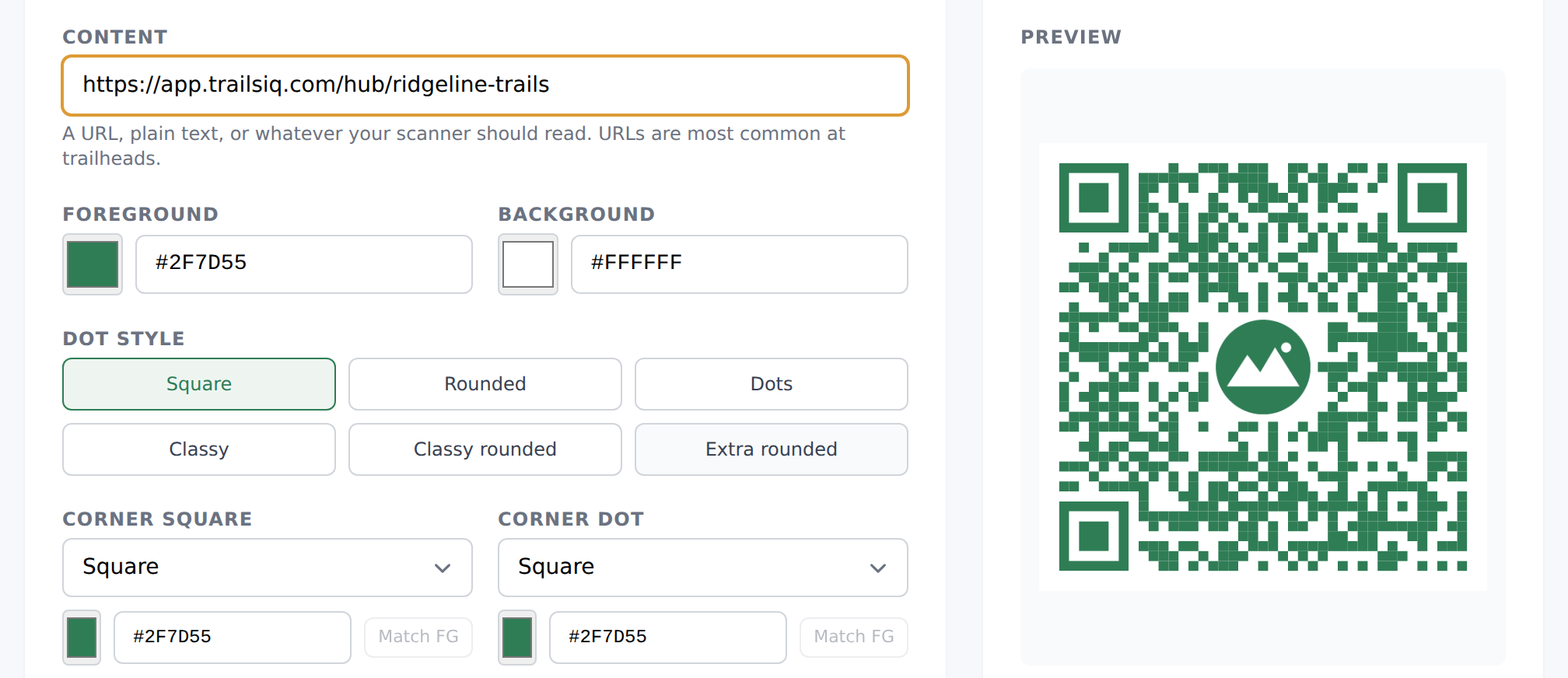
The builder gives you control over each part of the code separately:
- Dot style — Square, Rounded, Dots, Classy, Classy rounded, Extra rounded.
- Corner square style — Square, Extra rounded, Dot. These are the three big position markers.
- Corner dot style — Square or Dot, for the centers of those markers.
- Colors for the code and its background.
- A center image, if you want your logo in the middle.
- Frame shape — Rectangle, Rounded, Circle, or Triangle.
The corner markers are what a scanner uses to find and orient the code. Restyling them is safe within these options, but they are the last thing to get creative with if a code is misbehaving.
Error correction and logos
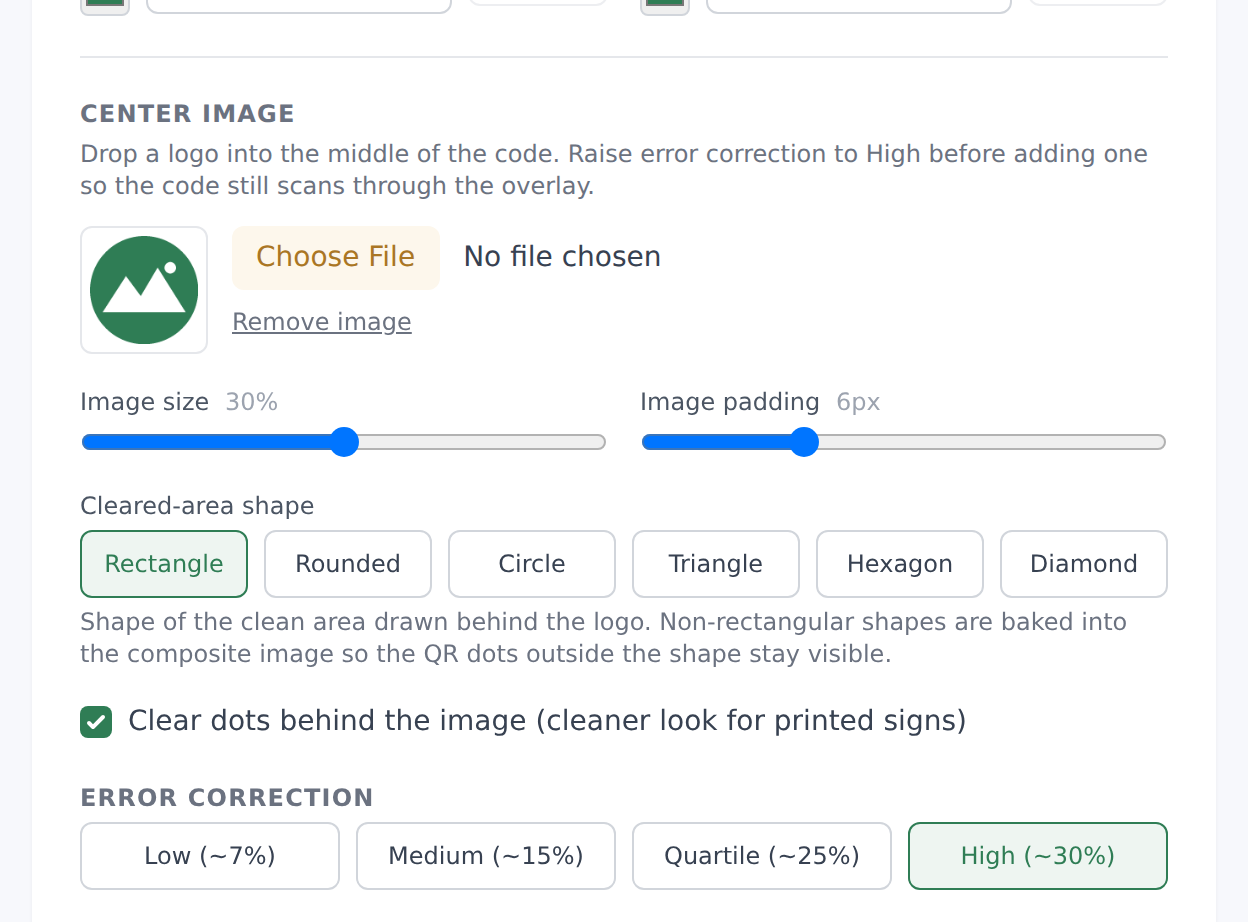
QR codes carry redundant data so they still scan when damaged, dirty or partly covered. You choose how much:
| Level | Recovers | Use when |
|---|---|---|
| Low | ~7% | Smallest possible code, no center image |
| Medium | ~15% | The default. Robust to small smudges |
| Quartile | ~25% | Harsher conditions |
| High | ~30% | Recommended whenever you add a logo |
The rule that matters: a center image is deliberate damage. It covers data, and only error correction makes the code survive it. Adding a logo at Low is how you get a code that scans on your monitor and fails on the sign.
Higher correction means a denser code, so a High-correction code needs to be printed slightly larger to stay scannable. That trade is nearly always worth it outdoors.
Printing QR codes that actually scan
A trailhead sign is a hostile environment for a QR code. Things that decide whether it works:
- Size. A rough guide is that the code should be about a tenth of the distance it will be scanned from — a code read at arm's length can be small; one on a kiosk people stand back from cannot. When in doubt, bigger.
- Quiet zone. Leave clear space around the code. Artwork or a border crowding the edge stops scanners finding it.
- Contrast. Dark code on a light background. Inverted codes and low-contrast color pairs are unreliable, and weathering makes them worse.
- Matte, not gloss. Glare off a laminated sign in sun defeats a camera completely.
- Test the printed artefact. Not the screen — print it at final size and scan it with an ordinary phone, at the distance and angle people will actually use.
And the one nobody thinks of: there is often no signal at a trailhead. A QR code that opens a page nobody can load is decoration. Point signage at pages that matter before people leave the car park, and remember the field crew's phones may be as offline as the visitor's.
Where QR codes are worth putting
- Trailhead signs — current conditions and closures for that network.
- Junction posts — the specific trail page, for a "where am I" that a paper map cannot answer.
- Report signage — straight to your public report form, so a hazard gets reported while somebody is standing next to it.
- Event material — signup pages on posters and flyers.
- Bridges and structures — for crews, the record for that structure.
- Printed maps and newsletters — the live conditions page, so a paper map stops being out of date the day it is printed.
Elsewhere in TrailsIQ, a shared planner proposal has its own QR download built into the sharing panel — see Trail Planner. Use that one rather than rebuilding the link by hand.
Common gotchas
- A logo without high error correction fails outdoors. Set High whenever there is a center image.
- Test the print, not the screen. Different medium, different distance, different light.
- Codes are not stored. Keep the downloaded file with your sign artwork.
- If the destination address changes, every printed code is dead. Point codes at stable pages, and consider that a custom domain change invalidates signage — see Custom domain.
- No signal, no page. Check coverage where the sign goes before committing to a QR-led design.