Daily reports
Daily report — day notes, timeline, and the public hub
Read, write and publish the daily report — the rolling narrative of what's happening across your trails and lifts. Covers day-note posts, the auto-generated event timeline, and how the public /hub/{slug} page pulls from the same data behind the visibility switches.
The Daily report is one page per organization per day. It's part activity feed, part crew log — a rolling read on what's actually happening across your trails and lifts, plus a place for the team to file free-form notes as the day unfolds. Managers work from it during the day; the public sees a filtered version of the same data on your /hub/{slug} page.
What the daily report is
Every org gets one report per day, keyed to the org's timezone (see below). The page has two content streams sitting side by side:
- Day notes — crew-authored short posts. Think "trail crew just cleared the south switchbacks", "kiosk needs new paper", "bear sighting on Blueberry". Any active member can post; publishing a note publicly is gated by a permission (see Making updates public).
- Timeline — auto-generated rows built from upstream events: trail condition flips, grooming updates, lift status changes, network / area status flips, new maintenance issues (and resolutions), new infrastructure, and weather. Nothing to file — these appear as they happen.
The two streams are interleaved chronologically. The result is one scrollable narrative of the day that doesn't need anyone to type it up.
There's no "publish daily report" button. The report exists the moment the day starts; each event and each post lands as it happens. What you're publishing is individual day notes (and letting the auto-generated timeline through your public switches).
Opening today's report
Open Daily report from the sidebar to see today. The header shows the day, with a Today tag when it is today. Beside it, ← and → step one day at a time, and the date button between them opens a calendar to jump to any past day. You can't go past today, because a future day has no data yet. Day / Week / Month sits beside it, where Week and Month open the weekly and monthly reports, and View public page opens your public report in a new tab. Everybody on the team sees both.
The page has two columns. The composer and the timeline fill the left. The right-hand column holds three cards:
- Weather: the day's forecast line, the network it was measured at, and High / Low, Rainfall (or Snowfall), Peak gust and Hours of data. A partial day reads "12 / 24", so a gap in the weather feed is easy to spot.
- Public page: the link to your public report with a Copy button, and how many people follow your trail status and your daily report in the TrailsIQ hiker app.
- Right now: how many trails are open (a trail at Caution counts as open), a bar with one segment per trail, each trail's current condition and grooming, and every lift's state. Manage opens Trail Conditions.
The page loads instantly and never pre-renders — every open is a fresh query of that day's events. Which means as the day unfolds you can leave the page open and reload to see the latest crew posts, lift flips, and weather rows.
Historical days work the same way. Scroll back a week to check what the crew filed for last Friday, or link to a specific date from a stakeholder email — the URL is /daily-report?date=YYYY-MM-DD.
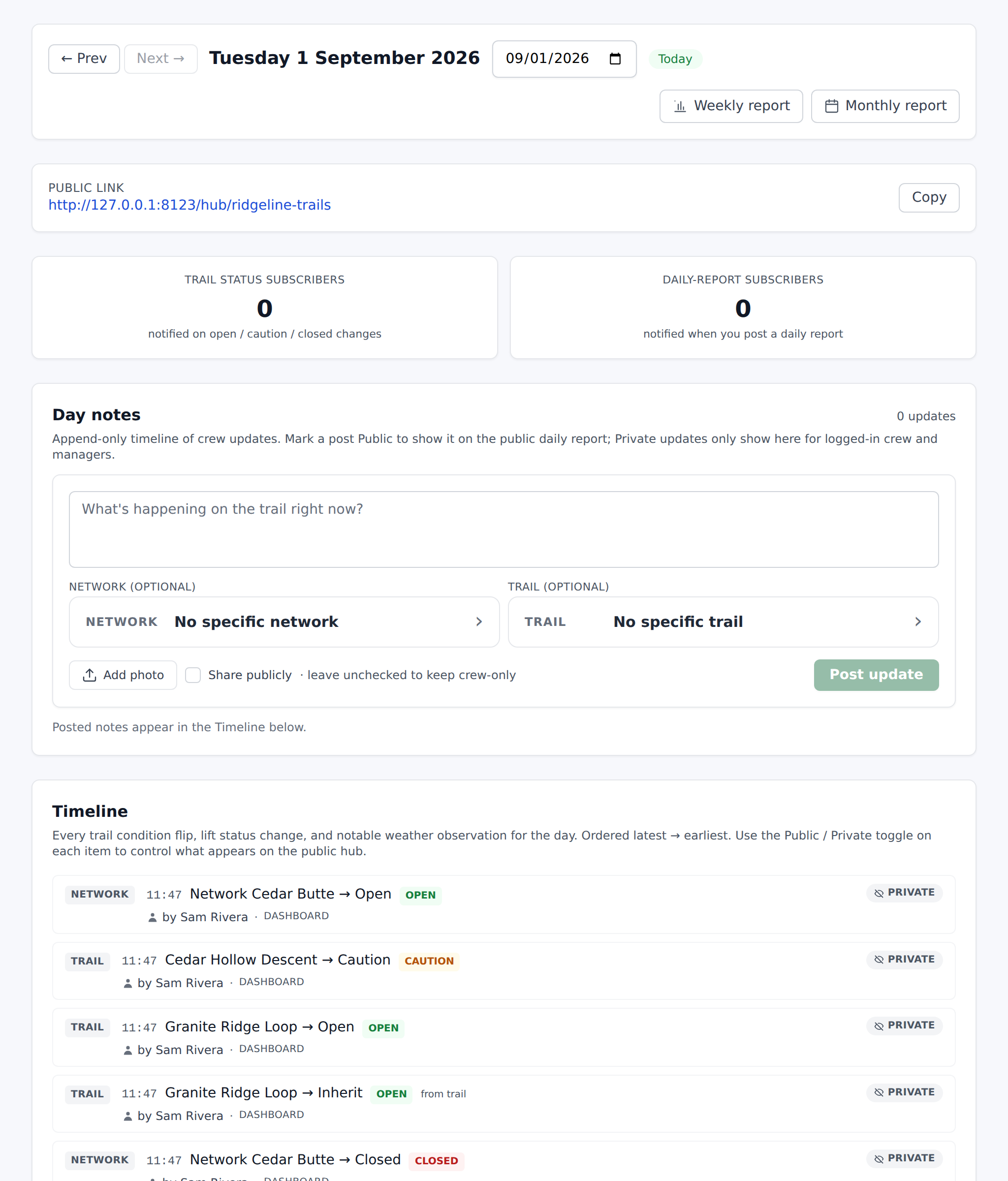
Day notes — posting an update
The Post a crew update card sits at the top of the page, with "Posting as {your name}" beside the title.
The composer is one big textarea with the placeholder "What's happening on the trail right now?" — write whatever fits. Up to 5000 characters. Below it is one row of controls: Network and Trail buttons, + Photo (up to 6 photos, max 5 MB each), a Public / Crew only switch, and Post update. Updates start as Crew only. A line along the bottom of the card says what your choice will do: public posts show on the public page and go to daily report subscribers, and crew-only posts stay on this page. With Public picked, a Show my name on it checkbox appears beside that line. It starts ticked, so a public post reads Posted by with your first name and last initial in the TrailsIQ hiker app, and your name on the public page. Untick it to post under the organization instead.
Hit Post update (or "Posting…" / "Posting… 63%" while photos upload) and the post lands at the top of the timeline immediately. Any active org member can post — no manager role required.
Newest-first ordering. Posts are append-only in spirit — you can edit or delete your own posts, but there's no "reply" or threading model. Multiple posts through the day is the pattern.
Attaching photos, network, or trail
Photos. Tap the photo picker, pick up to 6 images. Each has to be ≤ 5 MB. They upload as you click Post — progress shows on the button label. Deleting the post deletes its photos with it. You can also add and remove photos after posting — see Editing and deleting your posts.
Network / Trail. The Network and Trail buttons each open a list you can search by typing. Pick a network first and the trail list narrows to that network's trails (it says "Showing trails in {network}"). Pick a trail directly and the network fills in for you. Both are optional — "no specific network / no specific trail" is fine when the post is org-wide (weather, admin note, kiosk update).
When a post is pinned to a trail, it shows the trail name inline on the timeline row and links to that trail's page. Pinning to a network but not a trail is useful for network-level events ("groomed Zone C this morning").
Photo storage limits. If your organization's plan storage is full, the upload returns a plan-limit error and no post is written. Upgrade the plan or free space and try again.
Editing and deleting your posts
Your own posts show Edit and Delete links. Managers and owners also see them on every post (any active manager can moderate a crew post — useful if a volunteer accidentally files something sensitive).
Edit — a text box appears in place of the post body. Change the wording and the "Share publicly" checkbox in one save. On a public post a second checkbox, "Show who posted it", takes the name off or puts it back. Save commits, Cancel reverts.
The photos are editable there too. Each photo on the update gets a × while you are editing, and + Add photo puts another one on. Swapping a blurry shot is a remove and an add, so the update keeps its time, its author and anything the crew has already read — you no longer have to delete the whole post and write it again. Editing photos needs a connection; the composer, which is the part you use out of signal, still queues everything.
Delete — browser confirm: "Delete this update? Photos attached will also be removed." Failure shows "Could not delete the update." Deleting is permanent: the update and its photos are gone. Any push notification that already went out to phones can't be recalled, of course — just re-post if the wording matters.
Post visibility switch. Every row on the timeline, posts included, has a switch on its right reading Public or Crew only. Managers can flip it. Tooltip when public: "Showing on the public page. Click to hide it." Tooltip when crew-only: "Crew only. Click to show it on the public page." Everyone else sees the same label without the switch, so they know what the manager decided. Crew-only rows are drawn slightly faded, and the timeline's heading counts how many items are public.
Posting from the field app
In the field app, Daily Report opens full screen with two tabs: Post to write an update, and Messages to read today's. The number beside Messages is how many updates the crew has filed today. It opens on Post, except when you tap a notification about somebody's update, which opens Messages.
Post has three parts:
- The note. A big text box, Dictate to speak it instead of typing (on phones that support it), and a row of photos: Photo adds up to 6, a tap on one opens it to mark up, and × takes it off.
- Where. Network and Trail open in place with a search box, so you can type a few letters and pick. Pick a trail and its network fills in. When the app can see you are standing on a trail, it fills both in for you and says so underneath. Clear empties both, for an update about the whole organization.
- Who can see this. Crew only is people on your crews; Public is shown on your trail status pages and goes to daily report subscribers. Every update starts as crew only. If your role can't publish, this part says so instead. Pick Public and a Show my name switch appears under it, on by default: the post carries Posted by and your name. Turn it off to post under the organization. Editing a post offers the same choice as Show who posted it.
The button at the bottom says what it will do: Post to crew or Post publicly, and Write something to post until there is a note, because an update needs words even when it has photos. A post that goes through switches you to Messages, with yours at the top. With no signal, it is kept on the phone and marked Waiting to upload until you are back in range.
Switching to Messages and back keeps what you had written. On Messages, your own updates have Edit and Delete, the same as on the dashboard, and New update takes you back to Post.
What lands on the timeline automatically
Nine event streams flow into the timeline. Each one is one-way — the daily report reads them, it doesn't create them.
- Trail condition changes — every time an operator flips a trail between Open / Caution / Closed / Maintenance. A comment-only edit (state unchanged, note added) shows with a "Comment" chip.
- Trail grooming updates — reads "Groomed" under the trail's name on a state flip, or "Groomed again" when a fresh groom didn't change the state.
- Lift status events — every operational-state flip from the lift's detail panel or the field-app quick-update sheet. Wait minutes and the operator's note come through.
- Network condition flips — reads "{from} → {to} · {n} trails affected" under the network's name.
- Area condition flips — same shape, deep-links to the trail-conditions page (no per-area detail page exists yet).
- Maintenance issues — the issue's title with "New issue" under it on creation, or its new status (for example "Resolved") when it changes, plus the trail it is on. Pending-review public reports show with an amber "Pending review" tag, and critical or high priority shows as its own tag. Photos-added-only edits are hidden from the daily-report timeline (still visible on the trail's history).
- New infrastructure — the structure's name with "New {type} · {trail}" under it when a structure is created. Structure edits are deliberately not surfaced to keep the timeline focused on what's newly present.
- Weather — hourly observations, run-length-grouped into "spells" per network. Benign regimes (clear, mostly clear, partly cloudy, overcast) are filtered out so a fair-weather day doesn't drown the timeline. A "Today's forecast" preview always emits at 5 AM org-local so even a sunny day has a weather row. Provider labels ("NWS", "Open-Meteo", "NOAA GFS") credit the source.
Nothing else surfaces automatically — waypoints (POIs), photos posted outside a day-note, and structure edits deliberately don't show up. If those matter for a specific day, file a day note about them.
Making updates public (or keeping them crew-only)
Public visibility is a stack of switches. They compose top-down: each layer can only reduce, never increase, what's visible.
- Master org switch — Exclude from TrailsIQ Go. Under Settings → Public visibility, on its own so it stays reachable for a workspace that has no daily report. It hides your organization from TrailsIQ Go — the wizard, "near me" discovery, favorites and notifications — and leaves your hub alone. Right below it, Hide public hub page takes down
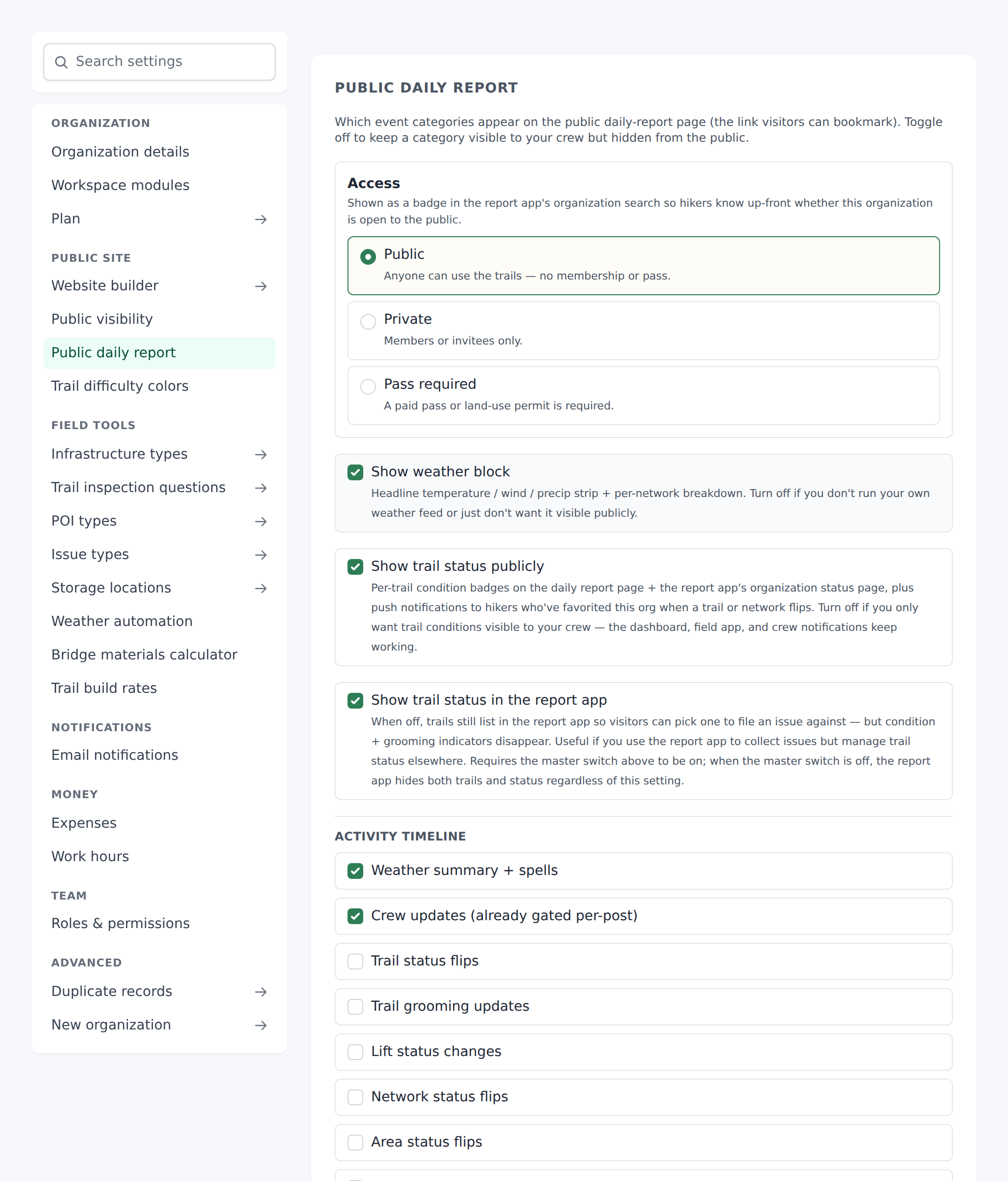
/hub/{slug}itself, the embeddable widget and your sitemap entries. For an internal-only org, turn both on and the public daily report simply won't exist. - Per-family toggles. Trail status sits beside the switches above in Public visibility, so a workspace without the daily report can still reach it; the weather block is under Public daily report:
- Show weather block — hides all weather rows and the weather header.
- Show trail status publicly — hides per-trail condition badges + all trail / network / area status events on the public hub AND TrailsIQ Go.
- Show trail status in TrailsIQ Go — narrower opt-out that only affects TrailsIQ Go. Trails still list in TrailsIQ Go organization view so a visitor can pick one to file an issue against, but condition + grooming pills disappear and the "Conditions" rollup collapses to "Trail conditions not published". Independent of the master switch above; useful when you want to keep status on your public hub but hide it inside the report-app flow. The toggle greys out (and its behavior is a no-op) when Show trail status publicly is off — TrailsIQ Go hides both trails and status in that case.
- Timeline kind allow-list. Public timeline kinds in Settings — a checkbox list of which event families to expose. Defaults to weather and day_note (conservative). The full set: Weather summary + spells, Crew updates, Trail status flips, Trail grooming updates, Network status flips, Area status flips, Lift status changes, Maintenance issues (new + resolved), New infrastructure.
- Per-post Public / Crew only. Even with day_note in the allow-list, a post has to be individually marked public. Every new update starts as crew-only, on the dashboard and in the field app.
- Per-event override. Managers can flip any individual auto-generated row's public/private state with an inline toggle. Overrides beat the kind allow-list. When a master switch hard-hides a family, the per-row toggle locks with the tooltip "Hidden from the public hub by a sharing switch in Settings".
Who can publish a post publicly. The publish_day_notes permission — on by default for owners, managers, and field workers; off for volunteers. When off, the composer shows Crew only in place of the Public / Crew only choice, on the dashboard and in the field app. The restriction is enforced on the server as well as hidden in the composer, so a volunteer cannot publish a post publicly by any route.
The public daily report page
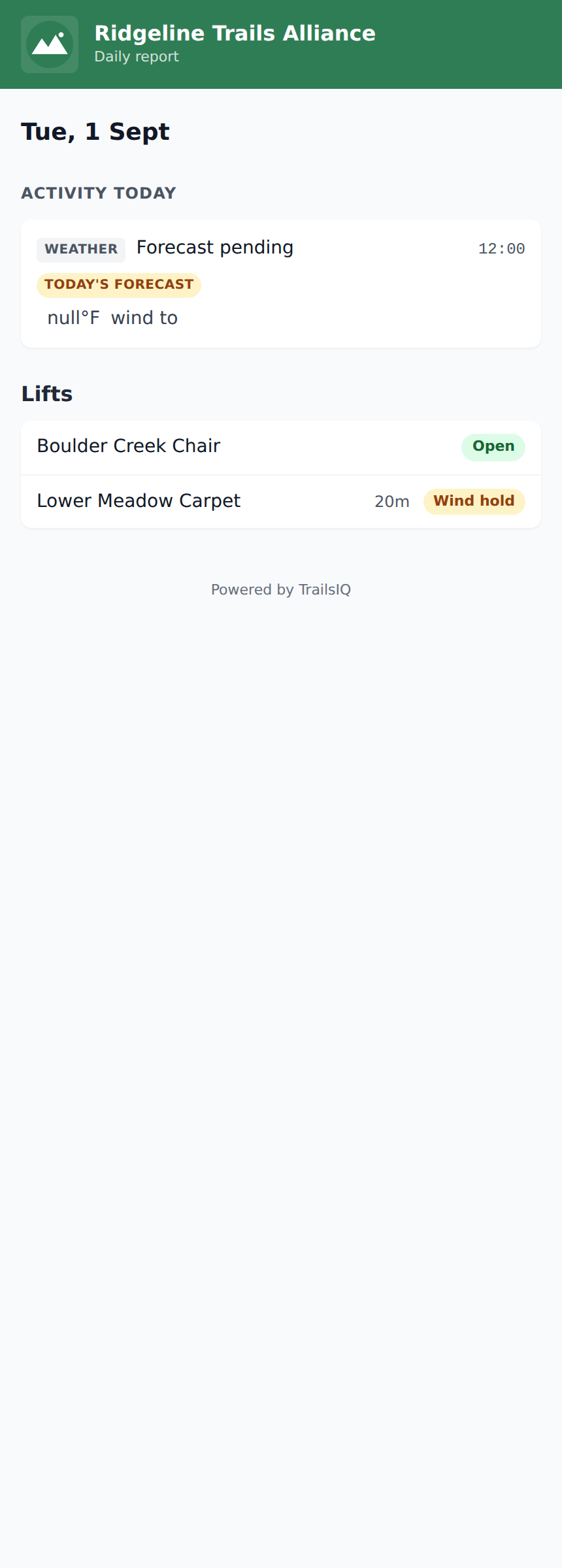
Your public report lives at /hub/{your-org-slug}. It's a completely separate URL from /daily-report: no login required, no dashboard chrome, a mobile-first layout, and safe-area padding for iOS notches. Your logo and organization name sit at the top, and the header, links and highlights follow your Primary color from Settings. The lettering on the header is chosen to stay readable on your color, and with no color set the report uses the TrailsIQ green. See Your brand color.
Sections in render order:
- Header: your logo and name, a Get alerts button that opens your page in TrailsIQ Go (a phone without the app goes to its app store, and a computer gets a page offering both), today's date, and a headline such as "All trails are open", "5 of 7 trails open" or, when more than half of your trails are on caution, "Most trails are on caution". Under the headline, a line says when the page last changed and names any lift on hold. Two tiles count Trails open and Lifts open. Trails marked Caution count as open.
- Active hazards: only when there are any — maintenance items your team marked Warn the public, most serious first, each with its level (Danger, Warning, Caution or Notice), its trail, whether people can get past, and the day it was reported. A row opens that trail's page. Each trail in the list below also carries a tag naming its most serious hazard. See Warning the public about a hazard.
- Weather: today's conditions line with a "Today's forecast" tag, then Temperature, Rainfall today (or Snowfall today), Peak gust and Now. If you have more than one network, tabs across the top switch between them. Units follow your country (imperial for US / LR / MM, metric everywhere else).
- Activity today: one feed, newest first, of public day notes, weather, and automatic events (all subject to the visibility stack). Each row has a kind tag ("Update", "Weather", "Trail", "Grooming", "Lift", "Maintenance", "Network", "Area", "Infrastructure"), who or what it is about, and the time. Photos open in a full-screen lightbox. Public posts show the author's name, or your organization's name when the author unticked Show my name on it. The same feed can go on your website with the Live from the trails block.
- Trails: grouped by network. Each network can be collapsed, and its header shows "3 of 4 open", a progress bar, and that network's weather when you have more than one. All / Open / Closed filters the list, and a search box ("Search trails") matches trail and network names. Rows show the difficulty icon, the condition note, grooming freshness and the condition. A legend under the list explains the difficulty icons on your page. Trails with no network are listed under "Other trails".
- Lifts: one row per lift, with its type, the wait time and its state.
- Footer: "Embed this trail status on your website" opens an
<iframe>snippet with per-network checkboxes and a height picker, so a partner ski school or bike shop can embed live trail status. The footer also says "Powered by TrailsIQ".
When trail status is switched off for the public page, the list still shows your trails. The headline, the open counts, the filter and every condition pill are hidden. Active hazards still show: each one is an item your team chose to publish.
No historical navigation on the public page. Public visitors only ever see today. The dashboard /daily-report is the surface for looking backwards.
Push notifications to hikers. When you flip a post public and the master org switch is off, the platform pushes a "Daily report" notification to every hiker who has favorited your org and enabled "Notify me on daily reports" in their TrailsIQ hiker app. The push body is the first 120 characters of the post.
Timezones and "today"
The report is anchored in your organization's timezone — the one you set on the Setup guide (or Settings). "Today" starts at midnight in your local time, not UTC.
Why it matters: an org on Eastern time (UTC-4 in summer) would otherwise see yesterday's 8 PM lift flips bleed into today's timeline (because 8 PM Eastern = 00:00 UTC the following day). The platform converts your local day boundary to UTC before querying, so what shows up on the report matches what happened on the mountain that calendar day.
If your org's timezone isn't set, the platform falls back to UTC. Which is almost never what you want. Set it on the Setup guide or on Settings → Organization details — pick the timezone the resort actually operates in.
The public daily report follows the same rule — a hiker opening /hub/{slug} at 11 PM local sees your report for today (in your org timezone), regardless of what time it is on their side of the world.
Common gotchas
- The report isn't published — posts are. There's no "Save & publish" button for the whole page. Every post you file (and every automatic event that passes the visibility stack) shows up on the public hub as it happens.
- Nothing is auto-derived from waypoints or standalone photos. POIs (waypoints) and photos posted outside a day-note don't appear on the timeline. If something the crew did with the field-app matters for the day, file a day note about it.
- Master switches beat per-event overrides. If Show trail status publicly is off, no per-row toggle will get a trail flip onto the public hub. The row's switch reads Hidden and locks, with the tooltip "Hidden from the public page by a sharing switch in Settings".
- TrailsIQ Go-only opt-out keeps trails visible, only strips status. With Show trail status in TrailsIQ Go off (but the master switch still on), a hiker who opens your org in TrailsIQ Go sees the trail list intact and can pick any trail to file an issue against — condition + grooming just don't render, and the Conditions rollup switches to a neutral "Trail conditions not published" label. Handy when you use TrailsIQ Go for issue intake but manage trail conditions on a different channel.
- Volunteers can post, but can't publish. They see the composer, but the Public / Crew only switch is replaced by a "Crew only" label and every post they file stays crew-only. Upgrade the volunteer to a field worker (or grant
publish_day_notesper-user) if you want them publishing directly. - Editing photos needs a connection. Wording, network, trail and visibility all edit offline and queue like anything else; adding or removing a photo on a post that is already up does not, and says so.
- Post cap: 6 photos, 5 MB each. Pick more than that, or a photo over the size limit, and the composer says which ones it did not add and why. The rest of the post is unaffected.
- Post window: 7 days back, 2 hours forward. Only matters for the field app's offline queue — a post older than 7 days that comes online refuses to sync. Fresh posts always work.
- Timezone is org-wide, not per-user. If your operation genuinely spans two timezones, pick the one the daily-report data best represents (usually where the crew starts their day).
What's next
- Post your first day note today — even "Trails opened normal, no incidents" is enough to prove the loop works end-to-end.
- Walk through Settings → Public report with a stakeholder open on the public hub in an incognito tab so you both see exactly what a hiker sees.
- Read the Public reports setup article for the master-switch details, and the Lifts article to see how every lift-status flip your crew makes ends up on this page.
Weather on an older report
Today's report shows the weather hour by hour, because a day in
progress is something you watch: rain from four until ten is what a
crew needs to see.
A report for yesterday or earlier shows the day instead — one
card per network with the high and low, the rain and snow that fell,
and the strongest gust. That is the question anybody asks of an old
report, and it is what TrailsIQ keeps: the hour-by-hour detail is
held for about a week and the day's recap is kept for years, so a
report from two seasons ago still tells you what the weather did.
The weekly and monthly reports
Week and Month in the header roll the same records up over a
longer stretch. The arrows step one week or one month at a time, the
date button jumps to any past period, and Day takes you back to
the daily report on the latest day of the period you were reading.
The network tab you have open stays open as you move between periods.
Trail, beside the network tabs, narrows the page to one trail: its
days, its closures, its open tasks, and the weather from its network.
The list follows the tab you are on, so a network's tab lists that
network's trails, and choosing a network tab goes back to all of its
trails. The trail you pick stays picked as you step between weeks and
months, and Open trail page takes you back to it.
Download PDF exports what is on screen: one trail when one is
picked, just that network from a network's tab, or every network from
All networks. On Trail conditions, History on a network's
card opens this month for that network, and on a trail's own page
Condition history opens this month for that trail. Either is the
quickest way to see how somewhere has been.
Along the top are four numbers: days open (every day at least one
trail was open; the line under it counts the days that were mostly on
caution, some closed or all closed), total rainfall, closures, and
open maintenance tasks. Under them the week is laid out day by day,
and a month as a calendar, with each day's high and low and the rain
that fell.
Each day is colored by your trails that day, counted one by one the
same way the daily report and the annual report count them: green
when they were open, yellow when more than half were on caution,
orange when some were closed and red when all were. A trail on
caution still counts as open, a trail closed for part of a day counts
as closed that day, and a trail set to follow its area or network
takes that status. Under the color, a day says how many trails were
closed or on caution, such as 2 of 12 closed. A network's tab reads
only that network's trails. Days still to come in the current period
are drawn dashed.
Below the grid, Weather totals the period, Maintenance shows
what was opened and resolved and which trails have the most open
work, and Audience counts your subscribers and the updates you
made public in the period. What happened lists every closure,
reopening and grooming pass, newest first.
If your organization has more than one network, tabs above the
numbers switch between all networks together and each one on its own.