Settings
How to enable weather automation
Turn on the weather engine, pick a mode, and see where per-network recommendations show up on the dashboard and in the field app. Covers prerequisites, close signal, where your weather data comes from, which trails a network-level call is actually about, how a recent inspection outranks the forecast, and the twice-daily cron.
The weather engine is what turns TrailsIQ from a static trail catalog into a live one. It pulls per-network forecasts twice a day, scores each trail against its surface / drainage / primary-use profile, and — depending on the automation mode you pick — either recommends a condition, auto-closes trails on wet days, or does the full open-and-close cycle for you.
If your home screen on the field app says "No weather data" and your Trails recommendations panel is empty, this article walks you from off to on.
What weather automation actually does
Twice a day, TrailsIQ hits the weather engine for each of your networks and pulls three things: rainfall over the last 24 h, rainfall forecast for the next 24 h and next 72 h, and a per-trail wetness score built from them.
Every trail carries a profile — its surface type (loam, hardpack, rock, boardwalk, ...), its drainage rating (poor, mixed, well-drained), and its primary use (mtb, hiking, nordic, ...) — that maps to a threshold. When the wetness score crosses that threshold, the engine produces a recommendation: open, caution, or closed.
What happens next depends on the automation mode you pick:
- Off — the engine doesn't run and no recommendations are produced.
- Recommend only — the engine runs and stores its call, but never touches the trail's actual condition. You see the suggestion; you flip the switch.
- Auto-close only — the engine can flip a trail from Open to Caution or Closed, but never re-opens it. Reopening is a manual call.
- Auto open + close — the engine owns the full open / caution / closed cycle. A drying trail gets re-opened without a manager touching it.
Prerequisites — trail attributes the engine needs
The engine won't produce useful recommendations for trails whose profile it can't read. Every trail needs:
- Primary use — mtb, hiking, nordic, alpine, etc. Sets the difficulty icon set AND selects which threshold table applies.
- Surface type — loam / hardpack / rock / boardwalk / gravel / mixed. Feeds directly into the wet-day threshold.
- Drainage rating — poor / mixed / well-drained. A poor-drainage loam trail closes at a much lower rainfall than a well-drained rock one.
Missing values default to loam / poor / mixed — the pessimistic fallback. The engine will still run, but the threshold it uses is a guess, and the recommendation won't match your ground truth as tightly as it could.
Set these on each trail from Trails → [trail name] → Edit. See the How to create a trail article for the full field walkthrough. If you have dozens of trails to update, the fastest path is a bulk-import via Trails → Import — the CSV format accepts all three columns.
Turn it on — Settings → Weather automation
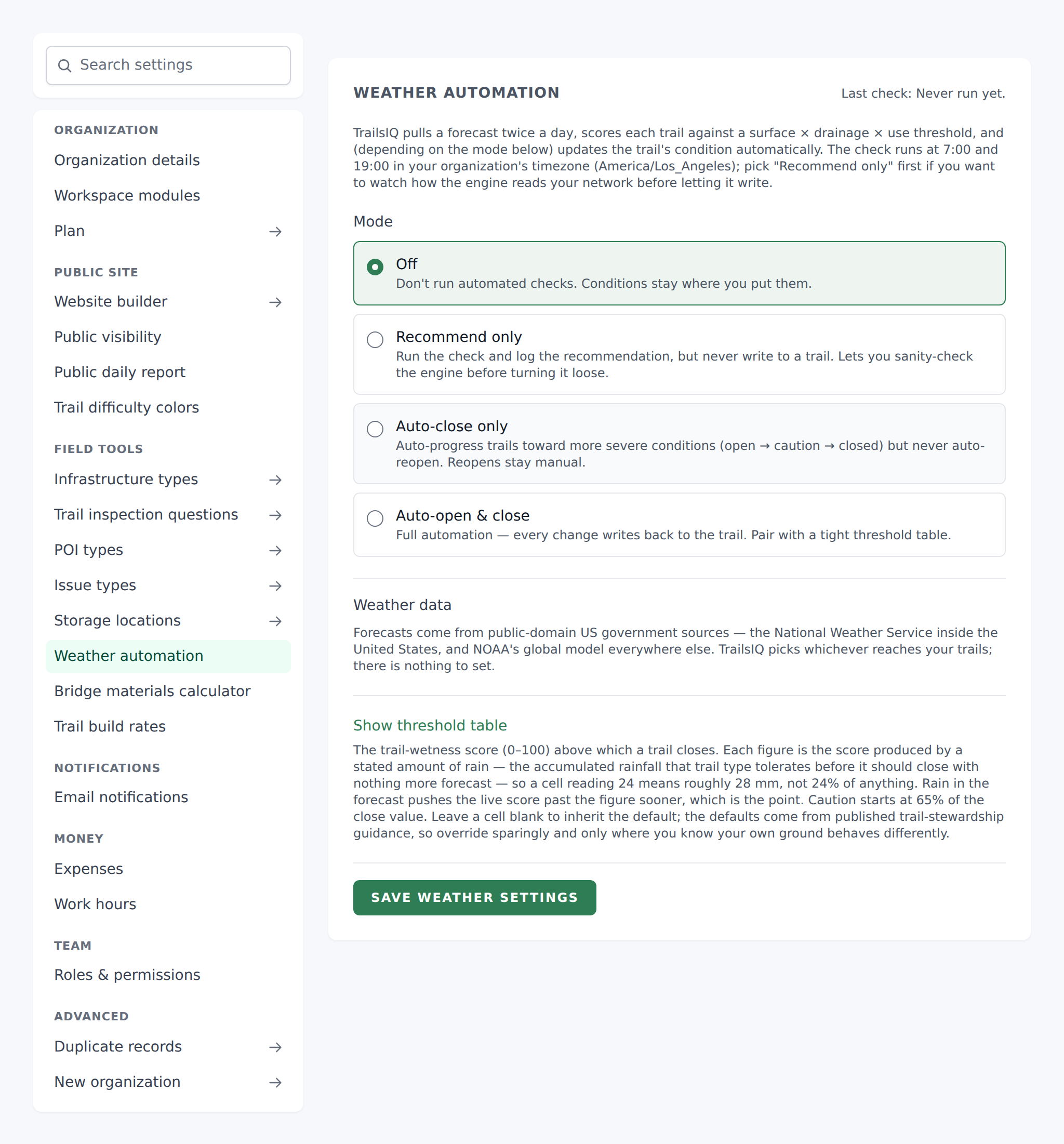
Owner or manager only. Open Settings from the sidebar, then pick Weather automation from the left-hand section rail (grouped under Field tools). The check runs twice a day, at 07:00 and 19:00 in your organization's timezone: it pulls a forecast for each network, scores every trail against a surface × drainage × use threshold, and — depending on the mode below — writes the trail's condition for you.
Three blocks to configure:
- Mode — the four radio cards described above (Off / Recommend only / Auto-close only / Auto open + close).
- Weather data source — which forecast the engine reads.
- Threshold overrides — the per surface × drainage × use cell table. Default thresholds live in code; type a number to override for a specific combination. Leave blank to use the default.
Hit Save weather settings at the bottom. The first check kicks off on the next 07:00 / 19:00 cron tick — see the Timing section below for how to force one earlier.
Which mode to pick
-
New to weather automation? Start on Recommend only for a week or two. The engine will produce its calls, they'll appear on the field-app Trails panel and on the dashboard's Trail Conditions page, and you can compare the engine's take against what you'd have done manually. Nothing gets auto-flipped, so a bad threshold can't accidentally close a dry network.
-
You trust it on wet days, not on dry ones? Move to Auto-close only. The engine will flip trails to Caution or Closed on high-rain days, but reopening is manual — you decide when the network is ready. Great for orgs that have had bad experiences with algorithms declaring things dry that weren't.
-
You want the full loop? Pick Auto open + close. The engine owns the open / caution / closed cycle. Managers can still override any auto-flip and the manual override sticks until the next check produces a different recommendation. Best fit for orgs with well-tuned thresholds and a lot of trails to babysit.
-
Not ready yet? Leave it at Off. The Trails chip on the field-app home still opens the trail-status page (you can flip conditions manually there); the Weather recommendations side panel just doesn't populate.
How it decides a trail is too wet
One measurement, called trail wetness, and it is a reading of the
ground rather than a count of the rain.
TrailsIQ keeps a running picture of how much water the ground is
holding, updated every day from that day's rainfall, snow and
temperature and carried forward across the whole season. Rain falling
on ground that has room for it soaks in; rain falling on ground that
is already full stays on the surface, and surface water is what
wrecks a trail. So the same 40 mm reads very differently depending on
the week before it — which is the way a trail crew has always thought
about it, and the way the score now works.
Two things come out of that picture and both feed the score: how
full the ground is, and how much water had nowhere to go. What
is forecast over the next three days is folded in on top, more
lightly: what is already in the ground outranks what is predicted to
arrive.
A network you have just added has no season behind it yet, so for its
first days it is scored on the rain of the last five days instead,
and moves to the fuller picture once enough weather has come in for
the ground to have filled or dried out. A wetness reading from a trail
inspection counts straight away, whatever the network's age.
Snow and spring melt
Snow is tracked separately, and it matters most in spring.
A snowpack banks water for months, then releases it on a warm day
with no rain in the forecast at all. TrailsIQ follows the pack
through the winter — how much fell, how much has melted off — and
counts the meltwater as water arriving on the trail, because that is
what it is. It also knows that ground under snow does not dry out,
and that frozen ground takes nothing in: a January cold snap reads
quiet, and the first warm week of March reads as wet as it feels.
Rain falling on a snowpack is the worst of it, and reads highest of
all.
That score is compared against a threshold for the trail's surface,
drainage and primary use — a clay trail with poor drainage under
horses closes far sooner than a rock trail under boots. Above the
threshold is closed, above 65% of it is caution, below that is
open.
A recent inspection outranks all of it, for the trail somebody
walked. The score above is an estimate of how wet the ground is;
somebody standing on the trail has looked at it. When a trail carries
a recent wetness reading, the engine starts from what was seen and
applies the real rain and drying since — so a network the forecast
wants closed can recommend leaving one walked trail open, and the
recommendation names the walk. See
Inspecting trails, which also explains why
a reading that says WETTER is trusted for longer than one that says
drier.
Three rules sit on top of the score and fire regardless of it:
- A downpour closes pre-emptively. More than 25 mm forecast in the
next 24 hours closes the trail before it lands. - Heavy rain bumps one step. More than 20 mm forecast takes an
open trail to caution and a caution trail to closed. - Freeze/thaw is its own case. Frozen ground under a warm daytime
high gets caution whatever the rainfall says — that is when tread
damages most, and no amount of rain data can see it. Fully frozen
ground behaves like hardpack and the score is read against that
instead.
There used to be a second signal here, based on a forecast model's
estimate of soil saturation, and a selector to choose between them.
It has been retired: it was tied to a data source we no longer use,
and its numbers could not be read against a different one without a
calibration step per organization. If you had picked it, you are on
trail wetness now.
Data source
There is nothing to pick. TrailsIQ chooses your weather source from the country on your organization, and the Weather automation panel names the one in force so you can see it without working it out.
- NWS — the National Weather Service's own forecast API. US only, about 2.5 km resolution, and the sharpest picture available inside the country. This is what a US organization gets.
- NOAA GFS — the National Weather Service's global model. Worldwide, about 13 km resolution. This is what an organization outside the US gets.
Both are public data from the US government, and neither needs an account or a key. The thresholds stay valid whichever source is in use.
Rain that has already fallen is measured, not predicted
A forecast is the right answer for tomorrow and the wrong one for last Tuesday, and the wetness score cares about both: it remembers five days of rain, and those days have already happened.
For US organizations, the rain in those past days is taken from the National Weather Service's own measurements — the gauge-corrected estimates its River Forecast Centers publish for what actually fell. Only the days still ahead come from the forecast.
Two things worth knowing about it:
- It is US only, and coverage is not uniform even there. Where a measurement is not available for a day, that day keeps the forecast figure it had before, and nothing about the score changes.
- Your recommendations may shift slightly the first time this applies to your networks. A forecast that was a little wet or a little dry for a day now reads as what fell, and a trail sitting near its threshold can move a step in either direction. Nothing about your thresholds or your settings changed.
It used to be two selects, and mixing them was possible: the automation engine could be scored against one source while the daily numbers beside it came from the other. Two sources measuring the same week disagree about how much rain fell, so a recommendation could contradict the rainfall printed under it. Choosing for you is what stops that.
Where recommendations show up
Once the engine has produced a per-network call, it surfaces in two places:
- Field app — the Trails chip on the compact weather bar opens the Trail Status page. In its header a Recs button appears when the engine has recommendations to share, with a count of the networks where the engine and your current status disagree. Each of those networks also carries a line on its own card — Recs suggest Caution · 58% wet — with Apply. Tapping Recs opens the Weather recommendations panel: per-network cards with the call, a one-line reason, and a breakdown you can open — trail wetness, rain over the last 24 hours, today and the next three days, the affected trails by name, and a short forecast — and a Set button where the call differs from what the network is set to. Apply and Set open the usual status sheet with the recommendation already picked, so nothing changes until you press Save, and you can still add a note or save quietly.
- Dashboard — the Trail Conditions page shows the same recommendations inline against each network header, with the engine's call in a colored pill and a "Why:" line.
Which trails the call is about
A network reading Caution is often two trails out of forty rather than all of them. The reason line says how many — "Affects 2 of 39 trails" — and the panel lists those two by name underneath, wettest first, with each one's reading beside it. A network reading Open has no list: every trail agrees with it.
That is the difference between closing a network and closing the two trails that need it.
A few closed trails do not close the network. The engine only closes a whole network once a third or more of its trails are over their closure threshold. Below that it recommends Caution and names the trails to shut instead — "2 of 13 trails are over the closure threshold — close Cedar Loop and Ridge Spur rather than the whole network." Half a network closed still reads as closed; two bad trails out of thirteen do not.
It never reads better than the trails under it, either. A network of cautions is a caution network whatever the closures do — the rule exists to stop one trail shutting the other twelve, not to average the weather away.
If the mode is Off, or if the engine has never run for your organization (new workspace, no data yet), the Recs pill on the field app doesn't appear and the Trails panel is empty. The Trail Status flow still works — you can flip conditions manually — you just don't get the engine's overlay.
Timing — when the check runs
The scheduler fires the weather check twice a day at 07:00 and 19:00 in your organization's timezone (whatever's set in Settings → General → Timezone).
- The 07:00 check is the primary one — it grabs the overnight rain totals and produces the day's recommendation before crews head out.
- The 19:00 check re-scores against the day's actual rainfall and any evening forecast update.
If you turn automation on outside those windows, you won't see recommendations until the next tick.
The forecast on screen has an age, and you can renew it
Trail conditions shows when the forecast it is drawing was fetched — "Fetched 3 hours ago", beside the forecast strip. Worth knowing, because the weather is pulled a couple of times a day and held between pulls, so numbers that look wrong are usually numbers that are old.
Refresh, beside that, pulls a new forecast now. It updates what the page is showing — rainfall, wetness, the day-by-day outlook — and does not change any trail's status. Setting statuses is what the 07:00 and 19:00 runs do; a button that quietly re-graded your trails would be a worse surprise than a stale number.
Two things that follow:
- A threshold change shows straight away. Recommendations are worked out when you open the page, against your current settings — so you do not need to refresh anything to see the effect of a surface, drainage or threshold edit. Refresh is for the weather, not for your settings.
- It's one press. The refresh takes a moment and there is a short cool-off before another; if you press it again too soon the page will say so rather than quietly doing nothing.
Refresh is available to anyone who can change trail conditions.
Last check timestamp is shown in the top-right of the Weather automation settings page ("Last check: 2 hours ago") — useful when troubleshooting whether the engine ran at all.
Common gotchas
- "No weather data" on the field-app home means one of two things. Either weather automation is switched off, or the engine has not run yet on a new workspace. Turn the mode on and wait for the next 07:00 / 19:00 tick.
- Recommendations only appear when a network has trails. An empty network has no threshold to score against — the engine skips it. Add at least one trail and fill in its use, surface and drainage on the trail's own page.
- Missing surface / drainage falls back to loam / poor. The engine still runs, but the recommendation may be pessimistic. Fill the fields on your busy trails first.
- Auto-flip modes respect manual overrides — but only until the next opposite recommendation. If a manager manually opens a trail after the engine closed it, and the engine's next check also wants it closed, the manual open is preserved. If the next check wants it open, the manual override is dropped in favor of the engine's call. This is deliberate — the human's decision is honored while the situation is unchanged, but the engine wins when reality catches up to the human.
- Threshold overrides are per surface × drainage × use combination. Leaving a cell blank means "use the built-in default." Setting a value there overrides that one combination without touching the others.
- You do not choose a weather source, and there is nothing to set. TrailsIQ uses the US National Weather Service inside the United States and NOAA's global model everywhere else — both public data, and the country decides. There used to be a picker; it is gone, because the two halves of the score could end up on different sources and disagree with each other. The wetness thresholds are valid whichever is in use.
- The recommendation is per-network, not per-trail. Trails within a network share the network's forecast; per-trail differences come from each trail's own surface / drainage profile against that forecast.
What's next
- If your trails are missing surface / drainage / primary-use, read the How to create a trail article — the fields are on the Edit page.
- Once recommendations are flowing, the How to use the field app article covers where they show up in-field.
- Managers can subscribe to the Weather-driven condition change email so they get notified when the engine flips a trail — see the Email preferences article.