Trails
Jump calculator: sizing jumps, berms and rock gardens on a planned trail
Pick a spot on a planned trail and a type of jump. See how fast riders arrive, where they land and how hard it feels, whether the spot suits a jump, and the lip height, lip angle, gap and landing that suit it. Pick a turn and get the bank angle and height for a berm, or plan a rock garden and the rock to bring.
The jump calculator helps you size a jump for a spot on a planned trail. Pick where the jump goes and what kind it is, and it works out how fast riders arrive, where they land, how hard that landing feels, and whether the spot suits a jump at all. It also suggests a lip height, lip angle, gap and landing angle that suit the speed riders carry at that spot. It sizes berms and rock gardens too: see Berms and Rock gardens below.
On the dashboard, it is in a planned trail's Structures tab, under the map and elevation profile. The field app has the same Structures tab on a planned trail. Every jump, berm and rock garden you save is a planned structure of the Trail Feature type, listed with the trail's other structures and published with them. Saved jumps are also marked on the dashboard's elevation profile, so you can see where each one sits on the climb.
The sizing works with no signal, so you can stand at the spot and size a jump on the phone. If you save with no signal, the field app keeps the jump on the phone and uploads it when you are back on signal. It shows in the pending uploads list until then.
Adding a jump
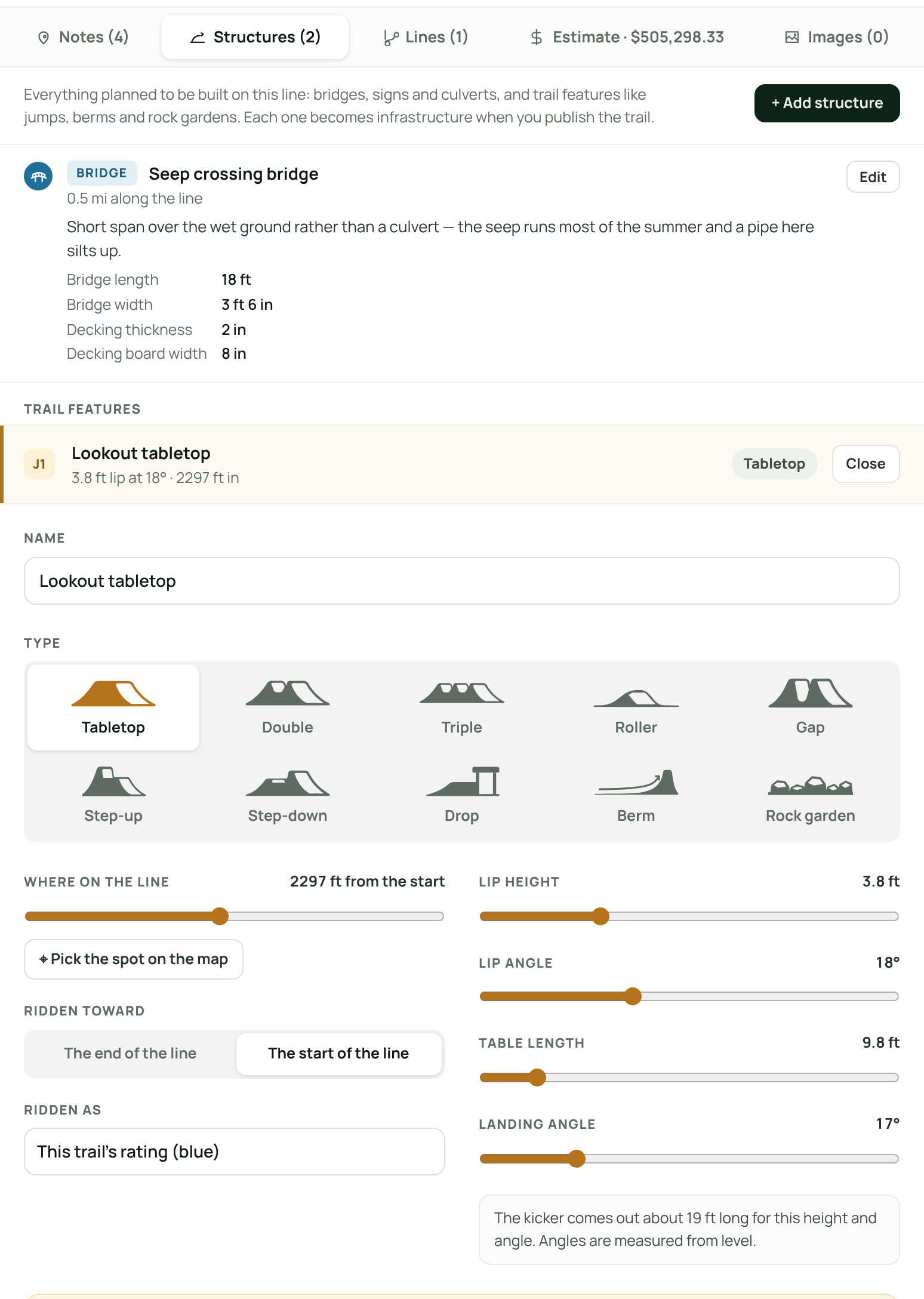
On the dashboard, press Add structure and choose Trail Feature. Then press Pick the spot on the map and click the trail where the lip will be. The field app works the same way: Add structure, then Trail Feature, folds the panel down so you can see the map, and you tap the trail. You can also drag the Where on the line slider. The jump shows on the map as a numbered dot.
Then set:
- Ridden toward. Which way riders go through the jump. It starts on the downhill direction.
- Ridden as. The trail's rating sets how fast riders are willing to go. It starts on the rating the planner worked out for this trail, and you can change it for a jump line that is rated differently.
- Type. Tabletop, double, triple, roller, gap, step-up, step-down or drop. Each button shows the shape from the side. Doubles, triples and rollers are covered in Rollers, doubles and triples below, and drops in Drops.
- Lip height and lip angle. Both are measured from level. The calculator tells you how long the kicker comes out for that height and angle.
- Table length or gap, and landing angle. For a step-up or step-down, also how much higher or lower the landing is than the lip. A step-down is a step-up turned around: a built landing whose top sits below the lip. Its landing always keeps at least 1 ft (0.3 m on metric) above the trail. If you ask for a bigger drop than the ground allows, the calculator holds the landing there and says so.
Press Save feature to keep it. Saved jumps are listed at the top of the tab, numbered J1, J2 and so on, with the lip and how far along the line each one is. The tag on the right names the type of jump. Click a jump to open it, and click its row again to close it. How hard the landing feels is in the open jump.
Suggested for this spot
As soon as you pick a spot and a type, the calculator suggests a lip height, a lip angle, a table or gap length and a landing angle for it. For a step-up or step-down it also suggests how much higher or lower the landing should be. It tries shapes until it finds the one that lands the most riders softly at the speed this spot gives them, leaning toward sizes that suit the trail's rating. Press Use these to copy the suggestion into the jump, and adjust from there.
The suggestion changes when you move the jump, change its type or direction, or change the rating, because those change the speed riders bring to it. Moving a size slider does not change it, so it always shows what suits the spot.
Fitted to your changes
Once you move a size slider yourself, a second box appears under the suggestion. It keeps every size you set by hand and works out the others to suit them. Set a steeper lip angle, for example, and it shows the lip height, table length and landing angle that go with that angle. Each number says what you have now, and the box says how a typical rider lands with the new sizes. Press Use these to copy them in. Your own settings stay as they are.

Build dimensions
Build dimensions draws the jump from the side at true scale, the way you would sketch it for whoever builds it. The tan shape is the dirt you add, and the dashed line is the trail as it is now. The drawing is labeled with the lip height, the lip angle, the kicker length and the table or gap.
Under the drawing are the numbers to take to the spot:
- Lip height above the trail, and lip angle from level.
- Kicker length, from the start of the ramp to the lip.
- Transition radius, the curve of the ramp. A tighter curve kicks riders up harder. Straight means the ramp has no curve.
- Table length or gap, and the landing angle and slope length. A drop with no built landing shows how far it is to the ground instead.
- Footprint, from the start of the ramp to the end of the landing.
- Dirt, a rough volume for a jump 4 ft wide (1.2 m on metric). Use it to plan how many loads to bring, not as an exact figure.
Build it
A radius is hard to hold with a tape, but a height at a mark is easy. Build it turns the drawing into two tables you can take to the spot, one for the kicker and one for the landing. The section starts closed. Tap Build it to open it.
- Kicker lists distances from where the ramp starts, ending at the lip. The kicker's radius and lip angle are shown above the table. The Angle column is what a straight board about 2 feet (60 cm) long reads when it is laid on the finished kicker at that mark.
- Landing lists distances from the top of the landing down to where it meets the trail. A drop with no built landing has no landing table.
Lay a tape along the trail from the start of each part and mark the distances. At each mark, shape the dirt to the height in the table, measured straight up from the trail as it is now. The marks are every 1 ft on a small jump (25 cm on metric) and spread out on bigger ones.
To make a template for the kicker, tie a string as long as the radius to a stake, swing it in an arc across a sheet of plywood and cut along the line.
Measure the angles with your phone
On a phone, each table has a button that turns the phone into an angle finder: Measure the lip and Measure the landing. Lay a straight board along the trail across the part, then lay the phone flat on the board with the screen up. The screen shows the board's angle from level and how far it is from the plan, in green when it is within a degree.
- Your phone may ask permission to use its motion sensor the first time. Press Start measuring and allow it.
- A phone case can tilt the reading. Lay the phone on something level and press Zero on level once. The phone remembers the zero.
- Hold this reading freezes the number, so you can pick the phone up and read it.
On a curved kicker, a board laid with its end on the lip sits along the curve just below the edge, so it reads a few degrees less than the lip itself. Measure the lip checks against what the board should read and says so on the screen.
Check the radius you built
A phone cannot measure a curve directly, but it can tell you what radius you built. On a curved kicker the angle grows steadily from the start of the ramp to the lip. A tighter curve gains angle faster and a looser one gains it more slowly.
Press Check the curve under the kicker's table and work along your tape marks:
- Center the board on the mark. At the start and at the lip, put the end of the board on the mark instead, so the board stays on the ramp.
- Lay the phone flat on the board and press Save this mark. The meter moves on to the next mark.
- After three marks or more, the meter works out the radius from your readings and compares it to the plan.
Each mark's button turns green, amber or red to show how close its reading is to the plan, and the kicker's table gains a Yours column with your readings. A tighter curve than planned throws riders harder and more upright. A looser one throws them flatter and softer. Rework the marks that are furthest off, then check them again.
The phone cannot tell uphill from downhill. The first marks on a kicker that starts on a downhill trail can slope down, and their readings are matched to the plan's direction. Marks planned within 2° of level are left out of the radius.
How it works out speed
The calculator rolls three riders down the trail's own elevation to the jump: a cautious rider, a typical rider and a fast rider. Downhill speeds them up. Rolling on dirt, the air and climbs slow them down, and they pedal a little on the flat. Each rider also brakes:
- for the trail's rating, because riders on a green trail let the bike run slower than riders on a black one, and
- for bends, because nobody arrives at a tight turn at full speed.
The kicker itself costs speed too, because riders climb its height before they leave the lip.
Speed in and out
The Speed in and out box draws the whole thing in one picture: the run-in, the jump, the landing and the trail after it, with the speed a rider carries along it. It marks the speed at the start of the run-in, halfway, at the foot of the kicker and at the lip, then where the rider touches down, at the end of the landing and further on. Under the drawing it says how steep the run-in and the run-out are and what each does to the rider's speed.
The table under the drawing gives the same speeds for all three riders. Tap a rider to show their speeds on the drawing. Heights in the drawing are stretched so the slope is easy to see, and the box says by how much. Run-out speeds assume the rider neither pedals nor brakes after landing.
Reading the side view
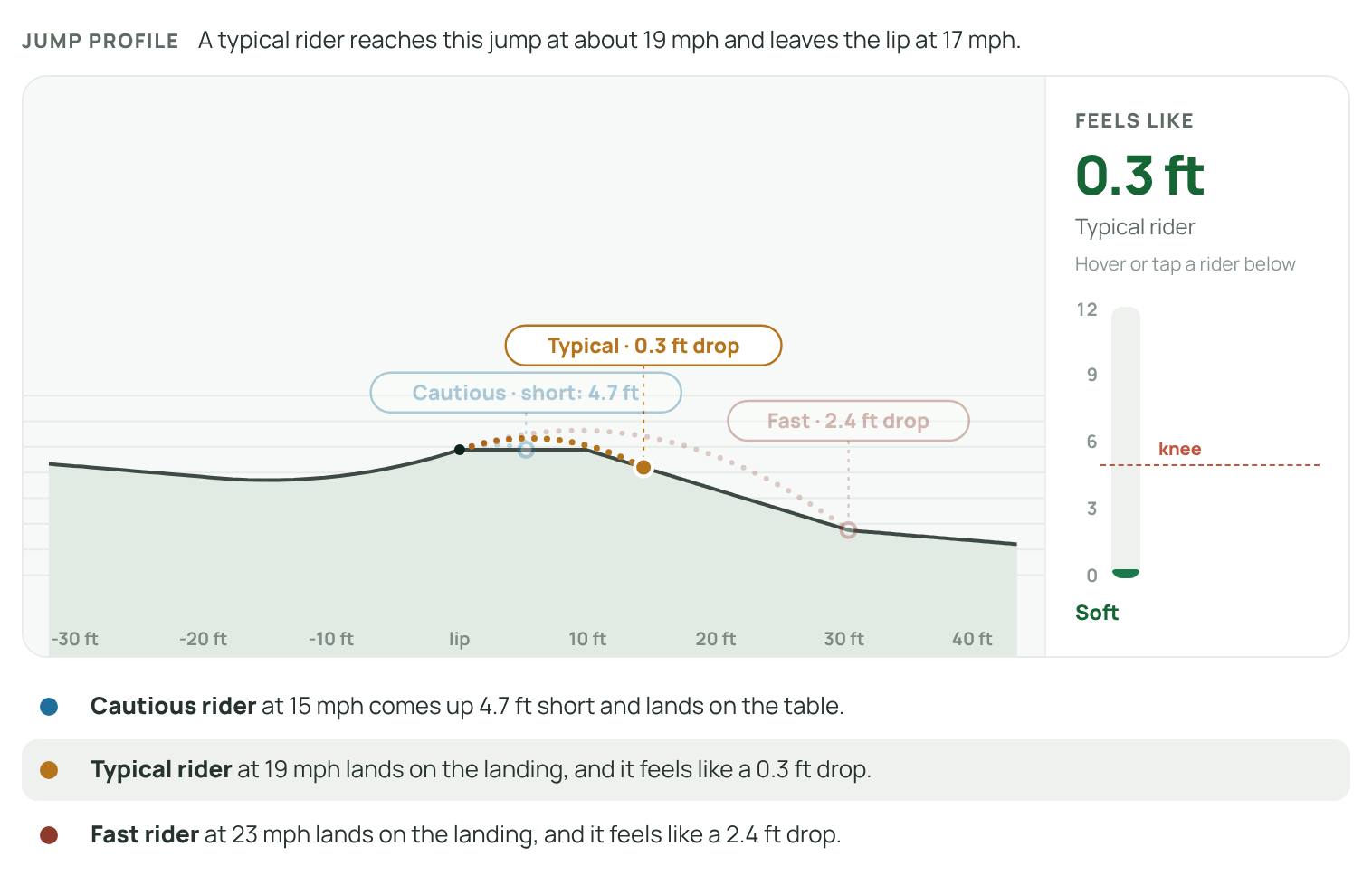
The Jump profile shows the jump at true scale: the trail's ground, the kicker, the table or gap, and the landing. Each rider's path through the air is a dotted line in their own color: blue for the cautious rider, amber for the typical rider and red for the fast rider. A label points to where each one lands:
- short means they come up short and land on the table, and by how much.
- lands in the gap or hits the landing means they come up short on a gap.
- drop, as in Typical · 1.6 ft drop, is how hard the landing feels. It is the height of a drop to flat ground that lands just as hard, not a distance.
- flat means they overshoot the landing onto the flat.
The Feels like meter beside it turns the landing into the height you would have to drop to flat ground to land that hard, and calls it soft, firm or harsh. A rider who lands on a landing that matches their path feels very little. A rider who overshoots onto the flat feels nearly the whole fall. The dashed line marked knee is about 5 ft, where most riders' knees start to object. Hover over or tap a rider in the list under the profile to see their reading on the meter.
Is this the right spot?
Under the profile, the calculator lists anything about the spot worth knowing, worst first. Each item is tagged Problem, Check or Good. It checks for:
- a turn before the lip. Riders need about a second of straight trail before the kicker, or they reach the lip still turning.
- a turn after the landing. Riders need room to settle after they land, and more of it the faster they land.
- a bend through the jump itself. Riders fly straight, so the jump needs a straight piece of trail.
- a climb into the lip or after the landing.
- speed that does not match the jump. It tells you when a typical rider arrives too slow to clear it or fast enough to overshoot it.
- a cautious rider who does not clear a gap. A tabletop catches them instead.
- a jump that is big for the trail's rating, and gaps on green trails.
How speed changes the landing
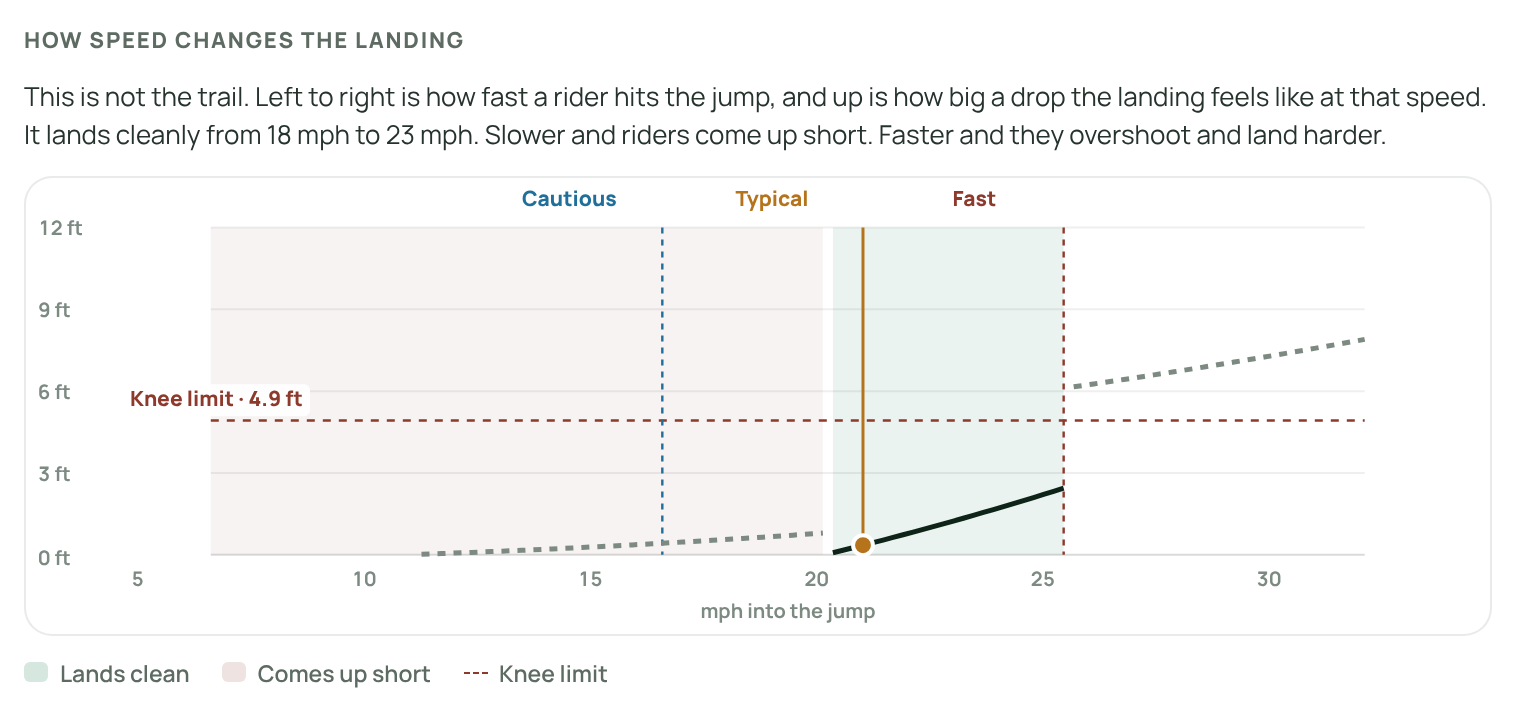
The How speed changes the landing chart shows how hard the landing feels at every speed into the jump. It is not a picture of the trail. Left to right is the speed a rider hits the lip at, and the line is how big a drop the landing feels like at that speed, so it climbs because faster riders land harder. The three colored lines mark how fast each rider arrives at this spot. The shaded band is the speed window where riders land cleanly. Slower than that and they come up short, and faster than that they overshoot and land harder. The three riders are marked on it, so you can see how much room each one has. Hover over the chart to read any speed.
Same jump, just faster shows the jump twice, at the typical rider's speed and 10 mph faster (15 km/h on metric). Each card says how the landing feels and how far past the lip the rider lands. Use the − and + buttons to change the difference. A few miles per hour is often the difference between a soft landing and a hard one.
Ride it in 3D
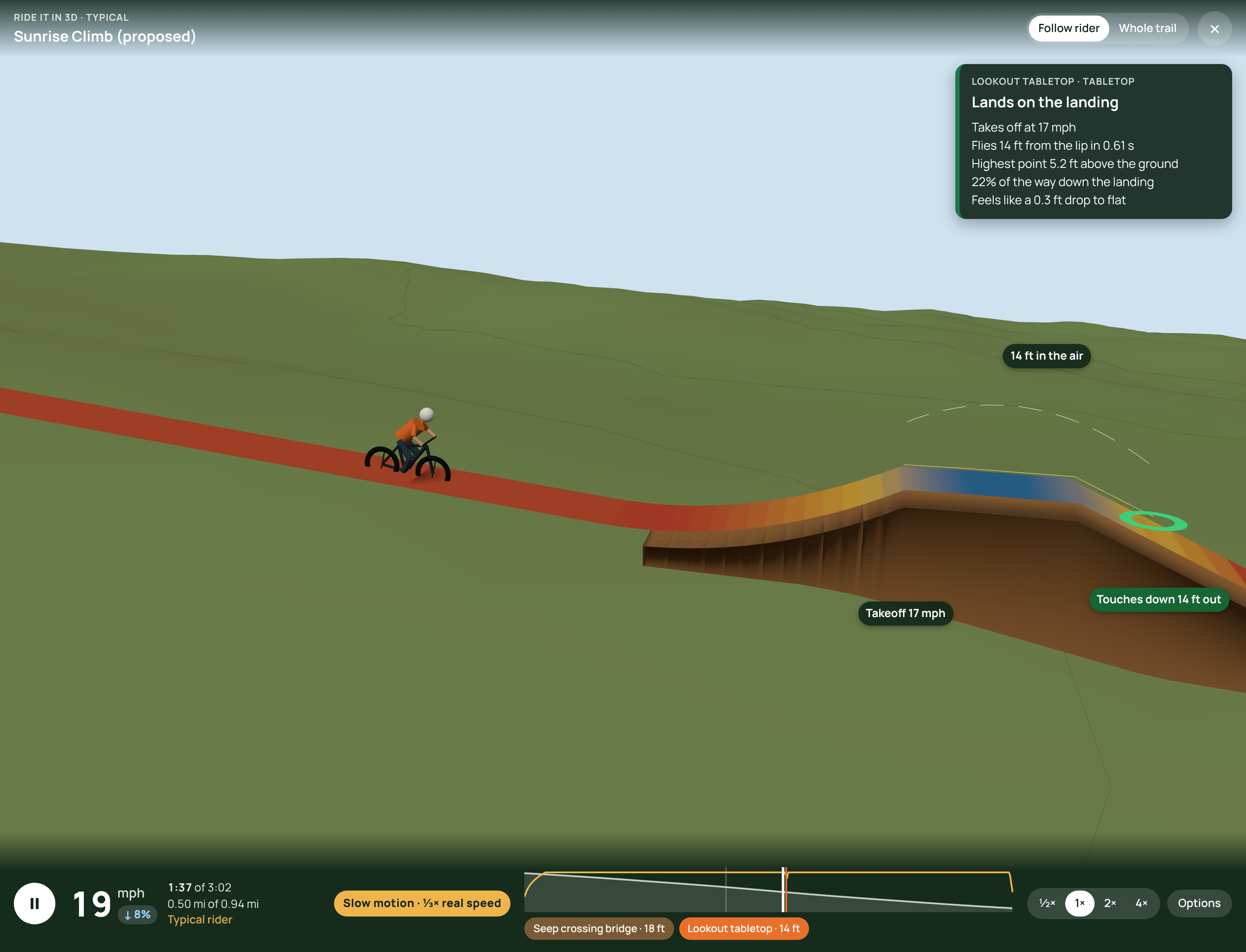
Press Ride it in 3D in the 3D box, in the column beside the map, to watch a rider go down the planned line. In the field app, the button is in the 3D card on the planned trail's page, under the elevation chart and the sustainability score. A published trail has the same two buttons, at the top of the trail's page and in the field app under 3D on the trail's panel. They build the trail features and bridges saved on that trail. The 3D views need a connection to load the trail and the ground under it. The trail is drawn on the real ground from the side, so you can see how steep it is and where it rolls. The rider moves at the same speed the calculator works out for the line: they pick up speed on the steep parts, brake before tight turns and lean into them. The jumps, berms and rock gardens you saved are built on the trail.
At each jump the view slows down and moves beside it. You see the takeoff speed, the rider's path through the air, how far they fly and where they touch down, with the same result the calculator gives for that rider. The card in the corner adds the airtime, the highest point above the ground and how hard the landing feels.
Berms are built to the same shape the Berm panel draws, with the bank easing in and out through the turn. The rider rides up the face and carries the speed the panel works out, instead of braking for the turn. If the bank is too flat for that speed, the rider brakes to the fastest speed the bank holds, and the ride says so. The view slows down for a berm too and looks at it from the inside of the turn, and the card shows the bank, the speed through the turn, the speed a flat turn would allow and the range of speeds the bank holds.
A roller is rolled, never jumped, so the rider follows it over the top. Doubles and triples work the same way as in the calculator: a rider who rolls through the dips there rolls through them here, and only a rider fast enough to leave the lip flies it. The card shows the speed over the top, the range of speeds that roll it cleanly, and where the wheels would leave the ground if the rider is going too fast for it.
A rock garden is laid out rock by rock, in the same places the calculator plans them. The rock slows riders down, by the same amount the calculator shows, so a rider comes out of a garden slower than they went in.
A bridge on the trail is built across the gap board by board, from its materials list. The ride runs the same bridge calculator that opens from the bridge, with your organization's lumber and spacing, so the decking boards, the gaps between them, the stringers under the deck and the footings at each end are the size and number the list asks you to buy. The bridge sits where its pin is, runs along the trail for its full length, and its deck goes straight from the trail at one end to the trail at the other. The ground under it is kept clear of the beams, so you see the creek or the dip it crosses. The rider rides across the deck, and the ride says Crossing with the bridge's name while they do.
The ride builds a bridge you planned on this line, and a bridge already built on the trail this line was published to or brought in from. A bridge needs its length, width, decking thickness and decking board width filled in, because those are what its materials list is worked out from; the ride names any bridge it leaves out for missing them. A jump, berm or rock garden saved on top of a bridge is left out and named too.
The controls sit in one bar along the bottom, so the trail gets the rest of the screen. It shows the play button, the speed, how steep the trail is under the rider (an up or down arrow and a percentage, measured over 25 meters the way the trail's own grade figures are), the time and distance, the profile of the line and a button for each feature. It stays in place while the ride plays, so the speed is always on screen.
- Follow rider at the top keeps the camera beside the rider. Whole trail shows the full line, and you can drag to turn it.
- The speed button sets how fast the ride plays: half speed, real speed, twice or four times as fast. On a phone, tap it to step through them. While the ride plays slower than real life, a Slow motion badge says how much slower.
- Tap the profile to jump to any point, or tap a feature's name to watch it again.
The rest is under Options:
- Cautious, Typical and Fast switch the rider, the same three riders the calculator uses.
- On a two-way line, the swap button rides it the other way.
- True height, 1.5× and 2× set how much the heights are stretched. The ride opens at 1.5× so slopes are easier to read. The numbers on the screen are always the real ones.
- Slow down at jumps and berms turns the slow motion on or off.
- Color the trail by speed paints the trail blue where the rider is slowest and red where they are fastest.
- From the top starts the ride again.
A jump or berm is only built in the direction it was saved for. When the ride leaves something out, a dot shows on Options, and the sheet names what was left out and why. If the line's own elevations do not match the terrain around it, the ground is shaped from the line instead, and Options says so.
The build drawing
Press Build drawing beside Ride it in 3D to see the whole trail as a line drawing on the same ground, with the contour lines of the hillside behind it. There is no rider. The view is yours to move: drag to turn it, pinch or scroll to zoom, and drag with two fingers (or the right mouse button) to move along the trail.
- The tread is drawn with both edges, a line across it every meter and its center line. Every tenth cross line is heavier, so you can count distance along the trail.
- Each berm is drawn to the same cross-section the Berm panel shows, every half meter through the turn. Lines run along the berm wherever its shape changes: where the dirt starts, where the rounded foot meets the straight face, the top edge and the back of the berm. White lines across it mark where the bank starts, where it reaches its full angle, where it leaves it and where it ends. Those are the places to set out stakes.
- Each jump is drawn with its top edges, its sides and a line across it every half meter, with brighter lines at the toe, the lip and the ends of the landing.
- Each rock garden is outlined on the tread with a white line where it starts and ends, and every rock is drawn where the calculator places it, at its real size and height.
- Each bridge is drawn piece by piece: every decking board, every stringer and the footing at each end, at the sizes and spacing its materials list gives. The tread stops at each end of the bridge, because the deck is the trail across it.
- Wireframe and Solid switch how it is drawn. Wireframe is the line drawing described here. Solid draws the trail, its features and the ground as solid shapes, the way the ride does. The drawing opens in Solid until you pick Wireframe, and the app remembers your choice on that device.
- In Solid, Speed colors colors the trail by riding speed. It starts off, so the trail is drawn as plain dirt.
- Light, Dark and Satellite set what the drawing sits on: the light sky, a dark background with dark ground, or aerial photos laid on the ground. Satellite is on the Core plan and above, in the United States only, and the photos cover the ground near your trails. Where there are none yet, the ground is drawn plain and the drawing says so.
- The features are listed under the drawing in the order you reach them along the trail. Each berm's chip gives its bank angle, and its label on the drawing gives its name.
- Tap a feature's name to fly to it, and Whole trail to go back out. True height, 1.5× and 2× stretch the heights the same way they do in the ride.
Like the ride, the drawing shows the features saved for one direction at a time, and the swap button shows the other.
Rollers, doubles and triples
These three are built to be rolled as well as jumped, so slower riders can ride them without leaving the ground.
- Roller. A smooth hump with no lip. Riders roll up and over it and pick up speed on the way down. Set its Height and its Length, base to base. A longer roller is rounder over the top, so faster riders stay on the ground.
- Double. A tabletop whose table dips down between the lip and the landing. Fast riders jump the whole length, as they would a tabletop. Slower riders roll down into the dip and up over the landing.
- Triple. A double with a small roller in the middle of the table, so the table has two dips with a hump between them. The hump comes back up to the height of the lip.
For a double or a triple, Lip to landing is the length of the table, and Dip depth is how far the dips sit below the lip. The dip depth follows the lip height until you set it yourself. Follow the lip height puts it back.
The last hump of a double or a triple rolls over into the landing in a rounded edge, about 60 centimeters either side of the top of the landing, the way you would shape it with a shovel. Past that the landing is the straight ramp at the angle you set. The drawing, the build tables and the 3D views all show the same rounded shape, so the heights you measure match what you see.
Rolled or jumped
For these three, the calculator rolls each rider over the shape as well as flying them off the lip. A rider rolls cleanly when they are fast enough to get over each hump and slow enough that the lip or the top of a hump does not throw them into the air. The panel gives the range of speeds that roll it and, for a double or a triple, the range that clears it when jumped.
Between those two ranges there is usually a band of speeds that is too fast to roll and too slow to clear. A rider in that band is thrown off the lip and lands in the dip. Is this the right spot? warns you when the typical rider arrives in that band. Moving the jump, or changing the dip depth or the table length, moves the band.
For a roller, the suggestion is the shortest roller a typical rider can roll at the speed this spot gives them. A faster rider may get light over the top, and the calculator says so. That is part of the fun of a roller.
The build sheet tables the heights of the whole shape, including the dips and the way down a roller, so you can mark it out with a tape from the start of the kicker.
Drops
A drop has no kicker. Riders roll along a level runway to a straight edge and drop straight down, so there is no lip angle and no curve to build. The calculator draws about 8 ft (2.4 m) of level runway before the edge, and a ramp up to it at 18° where the trail is lower than the edge. Set the Drop height, which is how far the edge stands above the trail.
Drop off says what the edge is made of:
- A natural rock is a ledge or a boulder that riders roll off.
- A wooden deck is a built deck on posts with X bracing under it.
The two ride the same way. The setting changes the side view under Build dimensions and the 3D ride, so the drawing you hand a builder shows the rock or the deck you plan to use.
Building up the landing
Off a drop onto flat ground, every rider feels the whole height. When the ground below is too flat for a smooth landing, Is this the right spot? says so, and the suggestion builds the landing up instead of making the drop smaller. A drop of about 3 ft or less lands on the ground as it is.
Choose Build a landing to add one yourself. Then set how far out from the edge the landing starts, how far below the edge its top sits, and its angle. The landing is drawn in tan as dirt to build, and Build it tables its heights like any other landing. Choose The ground as it is to take it away again.
Berms
A berm is a banked turn. Choose Berm as the type and pick a spot anywhere in a turn. You do not need to find the apex. The calculator reads the line on both sides of your spot and finds the whole turn: where it starts, where it ends, how far it turns and its radius. The turn is drawn on the map as a dark band, and the numbered dot stays where you picked.
If the turn it found is not the one you mean, move Turn starts and Turn ends. Use the turn the line shows puts them back. An S-bend is two turns, so it takes two berms, one for each way the trail bends.
The bank and the height
The calculator rolls the same three riders through the turn. On a flat turn riders brake for the corner. A berm lets them keep their speed, so the berm is sized for the speed they carry with it. Each rider gets the bank angle that holds them through the turn without needing any sideways grip from the tires. Faster riders and tighter turns want a steeper bank.
- Bank angle starts on the typical rider's angle. Tires grip, so a bank holds a range of speeds rather than one. The green band shows that range for the bank you set, with a dot for each rider. A rider who is too fast for the bank slides up the face, and one who is too slow slides down it.
- Berm height is the outside edge of the berm above the trail as it is now. Face width is the length of the banked face from the tread up to the top. Round off the foot where the trail meets the face, so a wheel rolls up onto the bank instead of hitting a corner. The cross-section shows how big a radius to give it. The bank angle is for the straight part of the face above it.
- Turn radius comes from the line. On a line drawn with a few clicks, a turn can be one sharp corner, so the radius is a guess, and the calculator says so. Pace out the turn you will build and set the radius yourself.
The calculator warns you when a turn is too tight to ride well at speed, when riders arrive too fast for any berm you would build, and when a turn is gentle enough that it barely needs one.
Build the berm
Like a jump, a berm has a Build it table that stays closed until you open it. Lay a tape along the middle of the trail from where the bank starts. At each mark the table gives the bank angle and the height of the outside edge. The bank builds up into the turn, holds through the tightest part and eases off on the way out.
On a phone, Measure the bank turns the phone into an angle finder. Lay a straight board about 2 feet (60 cm) long across the straight part of the face, above the rounded foot, and lay the phone on it. Check along the berm walks you through the marks one at a time and tells you which ones are off.
Rock gardens
A rock garden is a stretch of trail set with rock. Choose Rock garden as the type and pick the spot where it should start. It runs from there in the direction riders go, for the Length you set. The stretch is drawn on the map as a dark band.
The rock size and the width
- Tallest rock above the trail starts on what the trail's rating allows. A green trail keeps rocks to about 2 inches (5 cm), a blue trail to about 8 inches (20 cm) and a black trail to about 15 inches (38 cm). These follow the IMBA Trail Difficulty Rating System. The calculator tells you when a rock is taller than the rating allows, and when it is so small that riders will hardly notice it.
- Width starts wider on easier trails, so riders have room to pick a line.
- Rock size across starts on a size that suits the rock height: a little wider than the rock is deep. Set it to the rock you can actually get. Bigger rock covers the same share of the tread with fewer rocks, and the label shows how many that is. A rock is never narrower than it stands out of the trail, because a rock like that is a post and levers itself loose.
- How much rock sets how much of the tread is covered. Scattered is a rock here and there, set is about half the tread, and packed is rock nearly edge to edge.
The calculator also reads the stretch itself. It warns you when the stretch is too steep to ride down through rock, when riders come in fast and have to brake hard for it, when it sits in a tight turn, and when it is on a climb steep enough that riders will stall in it. Rock is also good armor on a steep trail, and the calculator says so when the grade calls for it.
How riders slow down
Riders slow down in a rock garden, and how much depends on the rock. Taller rock slows them more, and so does rock set close together: scattered rock leaves clear lines between, packed rock leaves none. Riders on a harder trail take the same rock faster than riders on an easier one. Riders through it shows, for each rider, the speed they come in at, the speed they slow to in the rock and the speed they leave at. Riders brake before the first rock, and nobody is slowed below walking pace by the rock alone.
Riders carry that lower speed out of the garden, so a jump or berm after it is sized for slower riders. The 3D ride slows through the rock the same way. A rock garden on a climb also takes momentum out of riders, and the calculator warns you when they are likely to stall in it.
Rock to bring
The calculator works out how many rocks the stretch needs, how big each one is and how much they weigh together. The side view draws every one of them at its size, so the picture shows the same number the count does. Rocks farther across the trail are drawn lighter, behind the near ones. Each rock is set at least half into the ground, so it is about twice as deep as it stands out of the trail. Rock that sits on top of the ground rolls out the first time somebody rides it. Open Build it for the steps: turn water off the trail first, work from the bottom up, and set the first and last rocks lower than the rest.
The count and the weight are estimates to plan a haul with. Real rock comes in every shape, so pick each one on site to suit the line riders will take.
Common gotchas
- These are estimates. They come from the trail's elevation, its rating and typical riders. Real riders differ, and so do surfaces and berms. Ride the spot or watch a few riders through it before you build, and shape the landing to what you see.
- The elevation comes from the planned line. A small kicker is smaller than the detail in terrain data, so the ground under the jump is a smooth version of the real ground. Look at the spot before you rely on the numbers.
- A jump keeps its distance from the start of the line. If you redraw the line, open the jump again and check that it is still where you want it.
- Hips are not modeled. The calculator works along the line of the trail.
- Pumping is not modeled. A rider who pumps a roller or a dip carries more speed out of it than the calculator shows. The rolling speeds assume no pumping, no pedaling and no braking.
- A berm before a jump does not speed up the jump's riders. Riders are slowed for every bend on a jump's run-in as if the bend were flat. A jump just after a well-built berm can see faster riders than it shows.